Skip navigation

This machine is a little newer then the machines I usually write about but its actually garnered somewhat of a reputation as being a very easy to work with and reliable PC for both work and gaming. I’m talking about the Pentium III based Compaq Deskpro EN. This machine came in a few forms such as tower, desktop and the small form factor as well as sported a few factory CPU and video option configurations. The one I’m going over here is the small form factor since in my opinion its the most interesting and also happens to be the one I own. As I mentioned this little machine has built somewhat of a reputation as a small space saving and reliable machine being easy to access as well as having few problems running over extended periods. In many ways I think this model barrows a lot of things from the Apple Macintosh designs of the late 90’s but in a PC they really work well. So lets take a look at the one I have here and see what can be done with it.

dpen1

The unit as you can see it quite small. Its primarily situated to act as a desktop form factor machine but there’s really no reason it cannot be turned on its side and act as a mini tower. I find the aesthetic to be pretty nice. On the left where we have the Compaq marking we also have a little vent area for air to circulate/escape. A nice large power button with power and HDD LED’s, one on each side. Also on the front we have an easily accessible headphone and microphone jack which is really nice if your using the onboard sound. I’ll get into more about the sound in a minute. This machine was built late 90’s early 2000’s period so as the sticker states it was designed for the Windows 2000 and Win 98 OS’s but you can easily run Windows 95 if you wanted. DOS isn’t really recommended since in my opinion it is a bit to fast. Also the lack of any ISA card support really hurts for DOS sound compatibility. XP will also run pretty happily on this machine. Being a small case there isn’t much room for drives but for a basic reliable Win 98 or XP rig a CD/DVD drive and a 1.44 floppy drive as came in the original configuration should more then suffice. The CD drive I’m using was added later as the original CD drive had died.
dpen2

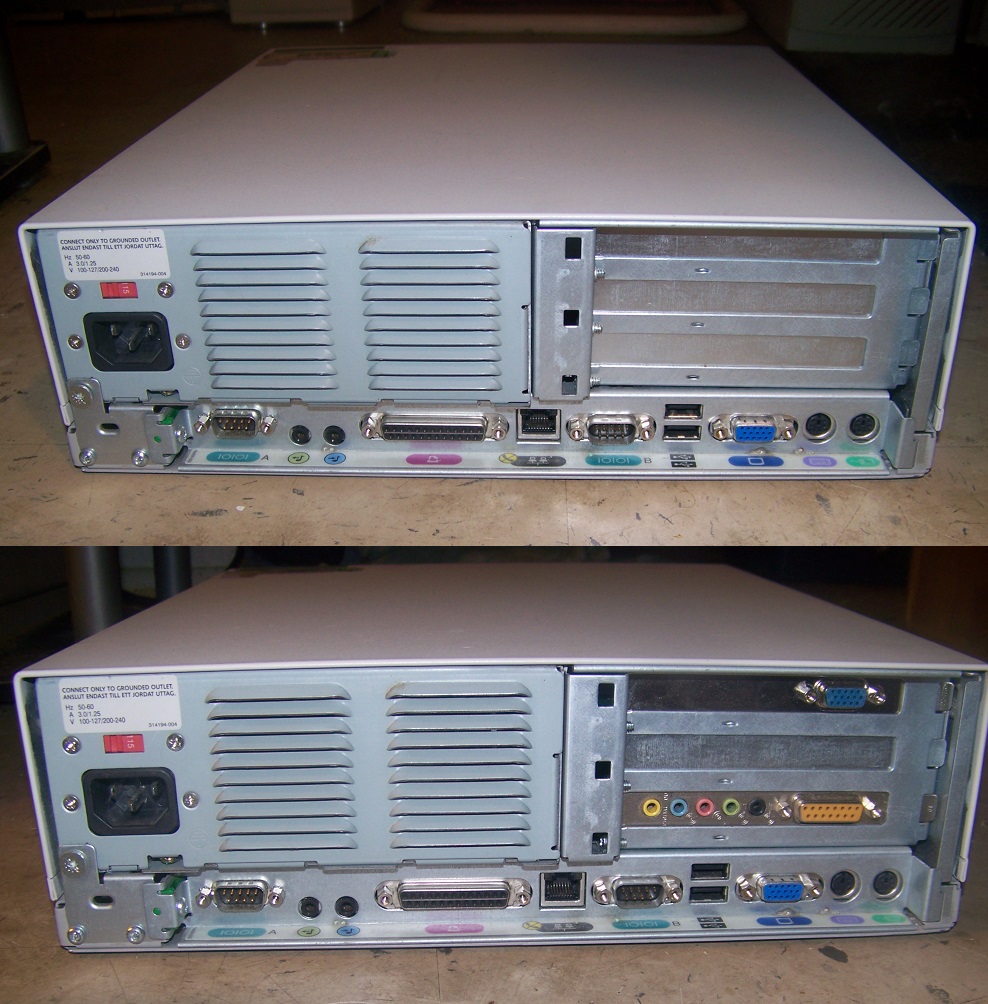
Here I have 2 images of the rear of the machine. The one on top is the stock look and below that is after I added a separate video and sound card but I’ll go over the cards after I talk more about the machine.  There’s quite a few useful ports built into this little machine. From left to right we have a serial port followed by a 1/8 audio out and an audio in port for the onboard sound. Next to that is a printer parallel port, a Ethernet port and then another serial port. Two USB 1.1 ports, a VGA port for the onboard video and finally two PS/2 ports for a keyboard and mouse. There’s a good variety of legacy ports and its nice there’s so much built into this machine. I like that they actually fit two serial ports in there even though realistically they probably will not see much use. It actually makes a nice light (weighs about 20lbs) sort of mobile LAN party PC if you just want a moderately powerful PC to take over to a friends and do some late 90’s early 2000’s FPS death matches or something. The big thing the machine lacks built in is a gameport for an older style gamepad though this is easily remedied by adding most any PCI sound card (which I recommend doing anyways) or just using a USB gamepad.

Now I’m going to touch on a few things that make this machine a little “Mac-like”. First off If you haven’t noticed this machine is very compact and most all the essentials are built in. Beyond that you may notice the lack of any screws on the front or back to gain access to the inside of the PC. This is because like a lot of 90’s Macs this machine is tool-less and uses plastic tabs on the sides. Your required to press in and then pull the cover forward and up to remove. Unlike 90’s macs these tabs actually feel very solid and well built. I don’t know if its just build quality or that this machine has a few less years on it but the plastic tab system doesn’t feel nearly as brittle or flimsy as most of the older Macs I’ve worked with and I don’t have the sensation that some tab or piece is going to snap off every time I open this machine. Possibly this is due to the fact the design still uses a good deal of metal which does add weight but creates MUCH better durability. I should also point out that in operation this PC is deathly quiet.

dpen2x

Here you can see the tab, one of which is on both sides of the case. The right side also sports a built in speaker, another “Mac-like” quality. If your using the onboard sound these are really nice to have as it eliminates the need for extra external PC speakers. Granted its a single speaker and the sound is not amazing it is adequate and both the PC speaker beeps and boops as well as the any audio output from the onboard sound is output this way unless your using one of the various audio out ports with an external speaker.

On opening the case getting to the motherboard itself is amazingly simple as most of the major components in the way either swing out on a hing or easily can be pulled out and detached once more borrowing from the 90’s Macintosh design.

dpen3

Here we have the initial view from the top with the CD ROM drive and IDE hard drive visible.

dpen4

And as you can see everything easily lifts out and moves out of the way to give full assess to the motherboard. And speaking of the motherboard.

dpen5

Here is the exposed motherboard itself. The board is labeled Compaq and is dated 1999-2000 and has a cool bicycle logo printed on.

1) The CPU – These machines came with a variety of socket 370 Pentium III and Celeron processors. usually there is a code on the case that can help designate what CPU you have inside without actually turning the machine on. Mine is P833 designating an 833mhz Pentium III processor. I know the small form factor Deskpro EN’s came in 933mhz versions and possibly higher and as slow as 667mhz Celerons. In my own opinion I think this is a little to fast for running DOS stuff and without software to slow things down your going to have speed issues but its its acceptable for most Win 9x games and its actually really nice for later DOS FPS games run through Windows that can use that extra CPU power.

2) RAM – I think these came standard with 128MB of SDRAM but you can upgrade to a full 512MB of SDRAM as I have done via the three RAM slots. I suggest upgrading the RAM to the max 512mb as it is easy and cheap to do.

3) PCI expansion slot – This is where your PCI riser card goes. This riser card allows for three PCI expansion cards to be used in the small form factor machine.

dpen6

4) onboard graphics (optional) – This spot with the unused solder points is where on some models the onboard graphics chip and RAM is. Some models came with the Nvidia TNT2 Pro graphics chips onboard along with 16mb of video memory. The TNT2 Pro was a great video chip for the time and really would make this machine a good gaming platform. Unfortunately not all models were manufactured with the chip and mine apparently was a bit more of a budget model and lacks the TNT2 chipset. Instead I have to rely on the video from the Intel 815E chipset which is adequate for normal use but somewhat lacking for serious late Windows gaming. Thankfully the video issues can be resolved by adding a PCI video card if desired. You can also add a Voodoo II card as I checked and the space in the case allows it though with the reduced airflow a voodoo III may be a better bet. I read in some spec sheets some models have built in Matrox G200 and G400/G450 chips but I’ve never actually seen any that have.

5) CMOS battery, mine needed replacing when I received this machine

6) standard floppy connector

7) IDE connectors – there are two ATA 100 IDE connectors here so I suppose you could connect four devices but the case only allows for two which is most commonly a hard drive and a CD/DVD ROM drive. In the case of just two drives I would suggest placing your hard drive on the primary IDE and CD/DVD drive on the secondary. You could possibly use a mico drive hard drive or a compact flash drive and adapter on one connector and just kinda let it dangle or tape it down since there so small and do not generate much heat. The hard drive that came with mine was a 14GB IDE drive and I think it may be original.

8) PSU connector – this machine being so small uses a proprietary 120 watts PSU so if it ever dies good luck finding a replacement. I don’t think one would have much luck shoving a standard PSU in there since its so cramped and the shape and form factor is so odd. The PSU also functions as a sort of internal case fan here.

9) just a connector for the one serial port that’s located all the way to the left on the rear of the case.

well that’s the basic configuration of my machine. I did find the video and audio on this machine lacking So I wanted to correct this via the PCI slots. I primarily wanted to make this a Win 9x gaming machine with as much DOS comparability as I could. The onboard sound works fine for windows but as far as I could tell it didn’t do to well with older games and on testing a game like Wolfenstein 3D I got the sound effects via the built in speaker but no music whatsoever. No manner of adjusting corrected this. Next I installed a Monster mx300 based on the Aureal Vortex2  sound chip but unfortunately Windows would not work with it giving me an error message telling me it needed to be placed in a primary PCI slot. I tried all the slots on the riser with the same error. I assume this had to do with an issues caused by being run through a riser card. After that I tried an old ESS PCI audio card. These things are cheap and common as dirt and supposedly give good windows and DOS support for a PCI card. Unfortunately the sound in games like Wolf3d worked but the FM synth sounded unbearably bad in my opinion. It also kept cutting out in Simcity 3000. There are some people that really like these cards but I never had much luck with them. Lastly I moved on and installed this card.

dpen8

A Sound Blaster live! from the late 90’s. The problem with these cards are the drivers for them are terrible and most times look for a specific model Live! that they are meant for and the card has many versions (avoid the DELL OEM versions like the plague, part number SB0200/0203). Its usually best to buy a card with its driver CD but finding these cards with there original CD usually does not happen. After finding a drivers package that worked the card works great. Its a really nice clear sounding card for Windows gaming. It also adds a gameport which the original EN is lacking. DOS compatibility is also pretty good and Wolf3D actually sounds half decent now. I also played some Duke3d and the General Midi emulation sounds decent. My card is a CT4780 which is a 5.1 Value version but that really doesn’t make to much difference for just basic gaming and its light years ahead of the onboard audio.

After sound I moved on to the video. As I mentioned before my PC came without the optional TNT2 Pro chip which is a shame since that’s a pretty good graphical chipset for the time. Lucky for me I found a PCI Nvidia Geforce2MX 200 card at a flea market for $2.

dpen7

Its a low end entry level card for the time sporting 32MB of video RAM but its still far better then even if my model did come with the two generations prior TNT2 chipset. The specs of the MX 200 are pretty similar to the TNT2 pro but benchmarks have the newer generation MX200 beating the TNT2 Pro in just about everything. So I guess in this way I’ve added a nice power boost while still keeping in the era or spirit of the original. I really don’t think this machine is meant for a high end super card. Especially with the limitation of PCI, the anemic PSU and the small form factor of the machine.

The small form factor EN is a nice little machine. It has most things you need built in and with some minor PCI card upgrades it makes a nice semi-mobile Win9x game rig for a retro LAN party or for home use. Its reliable, quiet and easy to work on but if your going for a power build look elsewhere.

Apparently I haven’t learned my lesson because I came across another Pentium 1 machine that I couldn’t pass up. The Compaq Deskpro 5120 which actually is pretty much the Compaq version of last months article on the Gateway 2000 P5-120. So much so I’m going to directly compare them at the end of this article. Despite them being very similar machines built around the same CPU from the same time frame the Compaq machine has some interesting and uncommon features that make it stand out and in my opinion is superior to the very well built Gateway machine.

comdp1201

And here we see the front of the machine in question. Now compared to the Gateway it a lot plainer looking. Its also a bit smaller and only sports two 5 1/4 expansion bays.  My machine seemed pretty stock and did not come with a CD drive. There’s three things I don’t care for on this system from that start.

1) I don’t like when the floppy drive uses that molded into the faceplate thing. So you have to find drives that are missing the faceplate and have to usually attach a button extender thing. it just annoys me.

2) both the power and hard drive activity LED’s on this model are green. usually the HDD activity light is red or orange but no, all the LED’s are the same green including the floppy drive light. Its a super minor thing and I guess one can change this themselves but still, annoys me.

3) no reset button. If its there its REALLY well camouflaged cause I couldn’t find one. sure you can just use the keyboard command but really? no reset button?

When removing the face plates though to add anything like a CD drive they do have a nice little latch.

compdp1206

It seems a little fancier then the standard prongs that hold them in place.

comdp1202

The back is pretty simple. You can tell right off from the expansion brackets this machine uses a riser card. You have a serial port, two color coded PS/2 ports for keyboard/mouse a parallel port and a built in VGA port. A nice touch is the two tool-less screws on the left and right used to remove the case top.

comdp1203

Here’s the machine after removing the case cover. Looks to be mostly stock and original from what I can tell. Of special interest is if you look over on the left in the 5 1/4 bays we see the uncommon “Bigfoot” style hard drive. These were large cheap and fairly slow hard drives that were semi popular with companies like Compaq. This drive is screwed to the base and is not actually taking up one of the two 5 1/4 bays. At the time these drives weren’t really a good investment because although cheaper then a standard 3 1/2 inch hard drive they were fairly slow in comparison and sometimes they weren’t even that much cheaper. This is the first one I’ve seen in some time.

800px-525HDDn35HDD

here’s a public domain image I swiped to save me the effort of removing my own drive for comparison purposes. my Bigfoot drive is a 1.2GB model. I think they produced them up to about 10GB.

Next is the riser card

comdp1204

Image is of both sides of the riser card and as you can see it sports both ISA and PCI ports as standard with several slots being “shared”

compdp1205

Here’s the motherboard with most obstructions out of the way. This motherboard uses the Intel 82430hx Triton II chipset which is a improvement over the old Triton I chipset my Gateway has supporting more features. it also has a nice switch with instructions printed on the board to set your CPU type making upgrading or downgrading the CPU fairly easy. Like the Gateway this is a socket 5 motherboard.

1) The CPU is again the Pentium 120mhz just like the Gateway model I looked at previously. I do like the massively long heatsink for this CPU that extends well over the space of the CPU. Maybe it was intended to act as cooling for adjacent chips as well? The motherboard is socket 5 so the Pentium 120 is the end of the line unless you use a Pentium overdrive or Pentium overdrive MMX for a boost of up to 180mhz maybe 200mhz

2) Slot for the riser card

3) The CMOS battery, uses an older style flimsy battery holder so replacing the battery may require soldering

4) For video this machine uses the Cirrus Logic CL-GD5434 chip with 1MB of RAM soldered onto the board. I don’t know a whole lot about it but it seems to be a very middle of the road chip. CL was found in a lot of systems at this time and its not a not horrible chip with good compatability. There’s a VESA feature connector next to the chip which is for some sort of add-on I’m not sure about. The ram for the video can be increased from 1MB to 2 MB with a probably fairly uncommon expansion card. You can see the two connectors for it as it installs right above the 1mb of soldered chips. Like most PC’s of this time adding a ISA or PCI video card via the expansion slots automatically disabled the on-board video.

5) Ram sockets. This machine takes 72 pin RAM. Like the Gateway machine it accepts FPM or EDO RAM. My machine already had 8MB of EDO RAM installed so I added 8 more for a total of 16MB of EDO RAM. This board is capable of supporting 192MB of RAM

6) A neat feature of this board and also this Compaqs big advantage over the Gateway is the COASt (Cache On A Stick) slot. The Gateway PC I had has no L2 cache on the motherboard or a way to add it besides a major soldering job and even then I’m not sure it was supported in BIOS. COASt slots let you install L2 cache sticks much like you would with traditional RAM. This was very common in 90’s Macintosh machines but an uncommon feature on early Pentiums. This stick is a 256kb stick which is the max for this model.

7) two standard IDE connectors for your IDE devices. Interestingly the primary connector has a plastic guide around it and the secondary does not.

8) Floppy drive connector

On booting this machine up it did not boot to Windows 95 as I had expected but instead into DOS and then a Compaq version of Windows 3.1

compdp1207

Its really just an OEM version of win 3.1. Exactly the same but with some extra Compaq utilities like a diagnostic tool and what not. Kinda handy.

Comparison with my 120mhz Gateway p5-120

comvsgat

Since their so similar and I’m writing about them back to back I decided to make a quick comparison with a few speed utilities. Keep in mind I only did this once, so its a quick maybe not 100% comparison. Optimally you want to run the test several times after restarts and take an average but I think it gives an overall idea of the two. I used speedsys which is a well know DOS utility for checking specs and also PCPBench which looks more at video FPS (frames per second). I used the same video card for both machines, my 2mb Matrox Mystique.

compdp1208

Here’s the Compaq with my Matrox card and the sound blaster32 transferred over. Also there is a RAM difference. the Gateway is running 64MB of slower FPM RAM while my Compaq is running 16MB of faster EDO RAM.

Speedsys results

Gateway 2000 P5-120

100_7558

Compaq Deskpro 5120

100_7564

On CPU the Compaq scores slightly lower, 89.33 as opposed to 89.40. the difference is negligible and could be due to many things. you can see the memory speed is a little better on the Compaq due to the EDO RAM. In the hard drive performance though you can really see how that slow Bigfoot drive in the Compaq is really dragging down overall system performance. of course this is easily fixable by replacing the drive with a faster 3 1/4 hard drive.

lastly lets see how the L2 cache helps the Compaq score in a battery of tests.

I recently became aware of a neat little collection of benchmarking tools for DOS conveniently put together by Mau1wurf1977, a member over at the Vogons forum, so I wanted to do another comparison of these two machines. Before I was able to do so though half of my EDO RAM on the Compaq stopped being detected no matter how many times I reseated it. In the end I just decided to add a total of 32MB of FPM ram. Slower then the EDO that was in it but twice as much. Still half as much as the 64MB in the Gateway. So here is the results. I also used an older program Land Mark 2.0 because its weird and uses an outdated “AT rating” but it was interesting and later it may help in comparisons to really old 286 and 8088 machines.

Gateway 2000 P5-120

3DBENCH – 104.2FPS

PCPBENCH – 24.9 FPS

DOOM – 51.55 FPS

Quake – 22.9 FPS

Land Mark 2.0 – equivalent to a 691mhz AT system and a 202mhz 287 coprocessor

Compaq Deskpro 5120

3DBENCH – 110.5 FPS

PCPBENCH – 32.8 FPS

DOOM – 57.41 FPS

Quake – 27.6 FPS

Land Mark 2.0 – equivalent to a 691mhz AT system and a 202mhz 287 coprocessor

So, as expected, despite the same CPU and video card the Compaq scores a little higher on every test due to the L2 cache and possibly the slightly newer chipset.

Overall I like the Compaq model. Its a little generic looking and maybe not as easily expandable but its a bit more compact (no pun intended) and inside I think its a slightly superior machine due to the addition of L2 cache and slightly newer chipset. A P5-120 with l2 cache may be a different story although that cache would be soldered on the board so if it failed replacing it may be difficult.

I really didn’t need another Pentium 1 system but I have a soft spot for the Gateway 2000 especially when they come with matching monitor and keyboard.  Gateway 2000 is what Gateway used to call themselves up until the late 1990’s and they made some pretty quality Pentium 1 and 486 machines. The one I picked up here is from the middle of the 90’s. This is a solid machine that I received from a family and from what I was told had seen much use and still was almost stock with almost all the parts coming from about 1995 with the exception of the CD-Rom drive and some added RAM. The machine still booted up fine from what appeared to be the original hard drive and ran like a champ without having to do anything.

g2k1201

The version I have is a desktop case. I think most of their models also came in a tower configuration as well. Its a nice sturdy case and is nice and high to allow for 3 5 1/4 bays which is really nice. I’m not a huge fan of the vertical orientation slots for the floppy drives but its okay. Its good for saving space but this case is large enough that I don’t think a traditional horizontal orientation would of made any difference except maybe interfering with the gentle aesthetic  “bump” the left side of the case that protrudes. Unlike the Packard Bell machines Gateway had a sane model naming scheme.  P5 I assume designates  a Pentium Processor inside and the 120 after that should designate the CPU speed or mhz. So unless someone has changed CPU’s this machine should sport a Pentium 120mhz CPU. Power button is on the right and we have a big round reset button on the left next to the never used case lock. Below that you have your standard power and HDD light but there is also a turbo light but there’s no turbo button on the case and no keyboard combo I can find that initiates the turbo (slows the computer down). So until I discover otherwise I assume this is just because they used the same case with a different badge for the 486 line.

g2k1202

The rear of the machine is pretty standard. We have two ps/2 ports for the keyboard and mouse though the ports are not color coded on this machine. Above them are two serial and one parallel port. We have 7 expansion ports on the back. A few are specifically labeled for video, joystick/sound and network but you don’t have to put those cards in those slots but I have for looks reasons.

g2k1203

This is actually how the board looked when I first opened it. Covered with years of dust. At least there were no dead insects or mice.

g2k1204

And here is the board after removing most of the dust.

1) CPU – The motherboard uses socket 5 as well as a Pentium 120 which is just as well as that’s the fastest commonly available CPU for that socket. The Pentium 120 is a solid CPU being fast enough for earlier Windows stuff and more then sufficient for most DOS applications without being to overkill. As you can see mine did not come with a fan on the heatsink which though I wouldn’t recommend is apparently fine since this thing ran for a long long time without. I suppose if you had one lying around you could toss in a uncommon Pentium overdrive or Pentium overdrive MMX for a boost of up to 180mhz maybe 200mhz. This motherboard uses the Intel 82430fx chipset.

2) RAM – my machine came with some odd amount of RAM, I want to say 40 something but originally from what I found they came factory with 8 or 16 mb of RAM. I have expanded mine to 64MB but the total the board can take is 128mb. This machine can accept FPM or faster EDO. I went with FPM because I have so much of it here.

3) CMOS battery to keep Bios settings

4) connectors for the serial/parallel ports

5) AT power supply connector

6) floppy drive connector

7) Two IDE connectors

as for L2 cache my particular board came with none and no sockets to add any. There are some vacant suspicious spots right above the CPU that looks like cache chips may belong there but running cachechk program confirms no l2 cache is present on the board.

The board also sports three PCI and four 16 bit ISA slots which is nice for DOS/Win 9x expansion options.

g2k1205

Here are the expansion cards that originally came with this machine. I highly suspect these are also what came factory with this machine. Top left is the modem and to the right of that is the video card which is a PCI S3 Trio64V+ which is an earlier s3 trio card but still very compatible for DOS games but offers no 3D acceleration. On the bottom is the sound card that was installed which is a Sound Blaster 16 CT2800 that uses the less noisy Vibra chip and has a OPL chip for FM. Its a good DOS sound card and adequate for Windows 9x.

I did end up doing some upgrading. I added a fan to the CPU heatsink. I replaced the SB16 with an AWE32 since I have a few of them lying around. I originally switched the tri64V+ with a tri64v2 thinking the same drivers would work for both but I was wrong. In the end I stuck in a Matrox Mystique I had left over from my vintage 3d article to give the machine a nice graphical boost (while hurting the DOS compatibility somewhat) and add some 3d acceleration capability. I also transferred the original HDD which was still running the origional Windows 95 that came packaged with the machine (I think it was about 1.5GB) to a removable bay. so the new loaded motherboard now looks more like this.

g2k1207

Its a nice sturdy system. Personally I like the classic G2K machines and this Pentium 120mhz rig has potential to be a great DOS box for someone.

g2k1208

386pic2

In this article we will be looking at what I consider the ideal setup for a 386 based PC. The 386 is the predecessor of the 486 CPU that we looked at in my Anatomy of a 486 DOS PC article. The CPU was produced from 1985 to 2007 but I think the heyday of this CPU and PC’s based around it is roughly from the late 80’s to early 90’s. The 386 is really the first CPU that was powerful enough to take full advantage of things like VGA and acceptably run games like Wolfenstein 3d. The golden age of DOS gaming lies with the 486 but it really started with the 386.

So why would you want to build a 386 based machine? Well that answer depends on you. Some people just consider it a cut down 486 and a somewhat uninteresting CPU. To a degree This is somewhat accurate and I myself would usually suggest a 486 or Pentium 1 over a 386 machine if you could only have one. So other then building an era correct machine for fun is there any practical reasons?

I would say yes though in all honestly like the Windows 3.1 based machine I covered earlier Putting a 386 together is more of a hobbiest pursuit then a mandatory build for classic PC gaming but I can provide two reasons.

1) sound options. This really only applies if you already have a 486. If you do you probably already have a sound blaster 16, maybe a midi card as well? multiple sound cards can be a pain to configure in DOS and some older sound blasters have been reported to have some mild speed issues with fast 486 machines and Pentiums. with a slower 386 you can experiment with different lesser known sound cards or if you went with the old stand by sound blaster 16 in your 486 you can mix it up and throw a older sound blaster or sound blaster pro in a 386 machine. Many games sound better on a SB or SB pro and the later SB pro cards tend to be less “noisy” cards then the later SB 16’s.

2) earlier games with speed issues. Probably the best reason to build a 386 machine. There is a limited era where games were coming out for 386 based PC’s and some of these games are rather CPU speed sensitive. The best known example of this is Wing Commander, a rather well known and beloved game that is terribly speed sensitive. Even a faster 386 or a slow 486 feels “off” with this game and a slower 386 around the 25mhz mark seems to be the sweet spot. Bubble Ghost and Test Drive III (as demonstrated via the 386 and 486 videos by LGR) are other games that come to mind that are very speed sensitive to faster 486 systems. With a faster 386 and a decent video card you can run games like Wolf3d extremely well and late EGA games just “feel right” on this machine.

Then again if your reading this page your probably a classic PC enthusiast and don’t really need much reasoning to put a classic build together. I know for a lot of people the 386 was their first real gaming PC so nostalgia can play an important roll in PC building. With that out of the way I’m going to commence detailing what I think is the ideal 386 machine and what I put together myself.

386alt

Here’s my 386 PC in a tower case. I try to use a case that captures the look of whatever era I’m going after and I think this tower suits the time. The 386 era seems to be when tower cases really started to come in vogue as opposed to desktop cases. I’m personally partial to desktops and that’s the form I used with my 486 build but I rather like the styling of the 386 era cases. There IS a style difference in my opinion though it may be subtle. In my opinion towers of the earlier era seemed to have more “flair” if that makes sense. With this case you can see it at the bottom with the large reset and turbo buttons (turbo button slows down the CPU BTW for compatibility with older games) and the extra big power button and then the grooved base. I think later cases starting around the 486 felt more utilitarian, boxy and plain with small buttons. It was still pretty common to find big power switches on the cases as opposed to press buttons as well.

So if we look at the case starting from the top we have my SCSI CD ROM drive. I believe mine is 12x speed. The CD drive is a bit of an extravagance for the era but definitely not unheard of. Having a CD drive installed makes things much more convenient especially for playing CD rereleases of games that came out at the time of the 386. Below that is a  standard 5 1/4 inch 1.2 MB floppy drive. Essential if you want to get the right look of the time for the 386. Also many games and applications were still being released on this format in the late 80’s early 90’s. in the smaller bays we have a standard 1.44MB floppy drive that gets a lot of use in this machine and below that is my SCSI Zip drive. I like to try to include a Zip drive in all my classic machines for convenience and definitely recommend adding one. Mine like in my 486 is the rarer SCSI variety since I went SCSI for this setup, which I’ll get into later. If your wondering why it looks so odd its because the only drive I had was a horribly ugly purple. Why Iomega decided to put out drives with purple face plates is beyond me and unfortunately I couldn’t just swap it with a white plate from a common IDE type drive thus I was forced to paint the face white. Trust me it still looks better then the original purple.

386alt2

Other then being very shiny the back is not to interesting. Were stuck with the AT keyboard and serial mouse again like on the 486 but that’s not a big deal. we have the standard parallel and serial ports along with the AT keyboard port and the multitude of expansion slots to the bottom.

Note in some of the images below the board is in an earlier case. I found the case above early on and transferred over to it but some images were already taken in the older case.

Operating System – For this machine I wanted to be a little different and more period correct so I have DOS 5.0 installed. I would suggest DOS 6.22 since its just a better OS but if you want to be more “correct” 5.0 is the one. There’s not to much difference except 6.22 is just a lot more user friendly but all games that run on 5 should run on 6 and vise versa. Besides it “installs in minutes” and of course “no PC should be without it!”

386os

Now to get into the guts of the machine, I’ll start with the motherboard and its components before we get into the expansion cards I recommend.

Motherboard – For the motherboard I went with a late era 386 board in order to get the best options for expandability. The board I used is a Chaintech 340SCD which uses the SIS “Rabbit” chipset which from my research and the prior owner of this board is one of the faster 386 chipsets.

386mb001

CHAINTECH-COMPUTER-COMPANY-LTD-386-325SCD-333SCD-3-1

Its a later board so it offers some feature not common on earlier 386 boards that I highly recommend having such as L2 cache and higher Ram limits which I’ll touch on in a moment. When dealing with 386 and earlier were limited to ISA expansion slots. My board has quite a few slots with two 8 bit and five 16 bit ISA slots. Luckily 16 bit slots were common place with the 386 so our expansion possibilities are wide and fairly cheap. Actually putting together a good 386 can be substantially cheaper then a 486 when you consider top of the line sound/video cards. Though keep in mind ISA is slower then VLB found on some 486 machines and of course later PCI slots. My board also has a pin for an external battery which is always desired to leaking barrel batteries.

3865

1) CPU – When talking about picking a CPU for a 386 board there is really only one CPU you should look at, the AMD DX-40, the greatest 386 and considered by many to be one of the greatest processors of all time. The DX-40 is a rock solid CPU that is both powerful and reliable. The DX-40 is very common so its not very expensive to acquire and it easily outperforms early 486 CPU’s. After all that praise I guess its odd to say that it is NOT the CPU I originally wanted for my 386. The answer to that is very simple though. Its simply to fast for what I was going for and If your running a DX-40 you may as well just run a 66mhz 486 which I already had. Fortunately at least on my board the CPU is speed adjustable via swapping the DIP-14 oscillator next to the CPU socket. By this method the CPU speed can be set to its rated 40mhz, 33mhz or my choice 25mhz. (speed of the CPU is half that of the oscillator so mine is 50mhz, originally 80mhz). Now if you don’t have a 486 and dont care so much about earlier DOS games then I would defiantly say keep the speed at 40mhz to allow you to play a multitude of games that stretch into the 486 era but if your like me and already have a 486 (or several in my case) then I think a slower 386 at 25mhz opens up a new earlier period of games and makes those earlier speed sensitive games playable with no fuss. After the fact I’ll say I do prefer the reliability and option to kick my speed back up to 33mhz or 40mhz with the DX-40 that I wouldn’t get with a standard 25mhz chip. I should also point out that CPU’s being soldered directly onto the motherboard was pretty common in this era as mine is. look for a socketed CPU motherboard if possible.

3866

Also of interest if you look slightly to the right of my CPU on the motherboard you will notice an empty socket. This for a Cyrix 486DLC chip. Basically it was a “upgrade” option as a 386 with 486 instructions and a very small amount of L1 cache on the chip. Its advantage over the on board DX-40 is debatable and its said to create stability issues on occasion. Best avoided and for my build purposes useless.

2) FPU math coprocessor – Unlike my 486 DX2-66mhz the AMD DX-40 (and as far as i recall) all 386 CPU’s have no built in math coprocessors to help with complex math calculations. This board though has a socket for the optional 387 math coprocessor. Mine came with a Cyrix x87DLC coprocessor installed. In reality though only a very small amount of applications and games take advantage of the 387. SimCity and Falcon come to mind, probably CAD programs if for some reason you feel the need to to do computer aided drafting on a 386.

3867

3) L2 cache – These are the sockets for the optional L2 cache or very fast memory the CPU can access for common tasks. Adding L2 cache like on a 486 board can dramatically help speed up your system. This is a feature to look out for even if your going for slower 25mhz or 33mhz machines. Many 386 boards seem to lack on board L2 cache. My board supports 256kb of cache which seems to be the max found on 386 boards. Since this image was taken I have fully upgraded my machine to 256kb of cache.

4) RAM – Again, since my board is a later model board it can support up to 32MB of RAM on 30-pin SIMMs which is massively overkill. I currently have my RAM at 16 MB which is still more then enough RAM and is more in line with the period. I do not know if there are any stability issues or game incompatibilities that may come up with large unexpected amounts of RAM such as 32MB on a 386. I would say its probably very unlikely and instances are few and far between but for stability and period correctness sake 16MB is enough. It lets me feel like I have a lot of wiggle room RAM wise while not being to ridiculous overkill. One could easily get by with 4MB for the intended games of the time. If though your going for a maxed out build or don’t have a 486 machine by all means 32MBs.

3864

5) Hard Drive – This is a 50 pin SCSI hard drive 2GB. I went with SCSI completely for this machine with the CD drive, Hard drive and Zip drive all being SCSI. using SCSI for my hard drive let me set up larger partitions easier and I think is a little faster then if I went IDE. The downside being 50 pin SCSI hard drives are nowhere near as common as the IDE variety.

6) Since most 386 boards, even my late model have very little built in your most likely going to require a 16 bit ISA I/O card for various things like serial and parallel ports. I’m just using a pretty generic controller here. It also had pins for IDE devices but since I went SCSI they are currently disabled. No drivers needed or anything. Its all set up by the jumpers. just plug it in and it should work.

3868

7) Video card – Like the 486 the Tseng Labs based cards are regarded as the DOS king in the 386 era as well. Unlike the 486 with its VLB slots we are limited again to 16 bit ISA. The card I’m using is the Tseng ET4000AX with 1MB of RAM. Widely regarded as one of the better if not best ISA DOS VGA card. Mine is a Cardex card but the manufacturer doesn’t make much difference. The ET4000AX offers vibrant colors and is fast as far as 16 bit ISA goes. Best of all they are relatively cheap and common, at least compared to their later VLB versions.

38610

8) SCSI card – This is my SCSI controller card I use to well, control my SCSI devices like my CD-ROM drive, Hard drive and Zip drive. I went with SCSI because I had the parts already and its a generally recommended option over IDE for a classic system. It supports more devices over IDE and is considered a little faster and more reliable with the downside being more expensive. I’m using an Adaptec AHA-1522A which is a little bit of an older card but unlike some SCSI cards it gave me no trouble to set up and also sports a floppy controller which I’m using to run my 5 1/4 and 3 1/3 floppy drives.

3869

9) Sound card – For sound card my recommendation once again goes to old sound stand by Creative. In this case in particular the Sound Blaster Pro 2.0 and its FM OPL3 chip. It will basically work with all games from the era that use FM synth and earlier and is of course adlib compatible. The card is noticeably better sounding then many of the early  Sound Baster 16’s is more period correct and many games of the 386 vintage sound better on it. No drivers are needed, simply add

SET BLASTER=A220 I7 D1 T4

to your Autoexec.bat via the EDIT command

38611

10) Midi card – I would say if you care about sound at all you want to add either a Roland or a 100% Roland compatible midi card. The 486 may of been a golden age for general midi but it got its start in the 386 era and many, many games can take advantage of the Roland MT-32 sound module for vastly better music. You could replace the above Sound Blaster Pro with a SB 16 for a crippled midi interface and noisier FM or you can use something like software emulation which I believe will allow you to use the SB pro’s game port as a midi interface at a cost of system performance but the absolute best route is to just get your hands on a midi card. I’m using a Music Quest MPU-401 Roland compatible card I grabbed off Ebay for a decent price. This is a known 100% compatible card but make sure you get one with firmware version 10 as earlier firmware versions are definitely known to have compatibility issues, especially with games from Origin such as Wing Commander. Also try to get one with a midi interface attached with it. Mine did not come with one so I’m using a hand made interface graciously made for me by a member at the Vogons forum whom I will leave unnamed since I’m unsure if he would want random people messaging him for cables in the future.

38612

In the end my 386 build was really fun to put together. It lacks the WOW factor of my 486 as far as cramming it with every possibly option but its a machine for a slightly simpler, yet not to archaic PC gaming era with less options but still a lot of power as well as character. You’ll notice like in just about all my builds I left out a network card of any sort. There is certainly a wide range of 16 bit ISA network cards you can find if you so choose but for me they just take space as I would never have a use for them. So is a 386 worth building? Its was certainly cheaper at least when compared to my monster high end 66mhz 486 with all the perks and trimmings. If you already have a reliable 486 I may say pass on a 386. On the other hard if your into retro PC building or want to experience games like Wing Commander on actual hardware I say put one together. A high or low end 386 shouldn’t break the bank.

*UPDATE*

I recently came across a old PC at a thrift store that has the exact “look” of the era I mentioned at the beginning of this article. Sure enough it sported a 386 inside but unfortunately the board was damaged beyond repair due to a battery leak. I did manage to eventually secure a smaller and possibly superior board that I replaced my old one with

I did replace the mother board with another smaller late era 386 board, the MS-3124 or Contaq-386.

COMPUTREND-SYSTEMS-INC-486-CONTAQ-386-MS-3124-1

This board has all the same abilities and features of the previous board that I want in a 386 plus is smaller and has a socketable 386 in case the CPU dies I can now actually replace it.

386alt3

386pic2 cpuHere is the original board that came in the case that was damaged beyond repair due to battery acid though its a little hard to tell from the Image. The board I replaced it with is identical in every way to this board with the exception of the chipset. My new one is SIS as opposed to the UMC chipset present on this board.

Benchmarks (AMD DX40 @ 25 mhz 386, 256 L2 Cache, 16MB FPM RAM, Tseng labs ET4000AX)

3DBENCH – 10.0

PCPBENCH – 2.5

DOOM -4.43

Quake – N/A

Speedsys – 4.19

I know, for a guy that’s “not a Mac guy” and doesn’t really care that much for them I sure have a lot of them to talk about. Well that’s just been my luck lately and what I’ve come across in my thrift store/Craigslist scouring. Today were going to look at the classic black and white Macintosh SE or more specifically the FDHD version which is basically the exact same machine with support for high density 1.44mb floppy disk drives.

macse1

Here we have the front view of the machine as its running some early version of system 7. No, I do not know who “Peg Johnson” is or how to change the hard drive name from what I’m guessing is the previous owner’s name. This machine is sporting the hard drive in the upper section and a 1.44mb floppy drive or “superdrive” as Apple liked to call them in the lower section.

macse2

Usually you can tell if an SE is upgraded for high density floppy use by the badge on the front though there’s nothing stopping anyone from simply doing the upgrade to a SE and not worrying about swapping the front of the case. Originally the Macintosh SE that came out in 1987 were only capable of reading and writing 400kb and 800kb floppies but in 1989 the FDHD version was released that allowed the use of high density 1.44mb disks making things way more convenient.

macse3

Here we have the rear of the machine. Pretty standard as we have two ADB ports for a mouse and keyboard. This is a little different from most later Macs like the Macintosh Classic which only had one ADB port in the rear. My guess is that later keyboards have ADB ports on them so you would plug your keyboard into the Mac then your mouse into the keyboard and at the time of the SE that wasn’t an option on the keyboard. I currently don’t have an old Mac keyboard so I don’t know. Next is a floppy port for an external floppy drive, a db-25 SCSI port, printer port, modem port and finally a audio out jack for headphones or speakers outputting four voice sound with 8-bit analog conversion using 22khz sampling rate. Which from what I can tell is pretty much the same as later compact black and white Macs.

I’ve outlined how to get into one of these in my Mac classic article that I linked to above so I won’t go into that again but once inside it looks pretty much as you would expect, cramped.

macse4

Here we see the cramped innards of a compact Mac once again. The 1.44mb drive is in the lower bay and in the upper is from what I can tell by the label as well as what was standard issue on these things a 20mb Apple SCSI hard drive yet mine comes up as 10mb in the OS. Also the fan is mounted in the upper section to the back. You can see the grating for it in the rear picture and in the one above in the upper right. This is different from the later versions that have a downward bottom mounted fan.

macse5

Here is the motherboard. If you compare it to the Macintosh Classic and Macintosh Classic II you will notice its about twice as big.

1) These are the two floppy drive connectors. I’m only utilizing one but you can always have a duel floppy configuration and no hard drive if desired.

2) SCSI connection for the hard drive

3) 3.6V PRAM battery for keeping time/settings

4) power connector to the PSU

5) ROM chips and Floppy controller – these three chips are your ROM  and floppy controller chips. the original chips should be labeled

342-0352-A  HI ROM
342-0353-A  LO ROM 
344-0043-A  IWM

these are the original chips for the 800kb SE units. mine have the newer chips labeled

342-0701 HI ROM 
342-0702 LO ROM 
344-0062-01 SWM

If you have the newer chips your good to use 1.44mb floppy drives and disks. older SE’s can be converted just by replacing these chips and then adding a drive. *there may be slight number variations to the chips*

6) the Motorola 68000k CPU running at 8mhz. This CPU is in a long rectangle form factor of the time where the later 68000k CPU’s on the Classic I, II are smaller square CPU’s.

7) SE PDS expansion slot for things like CPU accelerators and such.

8) RAM – the SE can take up to 4MB of 30 pin RAM. mine originally came with 1MB but I have upgraded it here with a full 4MB.

I rather like the boxer case style of the SE as opposed to the later more curved Classic compact Macs. The SE is surly an improvement over earlier models like the Plus and 512k Mac but its still a very limited machine. the FDHD version with support for the 1.44mb floppy is a great boon but I stick with my earlier assessment. The only compact B/W Mac really worth using seriously is the SE/30.

macse6


per6x1

The Power Macintosh 6110CD aka the 6100, 6112CD, 6115CD, 6116CD,  6117CD,  6118CD from 1994 was the first computer in the Macintosh line to use the PowerPC CPU as opposed to the Motorola 68k CPU’s found in the older Macs. On acquiring this machine I honestly did not expect much from it. Its small case lack of PCI slots, Apple’s usual “closed system” philosophy and the early PPC architecture led me to believe this machine was relegated to a fairly small era of Mac computing. To my surprise though I found that This machine could be upgraded to a surprisingly useful level and even without replacing the CPU. My original search for upgrade options led me to this site Power Mac 6100 Upgrade Guide and I have to say its a great if not dated site but was a huge help to me. As you can see above, especially compared to the keyboard this unit like most 90’s relics suffers from plastic “yellowing” cause by the use of ABS plastic. Also as you can tell from the first sentence there were several versions/configurations of this Mac. Some had a special DOS compatibility card, faster CPU or A/V additions. This model I have, the 6110CD, is pretty standard and stock.

per6x2

This Mac used the “Pizza box” case style and is very low profile. Not much exciting going on from the front. There’s the floppy drive over to the right with the power button below it and in the center we have the CD-ROM drive.

per6x3

And here is the rear of the unit. You may notice right off that the right side is a bit raised and that would be because I broke it :(. See in my haste at one time to install the video card I pulled on the plastic tab that the top cover clicks onto and snapped it off. So now only one side of the top case cover secures closed. Its not really a big deal since even if both were broke off gravity would keep it on, not to mention a heavy monitor on top but still, it was a dumb move on my part. So, on the far left we have the power cord plug and next to it a monitor pass though plug. After that is a little slot that I have no idea why its there but to the right of it is the AAUI-15 ethernet port. This was Apples attempt to make a more “friendly” ethernet port. I never heard of it until just now. Next to that is a DB-25 SCSI port then the short lived HDI-45 video port which only appeared on the first generation of Power Macs and only used by the Apple AudioVision 14 monitor which I’ll get to later. After that you have your standard Apple printer, modem and then ADB port for keyboard/mouse. The last two jacks are audio out and audio in. The case speaker is mono but actually sounds pretty good. For some reason the audio specs on the old macs is always a mystery and rarely listed on sites but the manual states its 16 bit stereo with sample rates from 22.05, 24, 44.01 and 48 khtz. On the far right we have the reset/interrupt buttons. Lastly in the upper right side we have the Video card I installed. If nothing is installed in the PDS slot then there should be a plug that goes there.

per6x4

The cover of the 61XX series is very easy to remove. You just unsnap the two (or in my case one) plastic latches in the rear and lift up and forward and the top comes right off. This is what it initially should look like. Obviously a stock unit probably will not have anything where I have a video card. You have your power supply unit in the lower left and above that a standard 1.44MB floppy drive.

CD-ROM drive – In the center we have a 50 pin SCSI CD-ROM drive. The standard drive these machines as well as mine originally shipped with was a x2 speed Apple 300i plus CD-ROM drive. Mine was still working perfect but x2 is a little slow so I wanted to upgrade mine. generally speaking only Apple branded CD-ROM drives will work in a Mac. I’m told OS 8 and above you can use any CD drive but I’ve never had to much luck getting non Apple CD drives working so for ease of use I just salvaged a x4 50 Pin SCSI CD drive from another dead Mac I had laying around. Not a massive upgrade but it does double the stock speed. You can just as easily use a even faster speed drive if you like.

Hard Drive – Next was to upgrade the hard drive. My Mac came with a 350MB 50 pin SCSI hard drive with OS 7.6 installed. I really wanted a bigger hard drive for this machine as well as a slightly new OS. Much like the CD-ROM drive your going to have the same issues with the hard drive as Macs only want to accept apple branded drives. Luckily OS 8 doesn’t care so much about drive brands and I was able to format my 1GB IBM 50 pin SCSI hard drive in my OS 9 G3 mac. Without the G3 I would of been forced to get special Mac formatting program and temporarily replace my CD drive with the IBM drive in order to format it from a DOS/Windows style partition to a Mac compatible format. I did end up with OS 8.1 on this system since I did upgrade the RAM and added a larger hard drive. I’ve read upgrading up to OS 8.6 is advisable if you’ve significantly increased your RAM which I’ll get to eventually.

Video Card – The built in default video that comes with the 61XX series is fairly limited and inadequate for any serious gaming. It outputs to the HDI-45 port and offers 832×624 at 256 colors or 640×480 and “thousands of colors”. Its also rather slow and eats up about 640k of your systems DRAM memory to use as video memory when in use. The built in video is fine for things like 2d point and click adventure games but for more intensive games like Mechwarrior 2 you start to get slowdown and major pixelation in the FMV scenes.

There are several video upgrade options via the PDS slot on the motherboard. One is to buy a PDS video card but this requires drivers and I’m not to familiar with PDS video cards. Also I decided I was not going to bother upgrading the CPU so something not to powerful but powerful and simple enough to run most era games was needed. There is a A/V card which offers audio visual inputs and 2MB of VRAM but For the most powerful video upgrade with the least hassle I decided to hunt down a 4MB HPV or “High Performance Video” card which basically just add VRAM video memory to your system.

First off your going to need a PDS T-bracket adapter in order to get the card to install in the case.

per6x7

The HPV (or A/V card or whatever compatible video card you choose) goes into the brown expansion slot and then the whole thing installs into the motherboards PDS slot.

I choose to upgrade via the 4MB HPV card because they are relatively cheap (mine was about $25), offer noticeable improvement over the on board default video and requires no additional software or drivers. The Mac automatically detects the card if a monitor is connected to it and takes advantage of it. The 4MB HPV card ups the Maximum resolution to 1152×870 at true color.

per6x8

These cards originally came installed on the high-end first gen PowerMac 8100 series. They come with 2MB of VRAM (Video Ram, faster then DRAM) soldered onto the card and the option to add 2MB more VRAM via the four SIMMS that accept 68 pin 80ns 512kb sticks. One thing to note when looking for a 4MB HPV card on places like eBay is the less capable 2MB 7100 series HPV card is far more common and looks very similar to the 8100 card. The writing on the 2MB card is yellow where on this 4MB card its white. Also the 2MB card has “VRAM 128K X 8” printed in yellow on the edge of the card by the soldered on RAM chips. They both have the same number of soldered on RAM and SIMM sockets but the chips are of smaller capacity. Both HPV cards also give you a standard Macintosh video output for use with standard Mac monitors and with a common VGA adapter like I use you can use any VGA monitor. You can even use both display outputs for a duel display option if desired. I found my performance and quality in games like Mechwarrior 2 did noticeably improve after installing and using the HPV card with FMV scenes no longer being pixelated but quite smooth and in game play improving in general.

Now to the motherboard itself.

per6x5

1) CPU – here is the soldered on PowerPC cpu. The stock CPU was a 60 MHz PowerPC 601 RISC microprocessor. It doesn’t require a fan and I’m guessing is faster and cooler running then its Intel x86 Pentium contemporary. Later models upped the CPU speed to 66mhz and this was usually reflected on the case badge. This new type of CPU was a major transition for Macs adding much more power and versatility but possibly raising incompatibility issues with much older applications and games that ran off the older 68k CPU family.

2) Cache SIMM – the slot next to the CPU is for your L2 cache RAM. My 6110CD did not come with any L2 cache installed and from what Ive read most did not come stock with it but its possibly one of the best upgrades you can do. 256K cache sticks seem to be by far the most common and adding  one can boost system performance by up to 30%. There are supposedly 512K and 1MB cache sticks but I’m not 100 percent certain they are compatible with the 61xx series though I assume they are. I can tell you unlike the very common 256K sticks they aren’t very common. From my readings I’ve found that the 512K sticks give insignificant improvement over the 256K sticks but the 1MB cache sticks supposedly give a massive performance boost of possibly up to 80%.

3) ROM – 4MB system ROM. no reason to mess with this at all.

4)  PDS slot – This is your PDS or “Processor Direct Slot”. This is where you plug in your T-bracket so you can connect video cards or CPU accelerator cards.

5) RAM – above the two SIMM slots are 8MB of RAM soldered directly onto the motherboard so even if these slots are empty you will have 8MB of RAM to work with. The SIMM slots take 72 pin FPM RAM sticks (EDO will work but act as slower FPM RAM). officially Apple states two 32MB sticks can be used + the 8MB on board RAM for a total of 72MB of system RAM. Unofficially you can go higher. I am using two 64MB RAM sticks for a total of 136MB of system RAM which is plenty of RAM for running just about any game or program of the mid 90’s acceptably. 264MB can supposedly be achieved by using two rather pricy 128mb 72 pin sticks.

6) SCSI – on board 50 pin SCSI connector for the hard drive, CD-ROM drive or whatever SCSI device you have installed.

7) PRAM battery – This is the equivalent of a PC’s CMOS battery and saves certain information. When this battery is dead or low your system may do very odd things. When I received this Mac my PRAM battery was dead and I encountered some odd behavior. My machine would not display anything to a monitor the first time it was powered up but had to be powered off and restarted to get the system to display. Also after installing the IBM hard drive I had a very hard time getting the system to boot from it without holding down certain keys on the keyboard when booting up. Replacing the battery instantly alleviated all these issues. Generally this is probably one of the first things you want to replace when you get an old Mac.

per6x6

8) Audio – This looks to be the on board audio chip and next to it is the 4 pin audio connector that goes to your CD drive.

9) Floppy connector

10) power connector

Its hard to not talk about the early Power Macs and not mention the AudioVision 14 inch Trinitron color monitor that was the monitor meant to be used with the HDI-45 connector found only on the first gen PowerPC Macs. Fortuitously my Mac here came with the matching AudioVision monitor so I had something to use while I hunted down a HPV card.

per6x9

The AudioVision 14 was created from Apples relentless determination to make everything as “user-friendly” as humanly and perhaps inhumanly possible. I could argue that in many cases they have done just the opposite of this but despite the HDI-45 port being a failure I quite liked this monitor. First thing you will notice about the monitor is the two speakers built in. The HDI-45 port transmits audio and ADB as well as video to the monitor with the goal of condensing many things into one connection. Your audio controls such as mute and volume are right on the front of the monitor at easy reach. The monitor also has a built in microphone located on the top.

per6x10

On the left and right sides you can see the various inputs for ADB cords, headphones, audio input and the unsupported video port that generally has a plug to cover it up, mine did not. A cable adapter was made allowing the use of the AudioVision on systems lacking a HDI-45 port as well as a much more useful adapter that allowed one to use a standard Apple monitor on the HDI-45 port as seen below. This adapter was much more useful then the latter.

per6x12

Despite its flaws I did honestly like the AudioVision monitor and thought the picture and speakers were pretty good and the form factor and size perfect for the 6110CD. Unfortunately it has a fixed resolution of 640×480 which I found was far to much of a hindrance especially when I had a nice HPV card.

In the end I didn’t expect much at all from the small and humble 6110CD but after researching a little and discovering the surprising wealth of upgrades the 6110CD can be made into a very acceptable machine for a very small amount of money. I didn’t even push the upgrades to there highest level. with a CPU accelerator, 264MB of RAM, 1MB of L2 cache and a powerful PDS video card you would have a very capable and small form fitting 90’s Mac. Then again for all that effort it probably makes more sense to get a 7600 9600 or a G3 Macintosh.

per6x11

mtg35

As I write this article the G3 that is the topic of concern is sitting several feet from me in a large box waiting to be shipped across the country to a new waiting owner. This is not because its a bad machine but because I can basically do everything I personally need to do as far as Mac gaming on the older more portable 7600 that coupled with the fact the Power Mac 9600 still has my eye for eventually being my go to high end classic Mac. So before this machine leaves my life lets take a look at it and let me give you my impressions.

mtg31

The G3 minitower uses a case like the 8600 and 9600 but according to Wikipedia it is slightly shorter. First off let me say this thing has a fair bit of weight to it. On top we have a 1.22 floppy followed by a CD-ROM drive and under that is a 100mb Zip drive. The Zip was optional but I see them on a large number of G3’s I come across. The Zip and CD-Rom drives are both IDE. As you can see my machine has a Sonnet badge on it since it received a G4 CPU upgrade at some point. Middle bottom you can see the speaker  and on the right is the little power button.

mtg32

Now we have the back of the machine with its various ports. On the very top left is the external SCSI port followed by the ADB port for your Macintosh keyboard/mouse. Below that is the Ethernet port, your printer/modem port and finally the VGA port. The G3 still does not use a standard VGA port so if your using a PC VGA monitor your going to need one of those adapters.

macvgaA few MAC to VGA adapters

Below that you have the A/V ports. There were three levels of a “personality card” that would go here. The lowest version known as “Whisper” was just the sound card for the system and offered no A/V capability. The card installed here is the mid level card known as “Wings” and offered sound as well as some A/V capture and output abilities. The highest level card known as “Bordeaux” featured improved sound capabilities for the system as well as better A/V capture quality and DVD movie playback ability. Finally there are 3 expansion slots for three PCI devices, somewhat of a step down from the six PCI slots in the Power Mac 9600.

The machine is very simple to open. The side comes off by depressing the aquamarine colored “button” on top and pulling out.

mtg33

From here you just flip up those two colored plastic tabs near the bottom and both sides easily just pull up and out of the way.

mtg34

Here is the motherboard exposed.

1) First off the CPU is a little more traditional looking at this point compared with some older MAC models from the mid/late 1990’s that used PDS slots for CPU cards. The G3 tower came with a G3 CPU anywhere from 233 to 33mhz. The G3 is roughly equivalent to the Pentium II of similar speed though most tests place is as slightly faster. My machine came with a 500mhz G4 upgrade, something I didn’t especially want or need. This upgrade placed this machine on par with a Pentium III PC.

2) Here is the personality card as I mentioned before. It is installed in a special PERCH slot. The one installed here is the mid level “Wings” card that acted as the machines sound card as well as a video capture and A/V out card offering composite and S-video connections.

3) This is the built in video and video SGRAM. Early motherboards had an ATI Rage II+ chip used for graphics but mine was a later revision and had the updated ATI Rage Pro Turbo onboard graphics chip. The slot below the graphics chip is for the SG video RAM. Mine here has been fully expanded to 6MB of video RAM. The ATI chip, especially the later Rage Pro Turbo is a decent video chip and can handle most games of the time competently.

4) Here is the ROM slot with said ROM inserted which are common on most older MAC’s.

5) Three slots for RAM. Officially the G3 tower model supported up to 128MB of PC66 SDRAM but can easily support up to 768MB via three 256MB sticks. 768MB is the amount currently installed in this machine.

6) These are the the IDE ports and above that one 50 pin SCSI slot. Early ROM A G3’s only support one device per IDE cable but this was corrected in later revisions of the ROM.

7) Floppy cable for the 1.44 MB floppy drive

mtg36

So final impressions on this machine. The G3 Mac is really the last and fastest of the old world Macintosh computers and as such The G3 minitower makes a excellent “tweener” Mac, meaning that its really good at transferring files between newer macs and older macs where a direct process may have format incompatibility issues. It can run early versions of OS X as well as OS 8 and 9 without issue. The built in ability to use SCSI and IDE is also very convenient as you can enable and format and enable SCSI hard drives on it for use in older Mac’s if you wanted. For me though it seemed just a bit to fast for the era of Mac games I was looking to play as well as not offering the enhanced expandability I was looking for in more PCI slots. It gave me a lot of audio and video stuttering issues with games like Sim Isle and Full Throttle and I never could figure out why. Its possible to much Ram was at fault but I never bothered to check. Games like Quake though ran beautifully on this machine and the option to add USB or a Mac Voodoo card via the PCI is a great bonus. I would definitely recommend picking one of these up if you see them locally for a good sub $50 price. If you have one shipped though they are heavy so be prepared to pay a hefty shipping cost.

At first I was just going to roll this article in with my Tandy 1000A article I did awhile back but after more research I found out there wasn’t a whole lot of specifics out there on the 1000 HD so in the end I think it deserved its own post, even if it is a rather short one.

t1000hd1

The Tandy 1000 HD looks pretty much identical to the standard Tandy 1000 and 1000A. The HD doesn’t stand for “high definition” but “hard drive” and as a matter of fact before I got this unit I just assumed it was a Tandy 1000  with a hard drive and controller card slapped inside by the factory….and it is but at least they went through the effort of badging it differently as well as add a ram and DMA card (at least I think the ram/DMA card are stock from the factory.

t1000hd2Simplest way to tell its a 1000 HD, check the badge on the front

t1000hd3

As we can see from the back the 1000 HD uses the same wattage power supply as a 1000A and I assume 1000. If you look on the right at the expansion slots you can see the cards are sticker labeled. The middle card is a modem which I don’t know if it was added later or came standard from the factory but the memory PLUS card does specifically say Tandy 1000 HD so I suspect it came stock with the hard drive controller card which would make sense as The extra memory and DMA controller would be very helpful with an added hard drive. All the other ports are same as on a stock Tandy 1000.

t1000hd4

Here is the machine after being opened with all three expansion slots filled. Notice the massive hard drive circa early 1980’s. Its so large that they had to install it parallel with the case rather then a more traditional bay setup. These drives installed factory were in the 10 to 20MB range. I don’t have a Tandy keyboard at the moment (you need one, its a proprietary keyboard port) so I couldn’t do much checking. On powering mine up it gives a boot screen and a memory check of 640kb but then nothing so I assume my floppy drive and hard drive are dead. My motherboard and power supply seem in fine shape though.

t1000hd7

Here we have the motherboard with the expansion cards removed. Comparing images It seems to use the exact same motherboard as the standard Tandy 1000 and you can see no slot for a 8087 next to the CPU. Mine seems to have a rather low serial number so I’m not sure if later models of the 1000 HD used the improved 1000A motherboard but from what I could find they do not. I could not fully remove the hard drive and floppy drive cover and holder because one screw is particularly hard to get if not impossible with standard tools unless I wanted to go through a lot of trouble or damage the brackets securing the hard drive so I left it alone. I assume Tandy expected you to ship the unit back to them if you ever decided to replace the hard drive.

Now for the two important expansion cards that I believe must of came stock with this PC to facilitate the added hard drive.

t000hd6

Here we have the 8-bit hard drive controller card. A Western Digital wd10025-wx2 controller card. the Bios “G” version of this card can handle 10 and 20mb hard drives as seem stock on the Tandy 1000 HD but cards with a “H” Bios can handle drives up to 62MB in size. Its not a proprietary controller card so you could potentially pull and use this controller in any old PC you have that requires an 8-bit hard drive controller for MFM drives.

t1000hd5

Lastly is the Tandy memory PLUS expansion card. This card bumps the RAM up to 640kb and adds a DMA controller or “Direct memory access” controller to greatly help speed up hard drive and various other operations. I believe the pins in the lower right hand of the card are for an optional RS-232 serial port expansion.

t1000hd8

Finally we have the Tandy 300 baud modem. I don’t really mess with old networking and what not so not much to say about it.

I would say if you can find one of these machines for a reasonable price or free the 8-bit hard drive controller alone is worth the effort not to mention the nice Tandy memory expansion PLUS card. A fully working system would also make a nice vintage gaming machine for the early era of PC gaming plus you get a hard drive and that great Tandy graphics and sound.

Just a quick announcement. I have started a separate Blog detailing my journey though various RPG’s across many different platforms. The content format will be a little different then it is here and I just felt it deserved its own blog. Please feel free to check it out here at Random Battles: my life long level grind.

I also wanted to add I do update older articles from time to time if I and things or discover new information. Nothing to major but I have updated my Anatomy of a Windows 3.1 PC with some additional information on the motherboard which happens to be the infamous M919 board.

3daccelcards

Starting in the early and mid 90’s computer graphics were increasingly utilizing 3D. This move to 3D was creating brilliant 3D polygonal worlds and pushing PC gaming (as well as console gaming particularly with the release of systems like the PlayStation) into 3D. Unfortunately this shift was also causing a strain on the CPU’s of the day and their ability to process the massive amount of extra data needed to render graphics in three dimensions. What followed was a massive flood of 3D accelerator cards for the consumer PC gaming market along several different methods of interpreting and then rendering those 3D commands. This article is an attempt to help inform and clear up some possible confusion associated with someone just getting into the world of early and mid 90’s 3d PC gaming. I’m not going to go over things in excruciating detail but hopefully just enough to help someone new to the hobby understand and appreciate this interesting time in the evolution of PC gaming. I will however leave some links throughout the article and at the end that will lead to some great and in depth information for those interested in learning more.

What is a 3d Accelerator card?

Before 3d accelerators computers of course outputted graphics to a display. I went over the early graphics standards in an earlier article here. With the early 2D graphics speed or frame rates were less of an issue then say resolutions and available colors. When windows was released there were some cards that included 2D acceleration for using these graphical user interface operating systems allowing users to run windows more smoothly. Then in the early to mid 1990’s 3D graphics really started taking off but the problem was that these 3D images required huge amounts of calculations to be made my the CPU sometimes slowing the system down considerably. Many, if not most games did not require a 3D accelerator and could be played with solely the CPU rendering the 3D, this is known as running the 3D in software mode. Depending on the power of your CPU and how demanding the 3D game is the results would vary. Some particularly demanding games for their time like Quake could become unplayable due to low frame rates if you did not have a more powerful CPU. Also the addition of a 3D accelerator would usually not only speed up the frame rate to acceptable levels but also add many graphical details that were not possible if playing the game solely through software. This is where the idea of having a video card specifically with the function of making these 3D mathematical calculations come into play as illustrated in the poorly done example below.

vchelp

So the addition of a 3d accelerator card took the massive mathematical burden off the CPU and allowed 3D games to run smoother and look better, sometimes FAR FAR better. Early cards like the 3DFX Voodoo 1 and 2 used a pass through type connection meaning that they ONLY did 3D and a second video card was required to render 2D graphics.

vooex

This method could be an advantage sometimes as you could pair the 3D card up with a very high quality 2D dedicated card but the downside was that there was not only slight signal loss from the need of a extra cable but you also had to sacrifice two expansions slots as opposed to one. This was not the path the industry would take however and with the exception of the first two Voodoo card versions and possibly a rare few other cards the industry turned to all-in-one 2D/3D cards. These cards had the benefit of performing all your graphical needs in one card. Unfortunately many early cards suffered from being a jack of all trades and master of none, having either poor 2D capabilities or in some cases like Matrox’s cards great 2D and lack luster 3D. Now understanding what a 3D accelerator card does I have to talk about API’s or “application programming interface”.

API’s

An API by definition as applied to a 3D video card is “a set of routines, protocols and tools for building software applications.” Basically as best as I can put it an API is a way that allowed the video card to interact with the host computer and render the 3D graphics. This way instead of having to write a program for every single specific brand and revision of graphics card made you can use a general API that allows many different cards from many different manufactures to interact and function on many different computer systems. These days when you go to buy a new graphics card the API isn’t such a huge consideration since the market largely consolidated in the early 2000’s but back in 1995 there was a huge amount of competing cards and API’s. Two of the early API’s and also the only two still used today are Microsoft’s Direct3d and OpenGL. Direct3d is at the time of my writing this up to version 11 with OpenGL being its direct competitor. Generally speaking in 2014 most games (or all as far as I know) can utilize both standards fine but back in the 90’s it was a crap shoot for your 3D card. Most cards could at least take advantage of one standard or the other or sometimes both. Some cards did one better then the other depending on the software drivers that were released. Add to this that many Graphics card manufacturers developed their own proprietary API that only their own brand of card could use and you ended up with some consumer confusion, at least to the non computer savoy crowd. I should add that before the early 2000’s there were quite a few proprietary API’s for many card brands. The most successful was 3DFX’s Glide API but S3 had S3D, Matrox had MSI, ATI had CIF and I can go on.

Being a Graphics card manufacturer the idea was pretty clear. You make a 3D accelerator card that can possibly take advantage of OpenGL, D3D or both for general 3D stuff (neither standard was considered great 3D API’s at the time). Then have your card be able to take advantage of its own API that utilized your own cards strengths. Make deals with various game developers to use your specific cards API or even better ONLY use your cards API and voila, PC gamer Joe will buy your card so he can play your special “3D enhanced” version of said game. As I said before though other then  3DFX and the Glide API used with the Voodoo cards most of the other proprietary API’s fell to the wayside by the late 90’s. 3DFX and Glide lived on into the early 2000’s before going bankrupt and being bought up by Nvidia, who way back in the mid 90’s also had a proprietary API called NV1 before focusing on solely OpenGL/D3D compatible cards.

Early 3d acceleration in games

I’m going to throw out some examples I made of the differences between the various 3D cards of the time (mid 90’s) and there API’s. First thing though is I want to make my method clear. I do not own a fancy VGA capture device and as far as I could find there are no screenshot utilities for DOS games (and the games I used as examples were DOS). So I took these images with a digital camera pointed at the screen. That being said despite the distortions that may be caused by such a method I still think the results are very usable and illustrate things very well. Also keep in mind I’m a bit limited by this blog on image size so please click on the individual images if you want to see them larger and in more detail.

In the early/mid 90’s D3D and OpenGL was not the standards they are today for 3D acceleration and most cards as I said supported one or the other or both but really focused on their own special API. Many games didn’t even support 3D acceleration through D3D or OpenGL but had several different executables available for running the game with several different brand cards and their own API. The first example I’m going to show is Extreme Assault for DOS. This game as far as I know only supported the Voodoo 1 card for 3D acceleration (and via patches the later voodoo 2)

virgeea

Here we have an image from the game running on a Virge card via software mode. so since this game doesn’t use the Virge cards proprietary S3D API the card is merely displaying the game and not accelerating it. All the 3D work is being done by the CPU. All in all it doesn’t look bad. Take note of the blocky ground textures though. Now by leaving the game and clicking on the special 3dfx executable that came with this game you can take advantage of the games 3D accelerated 3dfx Glide version (provided you have a Voodoo card installed).

3dfx1

One thing your can notice immediately is the ground textures look MUCH better. Instead of being all separate blocks they have blended together to make a much more natural looking ground. A lot of the sharp edges of the helicopter have also been smoothed and rounded such as the top of the helicopter where the rotor blades are. There are though some downsides. The overall blurriness of the image is increased and there is also some screen tearing present as you can notice if you look to the lower left side of the image you can see the trail of white dots. This screen tearing also happened when I tried the Voodoo 2 and patched version of this game.

another example from this game.

S33DFXFT

Again we have blurring to the image destroying most of the fine details on the truck but also making the ground texture look much better. Also take note of the overhang on the building to the left. I think the 3DFX version looks much more natural and rounded.

For the next several examples I’m using the game Tomb Raider since it supports a wide range of proprietary 3d API versions and not OpenGL or D3D. Also I combined these images into more compact images to save space so please remember to click on the images to enlarge if necessary. First off The cards I used for this project. These do not represent all the Proprietary API’s used at the time and a few are missing (Glint, NV1) but I feel I have a majority of popular ones.

First off a quick comparison between software mode and Glide on a 3dfx Voodoo card, the dominant API of the era.

s3tr2

s3tr

Other then being a little darker in image quality the Glide version blows away the software mode. Laura and the games textures in general just look so much better overall. Colors blend nicely and the jaggyness is really smoothed out.

Next are several comparisons of different parts of the game using all the cards and there respective API’s listed above. software mode is also included as a baseline. Because of the limited horizontal space I have for this blog and images the pictures are kind of small and hard to see the detailed differences, please click them to enlarge.

*** things to note***

  1. the purple lines that sometimes appear on the Verite card are possibly caused by an incompatibility with the newer Verite 2100 card I used and this glitch as far as I know does not occur with the original version of the card the Verite 1000
  2. The fine line appearing around some objects in the 3dfx glide version will go away by unselecting mipmapping in gfx options. It also does not appear if using a voodoo 2 card and the voodoo rush patch
  3. I’ve been told that the ATI version does have shadows and I may of had an issue with my card/drivers. I attempted to use a newer ATI Rage pro card and the correct drivers but got a error on loading the game and just gave it up.

BONUS

here are some shots taken with the 3dfx Voodoo II patch using 2x 12mb voodoo II cards in SLI. In my opinion the games looks a bit nicer, possibly due to superior filtering in the V2 then on a voodoo 1 and I didn’t have that black line issue I did with the V1

harpv2

tombv2

In my own opinion the Power VR, 3DFX and Verite versions look the best of the bunch. The Power VR version may edge out the other slightly and underwater especially looks nice with the Power VR. You will need a beefier CPU to run the PVR version though smoothly. The Matrox version looks a little better then software. also notice the Matrox cards have a problem with the shadows since it has problems with blending and it creates a checkered effect known as stipple alpha (thank you Idspispopd at Vogons). The ATI and Virge versions look very dark in the images and were darker by default but looking at the actual monitor and not a camera image the game wasn’t to dark to play at all.

different options and quirks appeared depending on the card used.

S3 Virge (S3D)

  • Image darker overall by default
  • Under graphics options “perspective” and “biliner” available
  • Resolution adjustable up to max resolution of 640×480

3DFX Voodoo 1 (Glide)

  • 3dfx logo appears on starting game
  • Under graphics option you get “mipmapping” and “normal” *selecting mipmapping creates glitches unless using a voodoo 2 and the voodoo rush patch

Matrox Mystique (MSI)

  • Matrox logo screen on starting game, but only if in true DOS mode
  • Hardest version for me to get running (had to try several different PC’s and configs before it worked, reason unknown)
  • No graphics options at all at menu
  • Checkered effect on all shadows and over select screens caused by cards problems with blending

trmys6

ATI Rage II + DVD (CIF)

  • Image darker overall by default
  • Under graphics options “perspective” and “biliner” avaliable
  • Resolution adjustable up to max resolution of 800×600
  • no shadows *only because of an issue with my card/drivers. video of the game running fine on a Rage Pro card here

Rendition Verite 2100 (Speedy 3d)

  • standard graphics options (same as under software)

PowerVR (PowerSGL)

  • no options under “graphics” just says “N/A”

And finally from Tomb Raider an image of the swimming pool from each card. notice how every card renders the water color differently.

Lastly before I Wrap this one up some images from Quake. Other then its software mode Quake supports 3D acceleration via Glide and OpenGL but the images I have here are just comparing software mode to Vquake aka the Verite speedy3D accelerated version. The Verite card enhanced version of Quake was the first 3d accelerated version. It lacks some features that other accelerated versions possess such as its inability to display transparent water surfaces but it is the only version that supports anti-aliasing which is a graphical process that sharpens jaggy lines. Notice the gun barrel looks subtly better in the accelerated version.

qsoft1

qsoft3

Here is a good example of the benefits of 3d acceleration. The enemy soldier looks far better textured in the Verite version. Especially notice the head.

qsoft4

By the late 90’s most of the proprietary API’s were gone and today D3D and OpenGL rule the roost. API’s and their exclusivity is no longer a concern for potential graphics card buyers (though I hear rumors of AMD creating its own for its Radeon gfx card line). When building a retro PC for the mid 90’s era the selection and various merits and faults of 3D cards can be confusing but hopefully this article gave you a better overall understanding of the concept. Before wrapping it up I’m leaving a few links to some very good and details sources on early 3D cards.

Mechwarrior 2 card compairison video – an awesome video displaying the difference between 5 different accelerated versions of mechwarrior 2. he also has many other 3d comparison videos available.

Vintage 3d – early history of 3d acceleration  – A great site with reviews, comparisons and technical details on a huge range of early 3d cards

3D Rage – page on the ATI 3d Rage cards and differences

FDISKformat

A place for the pc collector

I ❤ Old Games!

Probabilmente il miglior blog bilingue al mondo*

Waltorious Writes About Games

Game-related ramblings.

NekoJonez's Gaming Blog

My Gaming Timeline

Evelynn Star

Lynn talks about video games, records and books ...

Retro Megabit

Sharing My Retro Video Game Collection.

133MHz's Junk Box

Random electronics and gaming crap

SNES A Day

Chronogaming project featuring reviews, screenshots, and videos of the entire Super Nintendo library in release order.

Retrocosm's Vintage Computing, Tech & Music Blog

Random mutterings on retro computing and music.

The PewPew Diaries.

Work(s) in Progress!

1001Up

1001 video games and beyond

retro computing and gaming plus a little more

sparcie

retro computers and stuff

jispylicious

Stay Jispy!

Design a site like this with WordPress.com
Get started