Expected Exception Rule and Mocking Static Methods – JUnit

Today I was asked to consume a RESTful service so I started implementing it following Robert Cecil Martin’s rules for TDD and came across a new way (atleast for me) of testing the expected exception along with the error message so thought of sharing the way I implemented it as part of this post.

To start with let’s write a @Test and specify rule that our code will throw a specific exception for our example it’s EmployeeServiceException which we will verify it using ExpectedException which will provide us more precise information about the exception expected to be thrown with the ability to verify error message, as follows:


@RunWith(PowerMockRunner.class)
@PrepareForTest(ClassWithStaticMethod.class)
public class EmployeeServiceImplTest {

	@InjectMocks
	private EmployeeServiceImpl employeeServiceImpl;

	@Rule
	public ExpectedException expectedException = ExpectedException.none();

	@Before
	public void setupMock() {
		MockitoAnnotations.initMocks(this);
	}

	@Test
	public void addEmployeeForNull() throws EmployeeServiceException {
		expectedException.expect(EmployeeServiceException.class);
		expectedException.expectMessage("Invalid Request");
		employeeServiceImpl.addEmployee(null);
	}

}

Now we will create an implementing class for our @Test which will throw EmployeeServiceException whenever the request is null, for me it’s EmployeeServiceImpl as follows:

EmployeeServiceImpl.java


public class EmployeeServiceImpl implements IEmployeeService {

	@Override
	public String addEmployee(final Request request)
			throws EmployeeServiceException {
		if (request == null) {
			throw new EmployeeServiceException("Invalid Request");
		}
		return null;
	}
}

Next we will write a @Test where we will mock static method which accepts input parameters with return type using PowerMockito.mockStatic(), verify it using PowerMockito.verifyStatic() and finally do an Assert to record test pass or failure status, as follows:


@Test
	public void addEmployee() throws EmployeeServiceException {
		PowerMockito.mockStatic(ClassWithStaticMethod.class);
		PowerMockito.when(ClassWithStaticMethod.getDetails(anyString()))
				.thenAnswer(new Answer<String>() {
					@Override
					public String answer(InvocationOnMock invocation)
							throws Throwable {
						Object[] args = invocation.getArguments();
						return (String) args[0];
					}
				});
		final String response = employeeServiceImpl.addEmployee(new Request(
				"Arpit"));
		PowerMockito.verifyStatic();
		assertThat(response, is("Arpit"));
	}

Now we will provide the implementation for our @Test inside EmployeeServiceImpl itself. To do that, lets modify the EmployeeServiceImpl to have static method call as part of else statement of addEmployee, as follows:


public class EmployeeServiceImpl implements IEmployeeService {

	@Override
	public String addEmployee(final Request request)
			throws EmployeeServiceException {
		if (request == null) {
			throw new EmployeeServiceException("Invalid Request");
		} else {
			return ClassWithStaticMethod.getDetails(request.getName());
		}
	}
}

Where getDetails is a static method inside ClassWithStaticMethod:


public class ClassWithStaticMethod {

	public static String getDetails(String name) {
		return name;
	}
}


Complete source code is hosted on github.
Deploying RESTful Service on Cloudfoundry

In this post, we will deploy RESTful service on Cloudfoundry using Pivotal Cloud Foundry (PCF) Dev. As creating a restful web service is not a part of this post, I already created employee-service which have a static backend and available for clone from GitHub.

Before deploying it on Cloudfoundry, let’s have a brief about it.

Cloudfoundry

Cloud Foundry is an open source cloud platform as a service (PaaS) on which developers can build, deploy, run and scale applications on public and private cloud models. It is VMware originally created by VMware and now it is part of Pivotal Software.

Now let’s set up lightweight PCF on our local workstation using PCF Dev, following below steps:

Step 1: Download and install cf-cli-installer_6.22.2_osx.pkg  in a directory, for me it’s /Users/ArpitAggarwal/cloudfoundry

$ cd /Users/ArpitAggarwal/cloudfoundry/ 
$ sudo installer -pkg ./cf-cli-installer_6.22.2_osx.pkg -target /

Step 2: Test if Cloudfoundry CLI installed successfully:

$ cf help

Step 3: Next we will download and install PCF Dev in the same directory we created earlier, as follows:

$ cd /Users/ArpitAggarwal/cloudfoundry/
$ unzip pcfdev-v0.22.0+PCF1.8.2-osx.zip
$ ./pcfdev-v0.22.0+PCF1.8.2-osx

Start 4: Start PCF Dev:

$ cd /Users/ArpitAggarwal/cloudfoundry/
$ cf dev start

Above command starts a single virtual machine on our workstation running PCF.

Step 5: Clone employee-service from GitHub in a directory, for me it’s /Users/ArpitAggarwal/

$ cd /Users/ArpitAggarwal/
$ git clone https://github.com/arpitaggarwal/empoyee-service.git

Step 6: Update the employee-service with manifest.yml:

$ cd /Users/ArpitAggarwal/employee-service
$ touch manifest.yml

manifest.yml created above is used by PCF for deployment to local workstation or on public cloud.

Step 7: Copy the below content in manifest.yml:

---
applications:
- name: empoyee-service
  memory: 1G
  random-route: true
  path: build/libs/empoyee-service-0.0.1.war
  buildpack: https://github.com/arpitaggarwal/java-buildpack.git

name attribute specified above is the name of an application.
path attribute is the directory location of an application.
buildpack attribute points to the java-buildpack, which is used by PCF for running JVM-based applications.

More about manifest.yml you can explore here.

Step 8: Next, we will build the application and push it to Cloudfoundry local workstation after login, as follows:

$ cd /Users/ArpitAggarwal/empoyee-service
$ empoyee-service git:(master) ./gradlew clean build
$ empoyee-service git:(master) ✗ cf login -a api.local.pcfdev.io --skip-ssl-validation
API endpoint: api.local.pcfdev.io

Email> user
Password> pass

$ cf push

cf push command specified above push an app or syncs changes to an existing app to the URL http://empoyee-service.local.pcfdev.io

Is application successfully deployed on Cloudfoundry?

Let’s verify it viewing the recent deployment logs where we can look server start up status, as follows:

$ cd /Users/ArpitAggarwal/empoyee-service
$ cf logs empoyee-service --recent

We can also verify application deployment executing GET and POST request against it, as follows:

GET Request to get all employees:

curl -i -H "Accept: application/json" -H "Content-Type: application/json" http://empoyee-service.local.pcfdev.io/empoyee/get

POST Request to create an employee:

curl -H "Content-Type: application/json" -X POST -d '{"name": "Arpit Aggarwal","email":"[email protected]"}' http://empoyee-service.local.pcfdev.io/employee/create

The complete source code is hosted on github.
Running Web Application in Linked Docker Containers Environment

In post Dockerizing Web Application with Puppet we hosted web application in a single container, this time we will host a web application in a linked docker container environment – one in which our database (mysql) resides leveraged by our web application hosted in another docker container.

Before start, let’s have a brief about Linking Docker containers and how it helps us.

Linking or connecting Docker containers?
Linking Docker containers allows containers to discover each other and securely transfer information between them. Linking set up a conduit between containers allowing recipient container securely access source container preventing exposing the source container to the network.

In this post, recipient container is the spring-application-container which we created in this post and source container is the database container which we create now.

Let’s start with creating database container and linking it with  spring-application-container, following below steps:

Step 1: Create directory with any name for me it’s database-container inside directory docker (created in this post), as follows:

$ cd docker
$ mkdir database-container
$ cd database-container
$ touch Dockerfile

Step 2: Copy the below content in docker/database-container/Dockerfile:

FROM ubuntu:latest
MAINTAINER arpitaggarwal "[email protected]"
RUN apt-get install -q -y mysql-server
RUN apt-get install -q -y mysql-client
RUN sed -i -e"s/^bind-address\s*=\s*127.0.0.1/bind-address = 0.0.0.0/" /etc/mysql/my.cnf
EXPOSE 3306

RUN sed -i -e”s/^bind-address\s*=\s*127.0.0.1/bind-address = 0.0.0.0/” /etc/mysql/my.cnf specified above is to set the MYSQL bind-address to 0.0.0.0 because it usually only listens on 127.0.0.1 by default.

Step 3: Build the newly created database-container as follows:

$ cd database-container
$ docker build --no-cache=true -t database .

database specified above refers to name of a database-container image.

Step 4: Start database-container assigning a name “db” and MYSQL Server installed as a service inside database-container, as follows:

$ docker run -P -it --name db database /bin/bash

Step 5: Modify the existing spring-application-container Dockerfile to copy the new application to the container which is using database hosted on database-container, as follows:

FROM ubuntu:latest
MAINTAINER arpitaggarwal "[email protected]"
RUN apt-get -y update
RUN apt-get -q -y install git
RUN sudo apt-get install -y ruby
RUN apt-get install -y ruby-dev
RUN apt-get -y update
RUN apt-get install -y make
RUN apt-get install -y build-essential
RUN apt-get install -y puppet
RUN gem install librarian-puppet
ADD Puppetfile /
RUN librarian-puppet install
RUN puppet apply --modulepath=/modules -e "include java8 class { 'tomcat':version => '7',java_home => '/usr/lib/jvm/java-8-oracle'}"
RUN apt-get remove -y make puppet build-essential ruby-dev
COPY /spring-mysql/target/spring-mysql.war /var/lib/tomcat7/webapps/
EXPOSE 8080

Step 6: Build the the application inside a docker directory, this time spring-mysql cloned from github:


$ cd docker
$ git clone https://github.com/arpitaggarwal/spring-mysql.git
$ cd spring-mysql
$ mvn clean install

Step 7: Next, start spring-application-container linking it with database-container as follows:

$ docker run -p 8080:8080 -it --name webapp --link db spring-application-container /bin/bash

–link flag specified above create a secure link between spring-application-container with the database-container and exposes connectivity information for the source container to the recipient container in two ways:

a). Environment variables.
b). Updating the /etc/hosts file.

Now we can use exposed environment variables or the entries from host to access the db container. Also, If we restart the source container, the linked containers /etc/hosts files will be automatically updated with the source container’s new IP address, allowing linked communication to continue.

In our application, we used the host entry mechanism to read the IP address of source container, using Java InetAddress.

Step 8: Our application will try to access the mysql database with user as “test” and password as “test” and use the employee table to store the employee details submitted from applicationso let’s create it:

$ mysql --user=root mysql
$ CREATE USER 'test'@'%' IDENTIFIED BY 'test’;
$ GRANT ALL PRIVILEGES ON *.* TO 'test'@'%' WITH GRANT OPTION;
$ FLUSH PRIVILEGES;
$ CREATE DATABASE  test;
$ USE TEST;
$ CREATE TABLE employee (id INT NOT NULL PRIMARY KEY AUTO_INCREMENT, name VARCHAR(20), age VARCHAR(30));

Step 9: Get your Docker container IP Address, using docker-machine:

docker-machine ip your_vm_name

Next, create employee submitting name and age from application and refresh the screen to retrieve it from database at url http://container-ip-address:8080/spring-mysql

The complete source code is hosted on github.


Dockerizing Web Application with Puppet

In post Installing Puppet Modules – Librarian Puppet we provisioned a Vagrant VM to install the puppet module from  Puppet Forge using librarian-puppet, now in this post we will do the same thing except we provision Docker container instead of Vagrant VM and deploy a hello-spring application in provisioned container.

Before starting with application deployment in Docker container let’s understand brief about Docker and how it is different from Virtual Machine.

What is Docker?

Docker is a high level abstraction over linux containers which manages the life cycle of containers. Docker allows to package an application with all of its dependencies into a standardize unit for software development. And if that unit runs on your local, we can guarantee that it will run exactly the same way, anywhere from QA, to staging, to production environments.

Docker vs Virtual Machine

Virtualization technologies like VirtualBox, VMWare, KVM, etc. use full machine virtualization whereas Docker share certain portions of the host kernel and operating system instance offering lower overhead at the cost of less isolation. Also, Docker provides a virtual environment that has its own CPU, memory, block I/O, network, etc. space using Cgroups features in Linux kernel on LXC host compared to virtualization technologies which offer us complete new virtual machine.
Now, let’s start with our deployment in container, following below steps:

Step 1: Create a directory with any name for me it’s docker and file with name Dockerfile and  Puppetfile inside the directory as follows:


$ mkdir docker
$ cd docker
$ touch Dockerfile Puppetfile

Dockerfile created above contains all the commands a user could call on the command line to assemble an image.

Puppetfile created above is a Ruby-based DSL specifies where puppet modules should be installed and where to fetch the modules from.

Step 2: Copy the below content in Puppetfile:

# Puppetfile Configuration for librarian-puppet.
forge "http://forge.puppetlabs.com"
mod "puppet-java8", :git => "https://github.com/arpitaggarwal/puppet-java8.git"
mod "arpitaggarwal/tomcat"

Step 3: Copy the below content in Dockerfile

FROM ubuntu:latest
MAINTAINER arpitaggarwal "[email protected]"
RUN apt-get -y update
RUN apt-get -q -y install git
RUN sudo apt-get install -y ruby
RUN apt-get install -y ruby-dev
RUN apt-get -y update
RUN apt-get install -y make
RUN apt-get install -y build-essential
RUN apt-get install -y puppet
RUN gem install librarian-puppet
ADD Puppetfile /
RUN librarian-puppet install
RUN puppet apply --modulepath=/modules -e "include java8 class { 'tomcat':version => '7',java_home => '/usr/lib/jvm/java-8-oracle'}"
RUN apt-get remove -y make puppet build-essential ruby-dev

Step 4: Build the the application inside a docker directory, for me it’s hello-spring cloned from github:

$ git clone https://github.com/arpitaggarwal/hello-spring.git
$ cd hello-spring
$ mvn clean install

Step 5: Update the Dockerfile adding your .war file location using Docker COPY command:

COPY hello-spring/target/hello-spring.war /var/lib/tomcat7/webapps/
EXPOSE 8080

EXPOSE command specified above refers to Docker command which is good for inter-container communication.

Finally, Dockerfile should like as:

FROM ubuntu:latest
MAINTAINER arpitaggarwal "[email protected]"
RUN apt-get -y update
RUN apt-get -q -y install git
RUN sudo apt-get install -y ruby
RUN apt-get install -y ruby-dev
RUN apt-get -y update
RUN apt-get install -y make
RUN apt-get install -y build-essential
RUN apt-get install -y puppet
RUN gem install librarian-puppet
ADD Puppetfile /
RUN librarian-puppet install
RUN puppet apply --modulepath=/modules -e "include java8 class { 'tomcat':version => '7',java_home => '/usr/lib/jvm/java-8-oracle'}"
RUN apt-get remove -y make puppet build-essential ruby-dev
COPY hello-spring/target/hello-spring.war /var/lib/tomcat7/webapps/
EXPOSE 8080

Step 6: Build the Docker container using Docker build command:


docker build --no-cache=true -t spring-application-container .

spring-application-container specified above refers to name of a docker image.

Step 7: Once built, run the container using Docker run command:

docker run -p 8080:8080 --cap-add SYS_PTRACE -it spring-application-container /bin/bash

Step 8: Get your Docker container IP Address, using docker-machine:


docker-machine ip your_vm_name

Next, open the url http://container-ip-address:8080/hello-spring

The complete source code is hosted on github.

Writing Post Build Jenkins Plugin

In previous post we learnt how to write Writing Build Phase Jenkins Plugin, now in this article we will learn how to write a Jenkins CI Plugin that executes post build process. The complete source code is hosted on github post-build-jenkins-plugin

Step 1: Edit the settings.xml in .m2 directory or if it is not there create it with below content:

<settings>
 <pluginGroups>
 <pluginGroup>org.jenkins-ci.tools</pluginGroup>
 </pluginGroups>
 <profiles>
 <profile>
 <id>jenkins</id>
 <activation>
 <activeByDefault>true</activeByDefault>
 </activation>
 <repositories>
 <repository>
 <id>repo.jenkins-ci.org</id>
 <url>http://repo.jenkins-ci.org/public/</url>
 </repository>
 </repositories>
 <pluginRepositories>
 <pluginRepository>
 <id>repo.jenkins-ci.org</id>
 <url>http://repo.jenkins-ci.org/public/</url>
 </pluginRepository>
 </pluginRepositories>
 </profile>
 </profiles>
</settings>

Step 2:  Create a Maven project and edit the pom.xml as:

<project xmlns="http://maven.apache.org/POM/4.0.0" xmlns:xsi="http://www.w3.org/2001/XMLSchema-instance" xsi:schemaLocation="http://maven.apache.org/POM/4.0.0 http://maven.apache.org/maven-v4_0_0.xsd">
 <modelVersion>4.0.0</modelVersion>
 <parent>
 <groupId>org.jenkins-ci.plugins</groupId>
 <artifactId>plugin</artifactId>
 <version>1.580.1</version>
 <relativePath />
 </parent>
 <groupId>com.jenkins</groupId>
 <artifactId>post-build-jenkins-plugin</artifactId>
 <packaging>hpi</packaging>
 <version>0.0.1</version>
 <name>Email Plugin</name>
 <url>http://wiki.jenkins-ci.org/display/JENKINS/post-build-jenkins-plugin</url>
 <dependencies>
 </dependencies>
 <build>
 <finalName>post-build-jenkins-plugin</finalName>
 </build>
</project>

Step 3: Create a folder under src/main/java for me it’s com.jenkins.publisher and copy the EmailPublisher java class with below content inside it:

package com.jenkins.publisher;

import hudson.Extension;
import hudson.Launcher;
import hudson.model.BuildListener;
import hudson.model.AbstractBuild;
import hudson.model.AbstractProject;
import hudson.tasks.BuildStepDescriptor;
import hudson.tasks.BuildStepMonitor;
import hudson.tasks.Notifier;
import hudson.tasks.Publisher;

import java.util.Properties;

import javax.mail.Message;
import javax.mail.PasswordAuthentication;
import javax.mail.Session;
import javax.mail.Transport;
import javax.mail.internet.InternetAddress;
import javax.mail.internet.MimeMessage;

import net.sf.json.JSONObject;

import org.kohsuke.stapler.DataBoundConstructor;
import org.kohsuke.stapler.StaplerRequest;

public class EmailPublisher extends Notifier {

 private final String emailId;
 
 private static Properties properties = new Properties();
  static {
   properties.put("mail.smtp.auth", "true");
   properties.put("mail.smtp.starttls.enable", "true");
   properties.put("mail.smtp.host", "smtp.gmail.com");
   properties.put("mail.smtp.port", "587");
  }

 @DataBoundConstructor
 public EmailPublisher(final String emailId) {
  this.emailId = emailId;
 }

 public String getEmailId() {
  return emailId;
 }

 @Override
 public boolean perform(
 @SuppressWarnings("rawtypes") final AbstractBuild build,
 final Launcher launcher, final BuildListener listener) {
 // logic to be executed by plugin
 try {
 // logger which prints on job 'Console Output'
 listener.getLogger().println("Starting Post Build Action");
  sendMail();
 } catch (Exception e) {
 listener.getLogger().printf("Error Occurred : %s ", e);
 }
 listener.getLogger().println("Finished Post Build Action");
  return true;
 }

 @Override
 public DescriptorImpl getDescriptor() {
  return (DescriptorImpl) super.getDescriptor();
 }

 @Extension
 public static class DescriptorImpl extends BuildStepDescriptor<Publisher>   {

 /**
 * Global configuration information variables. If you don't want fields
 * to be persisted, use <tt>transient</tt>.
 */
 private String username;
 private String password;

 public String getUsername() {
  return username;
 }

 public String getPassword() {
  return password;
 }

 /**
 * In order to load the persisted global configuration, you have to call
 * load() in the constructor.
 */
 public DescriptorImpl() {
  load();
 }

 @Override
 public boolean configure(StaplerRequest req, JSONObject formData)
 throws FormException {
 
 // To persist global configuration information, set that to
 // properties and call save().
 username = formData.getString("username");
 password = formData.getString("password");
 save();
  return super.configure(req, formData);
 }

 @Override
 public boolean isApplicable(
 @SuppressWarnings("rawtypes") Class<? extends AbstractProject> jobType) {
  // Indicates that this builder can be used with all kinds of project 
  // types.
  return true;
 }

 @Override
 public String getDisplayName() {
  return "Send Email";
 }
 }

 public BuildStepMonitor getRequiredMonitorService() {
 return BuildStepMonitor.NONE;
 }

 private void sendMail() throws Exception {
  final String username = getDescriptor().getUsername();
  final String password = getDescriptor().getPassword();
 
  Session session = Session.getInstance(properties,
   new javax.mail.Authenticator() {
     protected PasswordAuthentication getPasswordAuthentication() {
    return new PasswordAuthentication(username, password);
   }
 });
 
 Message message = new MimeMessage(session);
 
  message.setFrom(new InternetAddress("[email protected]"));
  message.setRecipients(Message.RecipientType.TO,
  
  InternetAddress.parse(emailId));
   message.setSubject("Jenkins Post Build Mail");
   message.setText("Jenkins Post Build Mail");

 Transport.send(message);
 }
}

Step 4: Create a index.jelly file under src/main/resources folder and copy the below content to it:

<?jelly escape-by-default='true'?>
<!-- This view is used to render the installed plugins page. -->


<div>
 This plugin send mail post build.
</div>


Step 5: Create a folder with same name as of Java class under src/main/resources/ in my case it’s
com/jenkins/publisher/EmailPublisher and then create config.jelly, global.jelly, help-emailId.html, help-username.html and help-password.html inside it with below content:

config.jelly

<?jelly escape-by-default='true'?>
<j:jelly xmlns:j="jelly:core" xmlns:st="jelly:stapler" xmlns:d="jelly:define" xmlns:l="/lib/layout" xmlns:t="/lib/hudson" xmlns:f="/lib/form"> 
 <!-- Creates a text field that shows the value of the "emailId" property. When submitted, it will be passed to the corresponding constructor parameter. -->
 <f:entry title="Email Id" field="emailId">
 <f:textbox />
 </f:entry>
</j:jelly>

global.jelly

<?jelly escape-by-default='true'?>
<j:jelly xmlns:j="jelly:core" xmlns:st="jelly:stapler" xmlns:d="jelly:define" xmlns:l="/lib/layout" xmlns:t="/lib/hudson" xmlns:f="/lib/form">
 <!-- This Jelly script is used to produce the global configuration option. -->
 <f:section title="Email Publisher">
 <f:entry title="Username" field="username">
 <f:textbox />
 </f:entry>
 <f:entry title="Password" field="password">
 <f:textbox />
 </f:entry>
 </f:section>
</j:jelly>

help-emailId.html

<!-- Help file for fields are discovered through a file name convention. This file is help for the "emailId" field. -->


<div>Specify the email id to which mail to be sent. For example,
 you can specify as [email protected]
</div>


help-username.html

<!-- This HTML fragment will be injected into the configuration screen when the user clicks the 'help' icon of filed 'username'. -->


<div>Specify the username of gmail account from which mail to be
 sent. For example, you can specify as [email protected]
</div>


help-password.html

<!-- This HTML fragment will be injected into the configuration screen when the user clicks the 'help' icon of filed 'password'. -->


<div>Specify the password of gmail account from which mail to be
 sent. For example, you can specify as password@gmail
</div>


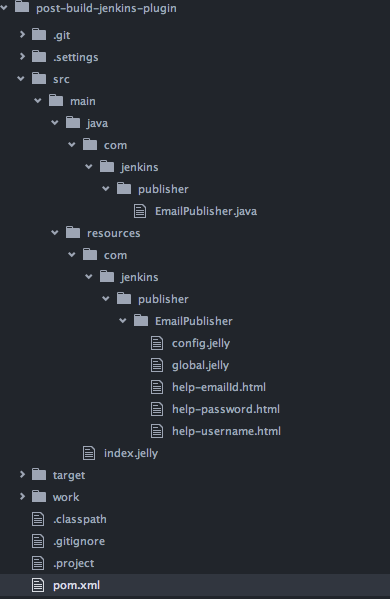
After performing all the above steps, your project structure should look like as:

Post Build Jenkins Plugin Project Structure

Step 6: Compile and package the plugin:

$ cd post-build-jenkins-plugin
$ mvn package

After packaging the plugin you should find a .hpi file in the target folder.

Writing Build Phase Jenkins Plugin

While integrating the build process of my project with Jenkins, I was looking for a way to copy the static content from my local directory to job workspace so I can leverage it at time of build process, which I thought of sharing to encourage you as well to write your own Jenkins plugins and share them with the community.

In this article we will learn how to write a Jenkins CI Plugin that executes as part of a Build process. The complete source code is hosted on github build-phase-jenkins-plugin

Step 1: Edit the settings.xml in .m2 directory or if it is not there create it with below content:

<settings>
 <pluginGroups>
 <pluginGroup>org.jenkins-ci.tools</pluginGroup>
 </pluginGroups>
 <profiles>
 <profile>
 <id>jenkins</id>
 <activation>
 <activeByDefault>true</activeByDefault>
 </activation>
 <repositories>
 <repository>
 <id>repo.jenkins-ci.org</id>
 <url>http://repo.jenkins-ci.org/public/</url>
 </repository>
 </repositories>
 <pluginRepositories>
 <pluginRepository>
 <id>repo.jenkins-ci.org</id>
 <url>http://repo.jenkins-ci.org/public/</url>
 </pluginRepository>
 </pluginRepositories>
 </profile>
 </profiles>
</settings>

Step 2: Create a Maven project and edit the pom.xml as:

<project xmlns="http://maven.apache.org/POM/4.0.0" xmlns:xsi="http://www.w3.org/2001/XMLSchema-instance" xsi:schemaLocation="http://maven.apache.org/POM/4.0.0 http://maven.apache.org/maven-v4_0_0.xsd">
 <modelVersion>4.0.0</modelVersion>
 <parent>
 <groupId>org.jenkins-ci.plugins</groupId>
 <artifactId>plugin</artifactId>
 <version>1.580.1</version>
 <relativePath />
 </parent>
 <groupId>com.jenkins</groupId>
 <artifactId>copy-files-jenkins-plugin</artifactId>
 <packaging>hpi</packaging>
 <version>0.0.1</version>
 <name>Copy Files To Workspace Plugin</name>
 <url>http://wiki.jenkins-ci.org/display/JENKINS/copy-files-jenkins-plugin</url>
 <dependencies>
 </dependencies>
 <build>
 <finalName>copy-files-jenkins-plugin</finalName>
 </build>
</project>

Step 3: Create a folder under src/main/java for me it’s com.jenkins.builder and copy the CopyFilesBuilder java class with below content inside it:

package com.jenkins.builder;

import hudson.Extension;
import hudson.Launcher;
import hudson.model.BuildListener;
import hudson.model.AbstractBuild;
import hudson.model.AbstractProject;
import hudson.model.FreeStyleProject;
import hudson.tasks.BuildStepDescriptor;
import hudson.tasks.Builder;
import java.io.File;
import java.io.IOException;
import org.apache.commons.io.FileUtils;
import org.kohsuke.stapler.DataBoundConstructor;

public class CopyFilesBuilder extends Builder {
private final String path;
 
 @DataBoundConstructor
 public CopyFilesBuilder(final String path) {
  this.path = path;
 }

 public String getPath() {
  return path;
 }

 @Override
 public boolean perform(
 @SuppressWarnings("rawtypes") final AbstractBuild build,
 final Launcher launcher, final BuildListener listener)
 throws IOException {
 
 //logic to be executed by plugin
  final File file = new File(path);
  final File destination = new File(build.getWorkspace().getRemote());
 
  if (file.isDirectory()) {
  FileUtils.copyDirectory(file, destination);
  } else {
  FileUtils.copyFileToDirectory(file, destination);
  }
 
 //logger which prints on job 'Console Output'
  listener.getLogger().printf("Copying files from %s to %s", path,
  build.getWorkspace());
  return true;
 }

 @Override
 public DescriptorImpl getDescriptor() {
  return (DescriptorImpl) super.getDescriptor();
 }

 @Extension
 public static class DescriptorImpl extends BuildStepDescriptor<Builder> {

  @Override
  public boolean isApplicable(
  @SuppressWarnings("rawtypes") Class<? extends AbstractProject> jobType) {
   return FreeStyleProject.class.isAssignableFrom(jobType);
  }

  @Override
  public String getDisplayName() {
   //String to be be displayed in 'Add Build Step' dropdown
   return "Copy Files To Workspace";
  }
 }
}

Step 4: Create a index.jelly file under src/main/resources folder and copy the below content to it:

<?jelly escape-by-default='true'?>
<!-- This view is used to render the installed plugins page. -->


<div>
 This plugin copy files to workspace.
</div>


Step 5: Create a folder with same name as of Java class under src/main/resources/ in my case it’s com/jenkins/builder/CopyFilesBuilder and then create config.jelly and help-path.html inside it with below content:

config.jelly

<?jelly escape-by-default='true'?>
<j:jelly xmlns:j="jelly:core" xmlns:st="jelly:stapler" xmlns:d="jelly:define" xmlns:l="/lib/layout" xmlns:t="/lib/hudson" xmlns:f="/lib/form">
 <!-- Creates a text field that shows the value of the "path" property. When submitted, it will be passed to the corresponding constructor parameter. -->
 <f:entry title="Path" field="path">
 <f:textbox />
 </f:entry>
</j:jelly>

help-path.html


<div>
<!-- Help file for fields are discovered through a file name convention. This file is help for the "path" field. -->
Specify the path to files or folder. For example, for a particular file
specify as /users/arpitaggarwal/file.txt and for a folder specify as
/users/arpitaggarwal/
</div>


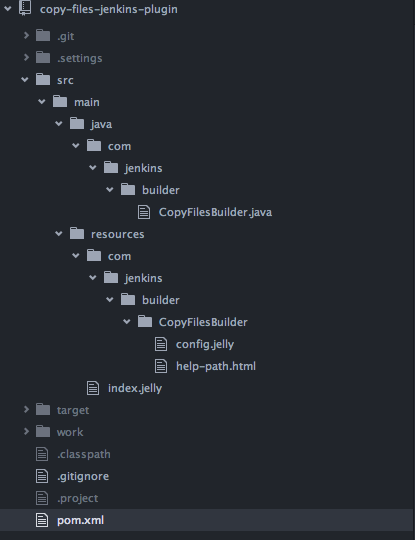
After performing all the above steps, your project structure should look like as:

Jenkins Plugin Project Structure

Step 6: Compile and package the plugin:

$ cd copy-files-jenkins-plugin
$ mvn package

After packaging the plugin you should find a .hpi file in the target folder.