The SNC-WDL2133M is a security camera of over well a decade ago, often found under the Shany brand, but as it runs out I got hold of one branded by J&S (J&S United Technology Corp, Taiwan). It may be the same company in the end, as J&S no longer seems to be active, but details are not widely available.

The SNC-WDL2133M is a 1.3MP IP camera with following specs:
- 1/3” Sony 1.3 Megapixel Progressive Exmor™ CMOS Sensor
- 1280×1024@30fps (SXGA) ; H.264, MPEG4, M-JPEG
- Color:[email protected], B/W:[email protected], IR ON:[email protected]
- 2D Noise Reduction ; Sense up
- Motion Detection
- Two-way Audio & Multicast Support
- Support Micro SD/SDHC Card
- Support 12Vdc / PoE Power Input
- Support ONVIF Profile S
- Shutter: 1/100,000 to 1/2 sec.
- White Balance: Auto_wide / Auto_normal / Sunny / Shadow / Indoor / Lamp / FL1 / FL2
- Day&Night Mode: Color / B&W / Auto / External
- Image Setting: Brightness / Contrast / Saturation / Sharpness / DeNoise / EV Compensation / AWB / WDR / Rotation / Exposure Mode / Exposure Priority / Auto IRIS / Wide Dynamic Range
- Lens, Angle of View (H): f3.0~10mm/F1.3 Aspherical Megapixel Varifocal D/N Lens/95.6°~28.8°
- Mechanical IR Cut Filter: Automatically Switches (B/W Mode<2Lux, Color Mode>5Lux)
- Minimum Illumination: 0.0001Lux (IR LEDs on at 2 Lux)
- IR LED ; Working Distance: 30 units (IR LEDs on<2Lux, IR LEDs off>5Lux) ; 10~20m
Compared to security cameras from nowadays this doesn’t seem to be very impressive, but remember this unit got introduced in a moment in time where CMOS sensors where just being picked up. The camera is no longer working correctly so let’s further dismantle it.

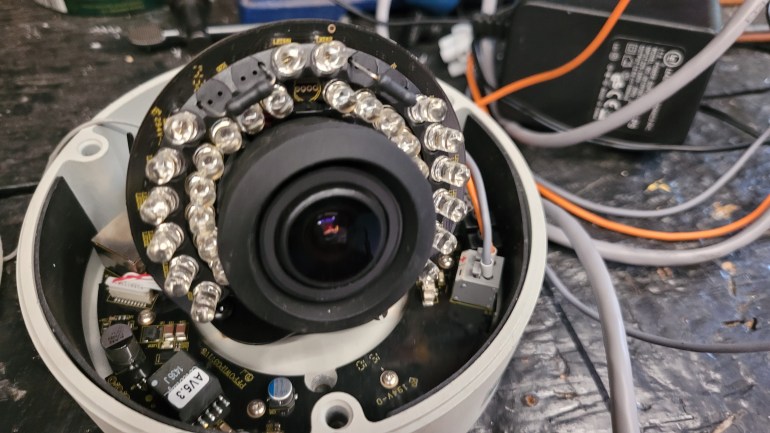
With the dome opened up we get a much better glimpse of what the internals looks like. So we have the camera lens surrounded by IR LEDs to help the camera capture night scenes. All together this sits on a mechanical structure that allows you to manually rotate the camera over all axis. The security camera however does not feature any motors so we can’t move or rotate the field-of-view electronically through PTZ controls.
The bottom of the dome has a second PCB that connects to the stacked camera PCBs via various cables. The goals of the bottom PCB is to offer various connections and contacts for external wiring. It’s does not contain any computational chips, so it’s rather some sort of IO board.

Available are ethernet and 12V DC power, but also alarm contacts, audio out, analog video out and RS485.

The complete bottom PCB. Notice the various small wires coming from the bottom PCB , and going through the mechanical manual pan/tilt structure.


Let’s focus again on the camera parts itself. It is made out of various PCBs stacked together:

It’s very typical for IP cameras because there is only very little space to pack a lot of functionality. We start with the most outer PCB, the closest one to the bottom PCB. It contains an SD-card interface for data storage purposes (maybe it can also update the camera?), but there is also a debug connector available at the left side of the picture. Unfortunately it has 5 pins, which is less common, and I didn’t wanted to trace the wiring of it.
The big MS1601SP is a Single Channel Interface For 10/100Mbps Ethernet.

Back view on the PCB:

From here one we continue to the middle PCB which contains some logic ICs:

One of the most profound chips is the Texas Instruments DM365, which is a DaVinci Digital Media Processor. This chip is a slow speed sort of DSP that takes the camera sensor’s raw image data and turns it into 720P H264 media streams. It’s build around a ARM926EJ-S RISC processor running at about 300MHz. It contains the MMC/SD card interface, as well as ethernet, audio, GPIO, USB2, a DDR2 memory controller and a NAND storage memory interface. The capture pipeline contains an ISP and hardware 3A (Auto Focus (AF) engine, Auto Exposure (AE), Auto White Balance (AWB) engine) implementation, and is also capable of hardware facial detection. To connect to an image sensor the ISIF (Image Sensor Interface Format) interface is used which supports both CMOS and CCD sensors. Remember, this camera was being developed when MIPI-CSI was only starting to finds it ways into embedded chips, so hence it’s not yet supported in this chip.

The chip that sits at the lefts side of the TI SOC is a DDR2 memory chip of which I couldn’t find the datasheet. On the right side we have a Davicom DM9161B 10/100 Mbps Fast Ethernet Physical Layer Single Chip Transceiver.
And on the back, we easily spot the EON EN27LN1G08 NAND Flash chip. It’s a 3V3 chip containing a 128 x 8 memory array, good for 1 Gigabit of storage.

From the middle PCB we have a big flat cable that connects to a third PCB: the camera sensor board. While not easy to say, this is a 1/3” Sony 1.3 Megapixel Progressive Exmor™ CMOS Sensor.

The camera sensor has mounted a decently large lens with manual focus.


The sensor is also surrounded by another PCB which contains all the IR LEDs.

This PCB is rather simplistic in that it mostly contains the LEDs, some FP702 amplifiers, and 4 wire cable connector to control the LEDs.

Also notice the 2 clumsy resistors. It could actually well be that those are big for a reason, for example for dew control.

This IP camera is aged, no longer working at this point and some of the chips dating from 15y back. We could probable try to boot our own linux on it, or at least try to figure out how the debug port. works But truth is that it’s actually to old to really grasp my interest beyond this point as the camera its internals have grown largely incompatible with todays standards. It’s nice to see the complexity of building IP cameras and how they solved it already 15y back from now. The TI Davinci Media SOC was something I didn’t know yet so that was definitely something worthy to learn about. And I was also surprised to see how they already got facial detection prior to the machine learning capable systems that we have nowadays.


 after hours coding