I’ve been testing the Inno-maker IMX462 camera for several experiments over a period of multiple years. It’s a sensor targeted for low light conditions, offered at a low price, and given those features I found that it’s a valuable alternative to the stock Raspberry Pi cams. I also found the image quality sometimes is lacking especially when using it in the low-light conditions where it should actually excel. I’ve dived into some of the details on how we can improve the image quality and found some nice tricks along the way. Recently I decided to ask the manufacturer if they were aware and if they would revision their product in the future. You never know right… But as it turned out, Inno-maker was already aware of some of the issues that I found and actually they already did have a new revision out there. To quote their words:
Thank you very much for the detailed explanation provided in your blog. We truly appreciate the effort you put into documenting your findings. May I know roughly when you purchased our IMX462 camera module? We already solved this issue around the middle of last year by replacing the LDO. The older versions indeed had this problem.
My camera board is bought in 2023 so unfortunately I’m using on of those affected boards. Inno-maker was kind enough to send the newer revision board in order to compare it to the older one. So here I am again, testing the image quality of the Inno-maker IMX462, but this time using the latest revision with LDO fixes.
Left: Inno-maker IMX462 old rev (modified), right: new revLeft: Inno-maker IMX462 new rev, right: old rev (modified)
The tests are as following. I started comparing with the stock lens which contains an IR filter, and then took several pictures with different kind of exposure times (10ms, 100ms, 1s, 10s) and different kind of gain settings (0, 49, 98). I can added an IR light source (3 IR LEDs) and repeated the same process. Afterwards I swapped the stock lens with one where I’ve removed the IR filter from, and redid all once again.
All pictures were taken in Low Conversion Gain mode, which is the default in the linux kernel. Next I’ll share the pictures as I’ve obtained them, no image editing has been done (not even rotation).
stock lens with IR filter, no IR leds
shutter 10ms – gain 0shutter 10ms – gain 49shutter 10ms – gain 98shutter 100ms – gain 0shutter 100ms – gain 49shutter 100ms – gain 98shutter 1s – gain 0shutter 1s – gain 49shutter 1s – gain 98shutter 10s – gain 0shutter 10s – gain 49shutter 10s – gain 98
stock lens with IR filter + IR leds
shutter 10ms – gain 0shutter 10ms – gain 49shutter 10ms – gain 98shutter 100ms – gain 0shutter 100ms – gain 49shutter 100ms – gain 98shutter 1s – gain 0shutter 1s – gain 49shutter 1s – gain 98shutter 10s – gain 0shu tter10s – gain 49shutter 10s – gain 98
modified lens without IR filter, no IR leds
shutter 10ms – gain 0shutter 10ms – gain 49shutter 10ms – gain 98shutter 100ms – gain 0shutter 100ms – gain 49shutter 100ms – gain 98shutter 1s – gain 0shutter 1s – gain 49shutter 1s – gain 98shutter 10s – gain 0shutter 10s – gain 49shutter 10s – gain 98
modified lens without IR filter + IR leds
shutter 10ms – gain 0shutter 10ms – gain 49shutter 10ms – gain 98shutter 100ms – gain 0shutter 100ms – gain 49shutter 100ms – gain 98shutter 1s – gain 0shutter 1s – gain 49shutter 1s – gain 98shutter 10s – gain 0shutter 10s – gain 49shutter 10s – gain 98
analyses
First things first, simple physics do apply here:
increasing the exposure time helps in capturing details in low light conditions
increasing gain helps in low light condition when you want to restrict the exposure time, but brings lower quality images as a result due to noise
That being said, as you notice the pictures turn out a bit red-ish. This is due to the PI its power LED being roughly the only source of light directly pointed to the target background in a completely dark room. This assumption gets confirmed as soon as I switch on the IR LEDs. The latter easily outshines the power LED. The IR light appears a bit white-ish compared to the reds from the power source. We see this confirmed for the 10s exposure shots with the stock lens (with IR filter), when you compare the pictures with or without IR led. The images are still unedited, except for rotation.
left: IR LEDs + power LED active, right: only power LED (10s shutter – gain 49)
But the impact is huge when we repeat that shot without IR filter.
left: IR LEDs + power LED active, right: only power LED (10s shutter – gain 49)
The change in overall brightness is so huge that the image even gets over-exposured! So if you’re looking into nightly security applications I highly recommend removing the IR filter plus adding a IR light source as it will allow to capture dramatically more details! It even allows us to set the shutter to 100ms and still see details in the room’s background, which when repeated for the other LED/filter combination is simply not possible.
But the most important question here is: how is the quality when we start increasing the gain. Let’s widen the image up for some detail:
shutter 10s – gain 98 – stock lens – no IR light source (only power LED) – LCG mode
At those high gain settings it’s perfectly natural that we get noise added to our image. But what I find important here is that we see no banding at all. Okay, you may say there the most left side of the picture is a lot less bright than the right side, but that’s due to the power LED being blocked by that clamp that holds everything in place. It’s just shadow casted over the background, but it does indeed looks it bit weird this way. Now remember one of the picture I took in the past, with IMX462 from the first batch…
IMX462 v1 – shutter 100ms – gain 98 – modified lens – IR light source (only power LED) – LCG mode
And compare that with the same image lens, IR source, exposure and gain settings on the PI 2 that I’m currently using for the current tests:
IMX462 v2 – shutter 100ms – gain 98 – modified lens – IR light source (only power LED) – LCG mode
Although the lightning setup may differ over the tests back than and now, what’s important here is that we don’t see any of those banding issues here anymore!
Is Wifi impacting the analog picture quality? Let’s test:
shutter 10s – gain 98 – stock lens – no IR light source (only power LED) – LCG mode
Again the lighting may have been slightly different to previous tests, like the standby LED of a new device in that room, but in general we again see that there is no banding at all, even with the gain at its maximum level.
Conclusive thoughts
Left: Inno-maker IMX462 new rev, right: old rev (modified)
As it turns out, the Inno-maker IMX462 has become an even better alternative for lowres Raspberry Pi cameras, specially outperforming the Pi cams in low light conditions. It offers good value for superior night sight, and now with the new revision some of the pains of the first revision has been tackled. So if you’re still looking for a good bang-for-back security sensor, the Inno-maker IMX462 may be your board of choice.
I’ve been experimenting on and off with astrophotography using a DIY Raspberry Pi setup. This article is another attempt at getting a better working setup, and sort of brings together much of my previous experiments. Let’s quickly walk through them again:
In astrophotography from a beginners perspective (part-3: achievements) I take my first steps on building a Raspberry Pi 1 based remote capture device using a Innomaker CAM-MIPI462RAW camera sensor. The sensor is low resolution and not the best build quality, but it’s really cheap and therefore a reasonable OK starting point for my experiments. It was a good starting point, but the labor of running commands manually on a remote device, and moving pictures over to my host PC manually is far from the best experience. I also noticed that image quality was a bit lacking when the gain was increased. Plus wireless networking tend to be really tricky on the RPI.
In the next article I tried to tackle the issue of not having decent remote control software. In using a raspberry pi and indi for astrophotography I explored the option of running everything through Indi. Indi is a software bundle that supports various astrophotography devices such as cameras, sensors, telescope mounts, filters, etc and allows the controlling host to automate and control things over a computer network. I was pleased with this upgrade, although stability was not quite good back then.
At this point I had a networked camera sensor that is controllable using Indi. In the next article, exploring imx462 sensor settings in dark scenes, I wanted to look at what image quality I currently had, and how I could improve it (because it did lack in some areas). I found out that there is this HCG mode that can be used, and together with some other folks in the RPI community this functionality was finally added to the kernel driver. Furthermore, the IMX462 also got it’s own libcamera tweaking, and all of these changes have in the mean time found their way into the default Raspberry Pi OS distro. For now I’m not using the HCG mode for my astro shots as I tend to avoid bumping up the gain over using longer exposure times, but at one point in the future it may become useful again.
By the end of 2024 I starting looking at solving the imx462 banding issue. It appears the Innomaker IMX462 lacks proper analog power supply filtering when combined with a Raspberry Pi, but things can be improved by adding an CJMCU-3042 based LDO in between. I guess this is where it really pays of when you buy a quality camera sensor from the beginning.
A bit later I had a quick look at what an IR filter would do for the IMX462, see sony imx462 ir sensitivity. It doesn’t play a particular role for astrophotography, but it’s good to know that the IMX462 does have some sensitivity in that area that could be used.
Connectivity issues
That’s where I had everything on hold for a while. I have the tools there but actually never got it to run outside due to lack of time, the lack of a more water proof housing and actually not having any decent quality network outside of my house. Whenever I made my setup battery powered for some outside tests, I always ran into issues with Wifi connectivity. I tried both the RPI’s internal Wifi as an external USB power Wifi adapter but found no decent solution. I even played around with building a Bluetooth based solution where I had an Android app connecting to the RPI using BLE. That however came to roughly the same drawbacks, plus that BLE was way to slow to copy large RAW image files over to the Android phone. My next idea was to bring network to my back yard garage using a Wifi client router, and from there on wire the network to the RPI over an ethernet cable. I also have electricity back there so I wouldn’t need any batteries. And that actually worked quite well! But now the camera is in the back of my garden and I’m no longer running it close to where I sit with my laptop…
Housing ideas: the all sky camera
Next step was thinking about an actual housing for my remote camera. I’ve been looking at allsky cameras (and indi-allsky alternatives) for a while to see if it would actually fit my use case. I would have to ditch the option of having the ability to mount a telescope lens adapter. But on the other hand I’d instead improve the quality of non-zoomed night sky pictures. AllSky cameras come with dedicated software. The indi-allsky software has a lot of features to offer that EKOS does not have. For example it can automatically generate keograms, star-trails (using stacking), videos, and also integrates various sensors that can be used in the software. It’s pretty straightforward to install (example tutorial: https://astroisk.nl/install-indi-allsky-on-a-raspberry-pi-5/). By default it runs on the remote camera device (the RPI), but you can also separate the control software blocks from the actual camera server so it seems (similar to how EKOS controls my Indi based camera). Interested? Look here: https://github.com/aaronwmorris/indi-allsky/discussions/1259.
But while an Allsky camera has several things to offer, I’m actually not looking into any of its features, except maybe the image stacking part. So far I haven’t found any decent description on what it does, outside of producing star-trails, so that’s why I decided I’ll avoid setting up the software and for now stick to a plain Indi camera combined with EKOS control software. But there are many people who have already tried building a similar camera themselves, so you can easily find some building plans or ideas on how to successfully build one yourselves.
The basic materials:
RPI 3
the more recent, the better, as the higher computational power decreases latency significantly
Camera sensor with lens
Typically for AllSky camera’s a wide angle lens is used, as you want to capture the entire sky at once. I went for a more narrow field of view (55°) so that I could get some extra details in the areas of interest. The narrow FOV also helps in the stacking process as not half of my house is also dragged into the image. Furthermore I also removed the IR filter from the lens since the IMX462 does have some IR sensitivity, so that could be a benefit.
Some sort of power supply or batteries
Network connectivty (Wifi, ethernet)
A plastic dome
A housing
Extra’s:
temperature/humidity/dew reporting : To get an idea on what’s happening temperature/humidty wise within your remote device, various sensors can be used. I added a HTU21D temperature/humidity sensor, grabbed open source example software to read out the sensor, but also assembled a script to calculated the dew point and log the CPU temperature. For now it still has to be executed manually, but it’s a starting point that give me some rough insights as currently I’m totally blind. The source code can be found here: https://github.com/geoffrey-vl/linux-htu21d.
dew heater : many people try to run their setup unattended throughout the whole year, even having to counter freezing conditions. Dew (and moister) are some of the things that you’ll definitely have to challenge in such condition. The thing with adding a heater is that you need to produce a very specific amount of heat. It’s not just tossing in the biggest resistor that you have and run it all out. You have to calculate the dew point, see what heat the CPU already disposes into the housing, and then think of the additional heat that you need to produce to overcome moisture and dew from building up. Moisture builds up inside the camera housing so you should try to keep the camera as air-tight as possible. Dew is formed on the outside of the housing, on the acrylic dome where the camera looks through. The reason that you don’t want to add a random amount of heat into the camera housing is that you still want you sensor to be as cold as possible. You also need to think of some controlling software that makes sure that the heater isn’t working when there is no need for it, for example during summer nights, or throughout most of the day. For now it’s summer here and I’ll try to avoid running it in bad weather, so I’m not installing any heater. But it may become a challenge later on.
overheating : for now EKOS/Indi does not seem to have any kind of generic heat protection mechanism. At least not when you only have a simple camera sensor implemented. The CPU should throttle though though the kernel driver, and I’ll keep an eye on it using my custom script. What I avoid for now is running the camera outside during the day, as the image sensor is not protected against direct sun light, and neither do I have any active cooling installed. The drawback is that I’ll have to take out the setup manually for each capturing session, basically like setting up your telescope. But luckily this one is going to be a lot more compact.
lens control : I have one of those dirty cheap M12 Arducam lenses mounted that you have to manually turn into focus. It’s cheap, compact, but lacks some automation features. You can also obtain lenses with focus control. Furthermore you can also toss in iris control into the mix. Why is that useful? Well, the indy-allsky software for example can automatically generate a darks library. That however implies having to cover up the camera sensor. This can sort of be done using a motor controlled iris.
Housing ideas: repurposing an old IP security camera
I recently got to dismantle an old IP camera and found that the Raspberry Pi based camera could actually fit. I had a quick look on what makes up the IP camera and try to learn a thing or two, but found that I could not re-purpose much from this decade old device except for the housing. So I teared everything out and starting fitting my parts into it.
So there you have it, the RPI3, a IMX462 sensor, the additional analog power supply based upon the CJMCU-3042, and a HTU21D temp/hum sensor. Everything is wired over ethernet to the rest of my home network.
I added a small cooling plate to the Pi’s SOC, just in case. I also placed the HTU21D a bit closer to the actual image sensor.
After some quick tests in the evening I noticed how the images captured by the dome had areas lit in green. It was as if you’d see the northern light, but that clearly isn’t possible in the area where I live. (at least not to that amount). So it turns out that some of the Pi’s LEDs lit up strong enough to be reflected via the acrylic dome back into the image sensor. My fix was to add a white painted cardboard which blocks the LEDs light from reaching to the outer end of the dome.
This already sorted some of the green light issues, but more tweaking needed to be done. I added some extra cardboard and now the picture quality was finally going into the right direction. Only the image sensor is exposed to the dome, together with the HTU21D environmental sensor.
The acrylic dome is not scratch free, but let’s give it a show anyway and see what comes out. My first shot:
imx462, 1s exposure, gain 0
Dark was still settling, but luckily the moon hasn’t risen yet, and so even with an exposure time of 1s we can already spot some stars. Next step is to wait an hour or so for the sky to become darker. Then I’ll try to capture multiple shots and see if we can produce a higher quality picture by using stacking. So let’s setup EKOS for this purpose:
I’m aiming for 30 shots at an exposure time of 10s. Here is one of those captures, slightly tweaked in Gimp:
imx462, 10s exposure, gain 0
Sweat, and that’s just a single frame! I’m pretty pleased with this output already! And let’s toss in some kudos for the automated process in EKOS. Software stability wasn’t entirely perfect over the last few days, but during this session it was working quite well. Capturing all 30 shots unattended went butter smooth, and during this session I had time for myself to do some other stuff (like editing the above picture) while EKOS was running in the background. Very cool! The entire capture process took about 42 minutes, which is not exactly close to the 30 x 10s exposure time (thus 5 minutes in total) that we configured. The Raspberry Pi 3 isn’t the fastest device around to perform camera captures (we already learned that from previous experiments), but also fetching the raw files takes a bit extra longer than expected due to the wireless network link somewhere along the way between the RPI and host PC. During the session I checked the temperatures of my camera but everything was well within limits:
CPU Temperature: 42.39 °C Housing Temperature: 22.21 °C Housing Humidity: 44.32 % Housing Dew Point: 9.48 °C
And here is the result of stacking those images using the Sigma Clipping pixel rejection method, and the Image Pattern Alignment registration method… not exactly an improvement…
imx462, 30 * 10s exposure, gain 0, stacked (v1)
Again, but this time using Global Star Alignment for registration:
imx462, 30 * 10s exposure, gain 0, stacked (v2)
That’s already way better, but not really enhancing the quality of a single frame at 10s exposure. Lets play around a bit more with Siril (for alignment and stacking) and Gimp (for saturation, level control):
imx462, 30 * 10s exposure, gain 0, stacked (v3)
This is actually starting to look real nice! During the 10s exposure I already noticed some brighter and darker areas in the resulting image, but I was doubting that this would be Milky Way as generally it’s impossible to see it with the naked eye. So clouds maybe… But now, when I examine all the collected 10s frames it seems to rotate together with the rest of the stars, while clouds tend to be sliding over in a random direction. So that’s indeed the Milky Way right there!
Next I wanted to push even further by bumping the exposure higher and collecting more frames. The moon is still set and skies are clear, by some luck this is actually a good night for astrophotography. At about 15s exposure is typically the maximum that you can set before you’re loosing sharpness due to earth’s rotation. Stars tend to leave star-trails instead of being a sharp dot. This will however significantly increase the time for the RPI to collect a single frame, so when I push the total amount of frames I also want to make sure I finish in time before the suns starts to rise again. So let’s go for 50 frames in total, which in my case resulted in total capture time of about 1h30min. The good thing is that EKOS is doing all the work for me: I could just go to bed and wake up next morning with all the data just there waiting for further processing.
So here is a single 15s exposure shot:
imx462, 15s exposure, gain 0
The detail is noticeable better than the 10s exposure shot. It also includes the Milky Way, but you can see that it has rotated quite a bit compared to the pictures from the previous session. (Well, actually it’s the Earth that rotated…) So let’s again do some stacking and image editing:
imx462, 21 * 15s exposure, gain 0, stacked
The registration process unfortunately only accepted 21 of the 50 pictures, so we’re now at full potential here. But compared to the single 15s shot we can easily spot a lot more details. And… is that a galaxy right there at the left side? Let’s zoom a bit more into detail. Unfortunately the IMX462 is just a low resolution camera so we’re really limited on the digital zoom. This is where we run into the limits of this low-end camera, but that’s also something I knew from the very beginning when I selected this camera. Here is that detailed view:
imx462, 21 * 15s exposure, gain 0, stacked, zoomed
And indeed looks absolutely like a galaxy, but which one? Andromeda (which is the easiest one to spot)? Let’s annotate the picture so that we have an idea what constellations we’re looking at… Annotation can be done quite easily using the free https://nova.astrometry.net service which only requires you to upload your picture and wait for the processing to finish. No account or login needed. Very neat! So this is what came out:
And as I already suspected that’s the Andromeda galaxy right there, next to the Andromeda constellation! Let’s double check it by comparing our image to what we should have been looking at when we set Stellarium to this moment in time:
Stellarium simulation
Note that the camera output is mirrored compared to the Stellarium output. But when we go into details, the Andromeda galaxy is indeed right where it should be. Super! We also see how the Milky Way is spread across the field of view just like our camera has captured it.
Let’s try another trick. Given I have about 90 minutes of total imaging data, I should also be able to build up a stacked image that visualizes earths rotation through star-trails. So after diving into Siril again the software appears to also have a Maximum Pixel Stacking method which suits the purpose of generating star-trails. So here is what came out:
imx462, 21 * 15s exposure, gain 0, stacked for star-trails
Again, the output is far beyond what I anticipated when I starting my capturing session. Star-trails are easily visible and show a rotation around the bottom of the screen. Unfortunately each star-trail is a dotted line, and not just one single line. This is probable caused by the latency it takes for the Raspberry Pi to take a single frame. The RPI takes a considerable longer amount of time to capture the image and copy it back to the host system than what the exposure time is set to. The end result could probable be better if we decreased the exposure time, as the RPI needs a lot less time to produce a 3s exposure shot than a 15s exposure shot. The drawback is perhaps that we loose a decent amount of stars that we can track due to the lower sensitivity.
GCAM tricks
Google’s GCam (or Pixel camera app) for Android phones is also able to capture some pretty darn night sky images using image sensors not targeted for astrophotography at all. I’ve always been intrigued by how they succeeded in bringing this to mobile devices, and if I would be able to get to a similar results with my cheap DIY solution, or at least use some of their tricks. It seems that the astrophotography mode in that app is combination of a whole lot of tricks and technology together and not just a single man’s job. A whole team of experts has been working on this mode, but the result it truly astonishing!
So what would we need to get at least somewhere in the good direction with Open Source software?
camera device
software that can take multiple shots of the same high exposure. The google team claims to have exposure set up to 16s as this should avoid capturing earth’s rotation
image processing software for stacking purposes
google also has ways to detect which part of the picture is the sky, and which isn’t, and use that info in the stacking process. Foreground houses and trees for example should not be stacked. I don’t plan to pursue this machine learning process due to the complexity and lack of processing power.
And actually, when I now look back at some of my result I can indeed notice how the Gcam app is able to reach such extra-ordinary results. Even with my limited knowledge, a cheap camera system and a pair of (good) open-source tools I also succeeded to produce some really nice looking images. Key differences is that off course google throws in some extra ML sauce so that foreground objects are ignored in the stacking process, where in my case things in the foreground tend to get blurred. Also, the computational power of current generation Pixel smartphones goes far beyond what the RPI3 has to offer, so everything works a lot quicker on those devices, and all of the processing is happening on the local device so there is no network latency involved. They also make everything work without any hassle, while for me it takes a bit of time to setup the capturing session (using EKOS this time is reduced to less than a minute though), but a considerable more amount time is spend on image stacking and image quality tweaking.
More automation
EKOS has some simple automations such as the one I demonstrated where we have the ability to schedule the task of creating a batch of pictures. Very handy, as you can define the shutter time, gain, etc for a bunch of pictures that EKOS needs to capture. EKOS will automatically transfer the files to your host PC if needed, and for each new capture a preview will be shown. You can select the output format, but this will mostly be DNG/RAW.
It does however also has its limitations. It can’t do stacking and other image processing tricks. For that I rely on Siril and Gimp. EKOS seems to lack some automation features, we don’t have clear way of commanding EKOS to do some tasks from a higher level application. Say, we have our own application that wants to capture and stack 6 images, so it commands EKOS to do so, and then loads those in a stacking program like Siril. Well, it turns out someone has been exploring the DBUS methods of EKOS, see https://openastronomy.substack.com/p/automating-kstars-and-ekos-pt-2, so that does open for options here for further automation. Siril is also able to automatically perform stacking by watching a directory. For now I’ll leave that territory for what it is as I’m not generating tons of data just yet, and I still feel like I need to explore the software myself manually before I can start thinking of automating things.
Conclusive thoughts
Coming to the end of this article I’m glad that finally I got some positive trade-offs for the time I’ve spend on investigating things in previous articles. The cheap IMX462 sensor combined with a RPI didn’t appear to result in high quality images when I first started looking into a DIY astro setup over more than a year ago. But now I see that it really is possible, though I did had to tackle some things before I got to this point. I don’t have a clue yet what my next goal may be… I’ll think I’ll first take some time capturing night skies before I start exploring new territories.
The SNC-WDL2133M is a security camera of over well a decade ago, often found under the Shany brand, but as it runs out I got hold of one branded by J&S (J&S United Technology Corp, Taiwan). It may be the same company in the end, as J&S no longer seems to be active, but details are not widely available.
The SNC-WDL2133M is a 1.3MP IP camera with following specs:
1/3” Sony 1.3 Megapixel Progressive Exmor™ CMOS Sensor
Mechanical IR Cut Filter: Automatically Switches (B/W Mode<2Lux, Color Mode>5Lux)
Minimum Illumination: 0.0001Lux (IR LEDs on at 2 Lux)
IR LED ; Working Distance: 30 units (IR LEDs on<2Lux, IR LEDs off>5Lux) ; 10~20m
Compared to security cameras from nowadays this doesn’t seem to be very impressive, but remember this unit got introduced in a moment in time where CMOS sensors where just being picked up. The camera is no longer working correctly so let’s further dismantle it.
With the dome opened up we get a much better glimpse of what the internals looks like. So we have the camera lens surrounded by IR LEDs to help the camera capture night scenes. All together this sits on a mechanical structure that allows you to manually rotate the camera over all axis. The security camera however does not feature any motors so we can’t move or rotate the field-of-view electronically through PTZ controls.
The bottom of the dome has a second PCB that connects to the stacked camera PCBs via various cables. The goals of the bottom PCB is to offer various connections and contacts for external wiring. It’s does not contain any computational chips, so it’s rather some sort of IO board.
Available are ethernet and 12V DC power, but also alarm contacts, audio out, analog video out and RS485.
The complete bottom PCB. Notice the various small wires coming from the bottom PCB , and going through the mechanical manual pan/tilt structure.
Let’s focus again on the camera parts itself. It is made out of various PCBs stacked together:
It’s very typical for IP cameras because there is only very little space to pack a lot of functionality. We start with the most outer PCB, the closest one to the bottom PCB. It contains an SD-card interface for data storage purposes (maybe it can also update the camera?), but there is also a debug connector available at the left side of the picture. Unfortunately it has 5 pins, which is less common, and I didn’t wanted to trace the wiring of it.
The big MS1601SP is a Single Channel Interface For 10/100Mbps Ethernet.
Back view on the PCB:
From here one we continue to the middle PCB which contains some logic ICs:
One of the most profound chips is the Texas Instruments DM365, which is a DaVinci Digital Media Processor. This chip is a slow speed sort of DSP that takes the camera sensor’s raw image data and turns it into 720P H264 media streams. It’s build around a ARM926EJ-S RISC processor running at about 300MHz. It contains the MMC/SD card interface, as well as ethernet, audio, GPIO, USB2, a DDR2 memory controller and a NAND storage memory interface. The capture pipeline contains an ISP and hardware 3A (Auto Focus (AF) engine, Auto Exposure (AE), Auto White Balance (AWB) engine) implementation, and is also capable of hardware facial detection. To connect to an image sensor the ISIF (Image Sensor Interface Format) interface is used which supports both CMOS and CCD sensors. Remember, this camera was being developed when MIPI-CSI was only starting to finds it ways into embedded chips, so hence it’s not yet supported in this chip.
The chip that sits at the lefts side of the TI SOC is a DDR2 memory chip of which I couldn’t find the datasheet. On the right side we have a Davicom DM9161B 10/100 Mbps Fast Ethernet Physical Layer Single Chip Transceiver.
And on the back, we easily spot the EON EN27LN1G08 NAND Flash chip. It’s a 3V3 chip containing a 128 x 8 memory array, good for 1 Gigabit of storage.
From the middle PCB we have a big flat cable that connects to a third PCB: the camera sensor board. While not easy to say, this is a 1/3” Sony 1.3 Megapixel Progressive Exmor™ CMOS Sensor.
The camera sensor has mounted a decently large lens with manual focus.
The sensor is also surrounded by another PCB which contains all the IR LEDs.
This PCB is rather simplistic in that it mostly contains the LEDs, some FP702 amplifiers, and 4 wire cable connector to control the LEDs.
Also notice the 2 clumsy resistors. It could actually well be that those are big for a reason, for example for dew control.
This IP camera is aged, no longer working at this point and some of the chips dating from 15y back. We could probable try to boot our own linux on it, or at least try to figure out how the debug port. works But truth is that it’s actually to old to really grasp my interest beyond this point as the camera its internals have grown largely incompatible with todays standards. It’s nice to see the complexity of building IP cameras and how they solved it already 15y back from now. The TI Davinci Media SOC was something I didn’t know yet so that was definitely something worthy to learn about. And I was also surprised to see how they already got facial detection prior to the machine learning capable systems that we have nowadays.
The Sony IMX462 image sensor is a first generation Sony sensor with Starvis technology. It’s a sensor made for low light condition and is quite affordable. Hence why it has been favored in some of my own experiments. Today I had a quick look at what an IR filter can do for this sensor. This can be particularly interesting as the sensor has higher sensitivity in the IR spectrum compared to other off-the-shelve cameras. Here is the sensor’s light sensitivity chart:
The range of the human eye is somewhere along 4000 to 7000 Angstroms. However for IMX462 there is definitely a big peak in sensitivity beyond what we can see with the human eye. Light sources in the range of 8000 to 8500 Angstroms are picked up very well by the sensor too, while for the human eye it’s as if nothing is there. This range is exactly what we call the Infra-red range, or IR range. Therefore the IMX462 is a good candidate to fit a security camera where it can be accompanied by an IR light source. But is that really so? Since I had a box of Arducam lenses laying around I thought I could easily make the experiment as those lenses by default come with an IR filter applied.
So here we go… I started by adding IR LEDs to my Raspberry Pi setup:
Raspberry Pi, with 3V3analog LDO mod for IMX462, and 3 IR LEDs
I took my Rasberry Pi to a nearly perfect dark room with no light sources around. In effect there is about only the IR light source active. I mounted a 55° wide Arducam lens but leave it unmodified (aka with IR filter). For our tests the following command is used for taking pictures:
Now the Arducam lenses have their IR filters very well attached to the lens body. Compared to other branded lenses the filter doesn’t come of that easily. For example I found that on some lenses the filter would almost fall of by itself. Not with Arducam. I has to break the IR filter in order to get it removed. Warranty removed, without doubt.
Now let’s repeat the test:
IMX462 shutter=100ms gain=98 without IR filter
Wow! Dramatic change! Well, it was to be expected though if you’ve had (like me) previous experience with light filters. The filter really blocks the IR sources well resulting in a near pitch dark picture. Without the filter the image is even overexposed, as if it was taking in broad daylight! So for security cams I can definitely understand the need to remove the IR filter after the sun has set. During the day however it is better to keep the IR filter mounted as it will assure good representation of the colors in your videos and images.
For purposes of astro-photography, if you’re intending to picture the moon the IR filter can probable stay in place as the moon has no IR sources. For some planets such as Jupiter and Saturn it may be interesting to see what you get with and without IR filter. For deep sky objects and nebula it’s probable better to go without IR filter, but is also depends on what you want to achieve.
Already more than a year ago I started exploring astrohotography. Even lacking much experience with image sensors I started diving into building a DIY solution using the Inno-maker IMX462. It’s a rather cheap sensor that can easily be bought on Amazon, and compared to the Raspberry Pi branded cams should offer much higher sensitivity in low-light conditions due to the STARVIS technology.
Inno-maker IMX462
I remember the first outdoor shots were kind of OK’ish, but I wasn’t entirely satisfied either… Here is a shot of the Orion nebula:
Once we start zooming in we can easily spot that the picture quality is far from perfect. There is lots of horizontal banding noise:
Horizontal Banding Noise (hbn) clearly visible in the RAW image
I red that noise is to be expected when using the raw camera output. But I also found, for instance in this example, that you had to make your “dark frames” which are fed into a noise reduction function to filter out most of the sensor noise.
Left: with dark frame subtracted, right: without. Image courtesy of star-surfing.com
This dark frame is essential for improving image quality. It’s basically taking a picture with the camera covered up, using the same settings as your “light frames (= your normal pictures). The dark frame will contain nothing but the sensor noise. This info can than be subtracted from the light frames, and as a result the noise will be largely removed in the final outcome. I tested this and yes, that works quite good…
So I concluded that this is the maximum quality we can get from the Inno-maker IMX462 sensor and that we really need to be looking at longer exposure times. For plain outdoor shots a 10-15s shutter time may work, but when taking shots through the telescopes the shutter time has to be drastically reduced as the earth’s rotation is now also magnified and therefore the objects as seen through the telescope move rapidly across the telescope’s field-of-view. What I needed was good tracking to compensate Earth’s rotation. I gave up on the telescope for now as tracked telescopes are rather expensive and instead started looking into building a cheap star tracker combined with the default Inno-maker lens which should allow my to make many 10s shots which can than be stacked together. I’d loose the zoom of the telescopes, but instead I was hoping for very detailed shots of the entire night sky.
When the summer came most of the astro stuff was put to a rest, but now that winter is nearly there I finally picked up again and that’s when I came across some stories about improving the image quality through some modifications. There was the High Conversion Gain (HCG) software mod that I discussed earlier, but there is also this correlation of power supply noise and image quality. So that got me questioning if maybe there are some more gains to make. It could indeed be yet another way of performing noise reduction (aside of creating “dark frames” and HCG), and as an hardware enthusiast I couldn’t help myself investigating this a bit more.
Power supply noise
So how did I bump into this? Well it started when I was looking around if any new STARVIS sensors would have been released over the past couple of months. I ended looking again at the StarlightEye, an open-source camera board that utilizes the IMX585 sensor. Picture below.
StartlightEye by will127534
It’s one of the very few boards out there that features the new STARVIS2 technology, which makes the sensor even more sensitive than the IMX462 that I own. I looked around on the issues that were reported for this camera board, and that’s when I stumbled upon an issue complaining about horizontal banding: IMX585 Power – Horizontal banding and 3.3V power rail noise.
The creator of the ticket, Bob Morrison, was also noticing a horizontal banding issue during his tests with higher gain values:
IMX585 horizontal banding on StartlightEye v1
He got very dramatic results, even more banding than what I saw. Bob states that the STARVIS sensors are very sensitive to noise, even though the STARVIS sensors are in fact designed to work in low light condition. This is where they normally should stand out, and I have to agree with him there! He mentions testing on a Raspberry Pi 5. The 3V3 supply may not be up to the task. In some other thread on the Raspberry Pi forums we actually got a confirmation by 6by9 (an official RPI engineer) that the PMIC (the power supply of the RPI) was also generating a bit of noise on their GS (global shutter) camera. At least for me it seems the older Raspberry Pi boards may also be affected.
Bob his idea is the following:
I haven’t put an oscilloscope on the supply rail, but I think what is going on (just from watching the current output on my benchtop supply, now supplying the camera board) is at high gain the sensor photocell amplifiers demand a sudden big step up in current at the end of each exposure as the image data is read out, amplified, A/D converted and shoveled to the MIPI interface. My guess is the Pi’s rail briefly rings in response, and the ring wrecks the performance of the on-sensor amps.
And finally his solution was to isolate the camera board from the Pi’s 3V3 rail, and powering the sensor through a linear 3.3 volt bench-top power supply.
The Github issue goes on with the creator of the camera board, will127534, confirming that he noticed the same issue on his RPI5 device and V1.0 of the camera board. After some trial and error Will finally fixed the issue in version v1.6 by rolling out his own 3V3 power supply on the camera board. We will dive into details later on. Surprisingly this version was released only 2 weeks ago at the beginning of October 2024, many months after the initial complaint. Yet in the end Will did a very good job designing this sensor board, plus also taking up the task of improving the design to fix the banding issues. The product is a bit too pricey for me, if he would have had a € 50 STARVIS board up for sale I may have picked it up.
Now looking back at the Raspberry Pi forums thread I referred earlier, the complaint is very similar. It’s even using the same Inno-maker IMX462 sensor as I have, but while I have had it attached to RPI 1, 2 and 3, Mat had it attached to a Pi4. Mat tested different RPI OS versions, and different device tree configs, even rebuilding libcamera from source, but nothing would help. What’s nice is that Mat also had the option to compare against other sensors like the RPI HQ-cam and the GS-cam which didn’t had the issue. Sohonomura2020, one of the forum visitors, also responded in the thread stating that the power regulation and filtering has to be very carefully designed as any fluctuation in analog VDD is easily noticed at higher gain values. And as being someone designing and selling his own custom Raspberry Pi camera boards he may know at least some of the pitfalls.
Low noise power regulatotors
Before we dive into how power is sourced in the IMX462, let’s first quickly comprehend what we expect from a good low noise power regulator. In essence there are 2 types of power regulators. Linear regulators and switching regulators. Switchers have become very popular last few decades as compared to linear regulators they allow very efficient power regulation with less power loss in the FETs and thus less colling is required plus higher power outputs can be achieved. Sounds all very nice, but the downside of all that switching is that the output level contains quite a bit of noise, even though filtering is applied. For conventional electronics the small ripple doesn’t play an important role since all communication is digital anyway, but for analog circuits such as ADCs this may be a real show stopper.
Linear regulators however are far better in producing low noise power, but instead are not very efficient and produce a lot of heat when supplying “high” amounts of heat. Typically you’ll find that the regulator, if it has to drop for example from a 5V imput voltage to a steady 3V3 (thus a 1.7V drop), that at supplying 1A it would use 1.7V * 1A = 1.7W. Look on the internet for resistors that can handle 2W and you’ll quickly notice that is a lot of heat to handle! Linear regulators go back many decades and typically require a minimum drop voltage to you need to take into account when designing your product as the regulator will not allow any lower. For example some will not be able to drop less then 0.7V, and thus if you start from a 3V3 input voltage the output voltage will not ever reach higher than 2V6. Nowadays we do have “low dropout” variants, typically referred to as LDO‘s, which feature lower dropout voltage so that for example at the same 3V3 input a 3V output can be achieved. Further more, the higher quality linear regulators will also come a feature called PSRR. Power Supply Rejection Ratio (PSRR) is the ability of an amplifier to maintain its output voltage as its DC power-supply voltage is varied. In effect input ripply will be rejected by the fast response time of the LDO. So this is exactly the type of power regulator that we want.
Let’s try to get a better understanding on what parts are actually involved on our IMX462 and Raspberry Pi boards.
Main powering circuit: the MIPI-CSI cable
Many camera boards such as the Inno-maker IMX462 are powered directly through the MIPI interface, meaning the camera board doesn’t have an additional 5V power connector. Here is the pinout again for that interface, taken from the RPI3 B+ schematics:
The 3V3 power circuit on Inno-maker IMX462
Below is a shot of the back side of the Inno-maker IMX462. I admit it’s not the greatest shot…
Small intermezzo: the bigger in metal wrapped chip is the clock oscillator for the image sensor. You must configure your linux device tree with the output frequency of this chip. In our case it’s a 74.25 MHz clock source.
More in our interest are the power regulators though. At the top side of my picture we find a bunch of small lineair regulators directly connected to the 3V3 pin on the MIPI-CSI connector. From left to right:
YJAA (SGM2019) : adjustable 300mA low dropout linear regulator, probable set to 2.9V
YJ12 (SGM2019) : fixed 300mA 1.2V low dropout linear regulator
4VK4 (LN1134) : fixed 300mA 1.8V low dropout linear regulator
In a nutshell this is how the sensor is wired up:
Sony doesn’t open source their camera sensors datasheets so I can’t tell the very details of how every pin should be routed. However, I found a design of an open source IMX290 USB3.0 camera which can be used as a reference because the IMX290 is roughly the same chip as the IMX462. Let’s look for a power pins:
Basically the chip is powered from 3 main power sources being 1V2, 1V8 and 2V9. The VDDHAN / VSSHAN pins are for analog power, and those are wired up to the 2V9 power source. And it is the analog circuit existing of the analog-digital converters that convert light into digital data that is powered through this power source. A good VDDHAN is therefore crucial in the ADC phase of our image pipeline. So the most interesting regulator from the list mentioned earlier is the one marked with YJAA. It’s the adjustable version of the SGM2019, with it’s output set to 2.9V via a resistor divider. The chip is widely available, but it does not seem to be particularly know to the audiophiles out there who are (also) keen on low noise regulators. Still, according to the datasheet this SGM2019 is a low-noise high PSRR regulator though and should actually be a fairly decent candidate for powering the analog ADCs of the image sensor.
The 3V3 power rail on Raspberry Pi
After having a look at the camera board we can starting tracing in the direction of the source. It does come with a notice that the power regulator for the Raspberry Pi may be different across the various versions of the Pi, even for minor releases.
The PAM2306 is a dual step-down buck converter capable of delivering 1A per channel. The same PMIC is also found for Raspberry Pi 1 (A+ and B+), Raspberry Pi 2 (all), Raspberry Pi 3 (model B only), Raspberry Pi Zero (all). The 3V3 rail is delivered by output channel 1. Additionally there is also a 3V3A rail specially designed for the analog audio, and can be found through the AUD_3V3 label. The reduced schematics however don’t show which regulator is responsible for this power. But I don’t think it may interest us either as it is probable a very low power regulator, plus there are also some complaints about analog audio quality so I guess it’s not free of noise either.
Other boards such as the Raspberry Pi 3B+ or the Raspberry Pi 4 may have a different PMIC. Tracing the 3V3 label on the Pi4 we see that the supply is originating from the XR77004 regulator:
XR77004 PMIC on Raspberry Pi 4
THe XR77004 PMIC is a mysterious chip. Not a lot of info is available if you look up this exact number. On its basis it is in fact a MaxLinear MxL7704-R3 chip which features 4 Buck converters that each output a different voltage rail. The chip is programmable through I2C, and hence allows to be tweaked for the specific use case of the Raspberry Pi, but also enabled overvolting the ARM chip for overclocking purposes. Regarding the output rails, VOUT1 (Buck 1) is the one supplying the 3V3 and it can deliver up to 1.5A of current. But, I don’t know if you noticed it in the above schematic, there is also a dedicated “analog 3V3” (marked as 3V3A) on the Raspberry Pi which also comes from the PMIC. This volt rail is produced by an extra internal 100mA LDO. The Raspberry Pi only uses it for analog audio and the regulator is certainly not strong enough to additionally support camera boards.
What others have done
Although our IMX462 boards looks rather empty on the back, it does use the lineair regulators that we want for less noisy power. During my search I stumbled upon a Texas Instruments camera boards called the TIDA-020003. It’s a reference design for automotive 2MP cameras and it uses the TI TPS650330-Q1 power regulator. This PMIC is specifically designed with automotive sensors in mind as aside of a couple of high efficient buck converters it also comes with a LDO regulator specifically for feeding the analog circuits of the image sensor. Some specs of this LDO:
VIN range from 2.5 V to 5.5 V
VOUT range from 1.8 V to 3.3 V
Low noise and high PSRR (Power Supply Rejection Ratio)
Adjustable output voltage through I2C
Up to 300-mA output current
The interesting specs here are ‘low noise’ and ‘high PSRR’. The PSRR is the ability of the LDO to maintain its output voltage.
This is also a LDO for up to 300mA. There is no mention of it being low noise or high in PSRR. Small side-note here: be aware of re-creating this open-source project yourselves. There have been lots of complains about the open-sourced materials, where some are stating that it is better to start all over from scratch. A lot of comments have also been removed from the comments section, so be skeptical about that.
Then there is the StarlightEye open source camera board that I already mentioned earlier. They moved away from powering the camera board via the 3V3 from the CSI2 connector, but instead added a 5V connector. The 5V is first regulated by the TPSM82821 step-down converter, and finally the analog 3V3 (apparently the IMX585 uses 3V3 for its analog ADCs) is created by the TPS7A90. The latter is again a LDO, 500mA, low noise, high PSRR.
Selecting an LDO linear regulator
The way forward is clearly placing a better power regulator somewhere along the way to the 2V9 analog pins of the IMX462 sensor. I was hesitation a lot between selecting either the LT3042 from Linear or the TPS7A90 from TI. The LT3042 has been discussed in various audio forums, however the TPS7A90 was also introduced as being a succes for the StarlightEye cam. Finally I found these cheap Chinese made CJMCU-3042 boards on Alibaba featuring the LT3042 so I just ordered a pair for experimenting with, as I was hoping that in the end it wouldn’t make of a difference. Both are high performance low-dropout high PSRR linear voltage regulators with a Vrms down to few millivolts.
CJMCU-3042
Measuring noise
Wait, before we start modding, can’t we measure the noise? After all it’s just voltage going up and down. It would be a nice way to compare the mods on an engineering level. Well, indeed, but to perform good noise measurements you got to own expensive equipment which I currently don’t own. So I have to disappoint here, though for those interested here is a video of noise measurements performed on the LT3042 regulator that I selected for my experiments.
Using the CJMCU-3042 board
Ok, let’s dive into what the CJMCU-3042 board has to offer. There is no off the shelve manual for these boards, or not that I could find. Lucky me though, as a guy named Carlmart already made an overview on the DIYAudio forums of what components are used in this little board.
So from what I understand is that the Chinese manufacturer took the reference design from the datasheet and put that into practice. So basically if you connect 5V to the input pins, you get 3V3 at the output. And indeed, I hooked it up and that’s exactly what we get. The board does not tie the EN/UV and PGFB pins to the IN pin as it shows on the ref design. Instead it leaves you with the option of choosing how you want to integrate these pins. For our application however it doesn’t matter much and we can tie them together manually by doing some soldering. Power tested: we’re ready for IMX462 modification!
2V9 mod: replace SGM2019 with LT3042
MY plan of attack started with replacing the SGM2019 (marked YJAA) that’s used for the 2V9 with one of these CJMCU-3042 boards. To reduce the dropout voltage (and therefore heat output) we will power the CJMCU-3042 board from the 3V3 rail of the Raspberry Pi. After doing so the board produces around 3V which is slightly too high for the analog circuits. Maybe it does work, but I’m not planning to take any risks here. So I modified the LT3042 board to get 2V9 instead. To do so:
replace 33K2 resistor (R6) which is marked blue in one of the above pictures with a 28K650 resistor (and power the board from 3v3). It’s not an off the shelve resistor value, but you can get close by combining few resistors.
To put this board in place of the SGM2019 we should have a look at how this chip it’s pins are layed out:
The OUT pins is the one that produces the 2V9. We should disconnect this pin and hook our LT3042 to the sensor board instead on this location. On the Inno-maker IMX462 sensor board the YJAA can be found near the side of the sensor. Cut the pin as shown in the picture below:
Now let’s hookup the CJMCU-3042:
Don’t mind the extra LEDs board. It’s just there to perform experiments in totally dark scenes. Here is a shot of the back:
And one from the camera board:
And here is the first result. I used a 100ms exposure with gain maximized so that banding would be at its worse.
shutter 100ms, gain 29.4dB, LCG mode, LT3042 power regulator
PS: don’t mind the vertical band, it’s not a sensor issue but instead due to running a bugged linux kernel. Here is what it looked like before the mod:
shutter 100ms, gain 29.4dB, LCG mode, YJAA power regulator
The outcome is a dramatic change, but also a bit of a double edged sword… I succeeded in removing the horizontal banding, so that’s really nice, but as a side effect a lot more noise has been introduced! I wasn’t really hoping to face new side effects… So I thought that maybe the wires that feed the 2V9 to the sensor board are a bit too long so I reduced the power path by actually mounting the CJMCU-3042 board onto the camera board:
Plus, as said, the bug in linux kernel also caused visual artifacts. So one of the RPI engineers fixed the bugged kernel, I updated to this one and I performed again the same test as earlier.
shutter 100ms, gain 29.4dB, LCG mode, LT3042 power regulator
And finally it seems that I made a step forward. The banding is gone and due to the non bugged kernel the vertical artifact is also gone which helps to slightly improve image quality. Nice!
… but not yet entirely noise free… I wonder, is there more to gain?
3V3 mod: replace RPI switching regulator with LT3042
I thought of the possibility that some small ripple is still getting through somehow producing some extra noise on the ADCs. At least it could not be because of heat since we actually moved the power regulator further away. So I though that perhaps I should reconnect the YJAA regulator again as it was originally, and then use the LT3042 for powering the entire sensor board. Hereby replacing the RPI 3V3 switching regulator with a linear regulator, though this linear regulator would still be powered from the 5V switching regulator if the PI. The YJAA would than take the already well regulated power from the LT3042 which would have than already filtered the banding away. One way to do so is to cut away the 3V3 that comes through the MIPI-CSI2 port. However I’m not sure that the LT3042 is powerful enough to power the entire camera boad. After all it’s limited to 250mA which is still not a lot at 3V3. Another thought was to only replace the 3V3 that goes to the YJAA regulator. One could cut loose the YJAA IN and EN pins, and hookup the CJMCU-3042 board (which produces 3V3 from a 5V power source). Even easier, at least with the mods in it’s current state, would be to power the CJMCU-3042 board that provides 2V9 with a second CJMCU-3042 board (remember I had bought 2) that provides the 3V3 from the Pi’s 5V. That should be feasible!
2x CJMCU-3042
Auwch! That’s NOT what I expected! The sensor is having some serious issues, and I hope it didn’t get damaged along the way! I quickly reverted this modification and checked again, luckily all went back working as expected. What a relief!
3V3 mod: ELCO filtering
One other thing I could easily try is to add an additional Electrolytic Condensor (ELCO) that helps stabilizing the 3V3 power rail that goes into our CJMCU-3042 board. I took my box of de-soldered hardware and found this 6V3 820uF ELCO that used to serve in a computer mainboard. I placed the ELCO on the input pins of the CJMCU-3042.
And the result:
shutter 100ms, gain 29.4dB, LCG mode, LT3042 power regulator + 3V3 ELCO
Nothing spectacular if you ask me. There is still a lot of visible noise in the picture, but I guess we should be OK with that since actually we’re maximizing the analog gain here. I would swear there is maybe a little bit less noise in this one compared to not the picture without the ELCO. But maybe that’s just me. At least the quality didn’t get worse either so I’d recommend adding the ELCO if you have a spare one around.
Final test
And now a final picture with HCG enabled, the CJMCU-3042 in place for delivering 2V9 analog power and an ELCO on the 3V3. By setting gain to 98 (29.4dB) plus having High Conversion Gain enabled we test the maximum analog sensitivity:
shutter 100ms, gain 29.4dB, HCG mode, LT3042 power regulator + 3V3 ELCO
Now let’s compare again against our first test on gain 98:
shutter 100ms, gain 29.4dB, LCG mode, YJAA power regulator
Comparing those we can say that:
we solved the banding issue
the sensor has become even more sensitive, allowing more detail in dark scenes
overall picture quality improved
Conclusive thoughts
As proven in this article we can easily improve image quality on the Inno-maker IMX462 by replacing the analog power circuit with a better one. It’s a mod that I would easily recommend to anyone who’s looking into using higher gain values. But who is to blame here? I guess that camera boards vendors should not solely rely on the carrier boards for delivering proper and clean 3V3 power. It may be true for custom embedded products, but my assumption now is that many maker boards out there (like RPI) don’t focus that much on it. The other way around you could also say that when those DIY boards features a MIPI-CSI interface, it should also care about clean analog power for those camera devices. Then again, we’re only talking about very narrow use cases like astro-photography and taking shots of the night scenery. I guess it’s hard to blame anyone in this situation, so let’s not point any fingers here. Instead it’s important that you as a system builder are well aware of what a good camera is build of. So when your product is build for using high gain camera settings, you should make sure the analog power to the camera sensor is of good quality instead of introducing noise on the sensor’s ADCs.
Update September 2025
After being in contact with the Inno-maker support team it appears that they are aware of the situation and already provided a fix. To quote their words:
We already solved this issue around the middle of last year by replacing the LDO. The older versions indeed had this problem.
My module was bought in 2023 so that explains why it has those visual artifacts. I haven’t tested yet with the newer revision though, so if anyone has some feedback on that please add your comments to this article.
This is a quick reference article where I test the Inno-maker IMX462 sensor on a Raspberry Pi 3. The scene is mostly dark, imagine a room with closed door and all windows covered up. The RPI3 is accompanied with 3 IR LEDs just to have at least some light once we start experimenting.
It’s important that we disable Automatic Exposure/Gain Control (AEC/AGC) and Auto White Balance (AWB) algorithms. We can do that with libcamera by using the exposure time (--shutter), the gain (--gain) and the white balance gains (--awbgains) settings. We need this for reproducability, but also for speed as some of these algorithm requires taking extra shots. Typically our command look as following:
With the shutter speed setting we control how long the image sensor gets to collect light. It’s often referenced as the exposure time. The longer the shutter speed, the more light is going to fall into the sensor, the more details we will get in our dark scene. Libcamera sets the shutter time in microseconds.
In dark conditions, a 1s shutter reveals some initial details. However, it is still too little to recognize anything. At 3s shutterspeed more details become visible and we can finally recognize objects. Bumping the shutter even higher means bringing even more details into the picture. Additionally we don’t notice a lot of noise in the picture. The only thing we do notice is that the picture becomes a bit white /pale.
Gain
The gain settings controls the combined analog and digital gain. But what is the difference the two? The analog gain comes into play inside the image sensor, where light is converted into an electrical signal (voltage), and then further on using an Analog-to-Digital Converter (ADC) into digital 1’s and 0’s. The analog gain amplifies the voltage signal before it goes into the ADC. In the resulting picture the amplification (referred to as ‘gain’) makes low light scenes appear brighter than without the extra gain.
There is however also a downside to this gain. The photo-detector is sensitive to dark noise, however from perspective of the amplifier this noise is indistinguishable from normal light that was collected in the photo-detector. Therefore the amplifier will also amplify the noise, and as such reduce the dynamic range. Normally the noise of the ADC will dominate over the noise introduced by the gain amplifier. However, as the gain is increased it will take the overhand at some point.
Digital gain is applied after the ADC stage, when the final image has been composed. The multiplication is performed on the digital values and as a result reduces the resolution. This process can be performed by some extra part in the image sensor, or an ISP, but it can also be achieved by post processing. Therefore it’s better not to apply any digital gain in your capturing pipeline as it actually discards some of the information that was captured in the analog stage. Without the digital gain you’re left with the option to apply the multiplication during your post processing stage.
The choice of analog vs digital gain is however not entirely ours to make. Using libcamera the --gain setting controls both. It’s up to the driver to actually decide what gain it will apply. But given the downside of using digital gain it will always prefer using analog gain over digital gain. Looking further in detail we actually see that image sensors have those analog and digital gain amplifiers embedded in hardware. They’re bound to a minimum and maximum value of amplification, which can than be controlled via the CCI (I2C) bus.
When we read the datasheet of the IMX462 we find that gain can be controlled within following rates:
0 dB to 29.4 dB: Analog Gain 29.4 dB (step pitch 0.3 dB)
29.7 dB to 71.4 dB: Analog Gain 29.4 dB + Digital Gain 0.3 to 42 dB (step pitch 0.3 dB)
In our tests we will avoid using digital gain. Lucky for use the linux driver for the IMX462 already ensures to have only control over the range of analog gain. Looking at the driver we notice that the range goes from 0 to 100, which maps to the ~30dB max and 0.3dB steps (30db/0.3dB = 100).
For our gain tests we fix the exposure time to 100ms.
It takes us up to a gain of 20 before we see any objects appearing in the background. And as we bump up the gain, more and more details will become visible. In some extend it’s similar to what we saw happening when we experimented with the exposure time. We could say that under the same conditions, using a 5s shutter with gain 1, roughly results in the same picture as when we use a 100ms shutter with gain 70.
The mayor difference though is that bumping up the gain also introduces a lot of noise in our pictures. At those higher gain values we can easily spot many horizontal bands and the picture quality is a lot worse than using the longer exposure shots. So if the shutter speed is allowed to go high than it will result in better picture quality in conditions where not a lot of light is available. In case you can’t allow the shutter to go high there is still the option to increase the gain but know that you will have to deliver in on image quality as noise gets amplified to. But in the end gain is also a way of bringing low light signals (like faint stars) into the picture. Keep in mind that from the results we’re mostly talking about the RAW data quality. No de-noising algorithms have been performed, though it could (and would) help to compensate some of the image quality loss of using the higher gain.
LCG vs HCG
The exposure and gain settings are 2 very common settings that you can find in most camera software, including libcamera, and as you can see it gives us quite accurate control over the camera sensor. There is however more to discover. The IMX462 has an extra trick up its sleeve: dual conversion gain. The IMX462 can choice between 2 conversion modes: Low Conversion Gain (LCG) and High Conversion Gain (HCG).
Do not confuse HCG/LCG with the normal gain setting that we saw previously. Those are 2 different things! The gain setting is about amplification, HCG/LCG is about photodiode to voltage conversion. So let’s say in LCG mode a bung of electrons convert to 0.01V, the same amount of electrons may convert in HCG mode to 0.05V. So with the same mount of light, a higher voltage is generated, hence why it’s called “high conversion gain”. In the end it will help in low light conditions.
Low conversion gain (LCG)
the normal mode
white is at 90% of pixel saturation
good for bright parts in the image
High conversion gain (HCG)
increases sensitivity and reduces readout noise level
has advantage in signal-to-noise (SNR) at low illuminance levels
good for dark parts in the image
So each gain mode has its own advantages, and they can even be combined by an ISP to achieve a higher dynamic range. There is very interesting topic at cloudynights about HCG. In the consumer market the IMX462 is used for example in the ZWO ASI462 camera. The reason I mention this is that they also advertise the HCG mode. In astro-photography this can play an important role. While HCG is implemented in the IMX462 in a different register than the normal gain setting, ZWO controls it automatically for you once the normal gain is increased to level 80. ZWO has their own gain levels compared to those of libcamera, so here 80 * 0.1dB = 8dB, where for libcamera 8dB gives a gain level of about 8dB * 0.3dB = 0.24dB. Always look at dB when comparing across vendors. Looking back at our previous gain experiments it would mean that if we also implemented auto LCG/HCG switching at the same levels, the switchover to HCG would already happen before noise is becoming dominant. It would also mean that on that moment we would see a big bump in brightness.
For the raspberry pi and libcamera things are currently a bit more complicated. As of November 2024 there is no out-of-the-box support for toggling HCG mode in video4linux, nor in libcamera. However, that doesn’t mean it’s impossible. HCG has already been discussed in a few topics on the raspberry pi forums and meanwhile a pull request (PR) has been opened for quite a bit of time that should allow control of HCG via a kernel module parameter. It means it doesn’t involve video4linux nor libcamera at all, but still if you’d ever need it you can enable it via the sysfs entries for the kernel module. A side effect of having the github PR is that the build server creates a build artifact that can directly be installed on your system. The PR is targetting linux 6.6 which is also the kernel that I’m currently on, so everything should go fairly straightforward. Note: you may not be able to install the build artifact by the time you read this article as the build server only retains the artifacts for few weeks/months.
Before you proceed in patching your kernel there is still one thing we need to take care off: patching libcamera itself. As you may have noticed from the kernel patches is that IMX462, due to small differences with IMX290, is from now on a individual camera device in the linux kernel. You can target the IMX462 specifically in your device tree while in the past you had to set it up as a IMX290/IMX327. So for the best user experience we should make sure to have the device tree overlay for IMX462 activated in the config.txt:
Now, about the licamera patches themselves I also need to shed some lights on what has been done. The patches are mandatory to make libcamera work with the “new” IMX462 camera driver. Libcamera wasn’t yet aware of this camera device since it never existed in earlier kernels. Libcamera would therefore exit with and error when you tried to take a snapshot. So I patched libcamera to support the new IMX462 cam and I created this PR on raspberry pi fork of libcamera so that the support will make it to the next Raspbian OS release. However it was concluded that the patches should better be upstreamed to the origin libcamera, and so that’s what I did. You can find them here:
The patches are merged upstream as we speak, so Raspbian will get the support for IMX462 out of the box anywhere soon, but due to merging strategies and the kernel dependency it’s rather hard to tell when exactly that will happen. Long story short, unless your OS already has the HCG kernel mode parameter in the sysfs (check if you have /sys/module/imx290/parameters/hcg_mode file) you’re on your own for patching your kernel and libcamera software.
If the rpi build artifacts are still available, at least you can already use the kernel as is. To install the patched kernel:
$ sudo rpi-update pulls/5859
This will take a few minutes to install. In my case the PR artifacts slightly upgrades to linux 6.6.57. If needed you can always switch back to a normal RPI kernel by updating to the latest version:
$ sudo rpi-update
Afterwards reboot the machine.
$ uname -a
Linux pycam3 6.6.57-v7+ #1 SMP Sat Oct 19 12:29:20 UTC 2024 armv7l GNU/Linux
The new kernel module entry can be found in the sysfs:
$ cat /sys/module/imx290/parameters/hcg_mode
N
By default it’s off, but you can enable/disable it by writing 0 or 1 to this file:
$ echo 1 | sudo tee /sys/module/imx290/parameters/hcg_mode
NOTE: the pics taken for the HCG experiments are performed with a slightly modified camera board. Do not directly compare them to those I took earlier. More details about the mods are upcoming, but essentially what I did is improving the quality of the power supply to the camera which on its turn reduces removes the horizontal banding that we can clearly see at high gain levels.
OK, now about the HCG mode, it’s pretty much clear that it makes the camera again more sensitive to light. At looks as if another level of analog gain is added, and actually it is said that HCG mode sort of brings an additional 5.8x gain. It also make noise stand out a bit more, so it’s not just something that magically fixes things for us. But if you look at it from another angle it just one more option in your toolbox as it allows us to see things in the dark as if we were using long exposure times, while actually the exposure time is set to only 100ms. Also compare the picture with HCG=on,gain=20 to the one with HCG=off,gain=50. Both pictures are pretty much the same in brightness, even though the gain levels are considerably different. Let’s zoom in a bit:
HCG off gain 50 vs HCG on gain 20, exposure 100ms
I’m not entirely convinced here but there seems to be a very small, subtle difference between both in that the one with HCG seems to be a tiny bit less noisy. Maybe it’s just the overall brightness that is a tiny bit off, or just some variation that we’re seeing. Anyway, I think it certainly deserves further exploring once I get back to trying astrophotography.
Conclusive thoughts
To conclude, we can state the IMX462 can be used in dark scenes. As a photographer, you have a few tools in your belt to get to the best possible result. There is a considerable range of exposure settings. Analog gain is available up to about 30dB. Finally, the High Conversion Gain can be enabled or disabled using the patches described in this article. I hope you found something interesting. At least for me, it was worth diving into this HCG thingy. It was also valuable to get some sort of reference picture quality on which I can compare my camera modifications. Regarding the latter, stay tuned for another article. It will go more into details on what you should do to get rid of the horizontal banding issues with the Inno-maker IMX462. See you soon.
October 2024 marks the passage of the comet C/2023 A3 (Tsuchinshan-ATLAS) Living in light polluted Belgium I found it extremely hard to spot the comet. I had to be assisted with an astro app, plus the time window to witness the comet is really narrow since it requires a certain amount of darness plus once it gets too close to the horizon it vanishes entirely from the view. Still, during one of my longer running sessions when we had relatively open skies in Belgium I decided to run into the direction of the country side where I’d have a clear view on the horizon. And than within a time window of 30 minutes, after waiting for days, finally there it was!
C/2023 A3 (Tsuchinshan-ATLAS) taken by Samsung Galaxy S20 FE (aperture: f/1.8, exposure: 1/3s, ISO: 2500) on 20u18 16/10/2024 in Overmere, Belgium
PS: the photograph makes you wonder why it was so hard to spot. Well, actually the Samsung S20 FE is able to capture the comet much better than what we’re able to see with our own eyes.
Combining a Raspberry Pi and camera module is nothing new to most, but the linux internals are less well known. So let’s get uncomfortable and try to dive a bit deeper into the soft- and hardware stack that serves as a basis of many hacker projects worldwide.
When you get a camera board there is only one way to hook it up to your Raspberry Pi: through the MIPI-CSI 2 port. MIPI is an alliance that created the DSI (Display Serial Interface) and CSI (Camera Serial Interface) standards. CSI2 is an evolution of the CSI standard that brought RAW-16 and RAW-20 color depth and basically is one of the most important protocols to hook up your camera to your embedded computer board. RPIs and their camera boards come with a 15-pin or 22-pin connector. The 15-pin connector is mostly seen on standard Raspberry Pi models (A&B series) and Pi camera modules, while the 22-pin is on Raspberry Pi Zero-W and Compute Module IO Board. The connect in-between is called a Flat Flexible Cable (FFC).
So MIPI-CSI2 is a high speed data interface specially designed for cameras. It uses MIPI D-PHY, MIPI C-PHY, MIPI A-PHY on the physical layer. The basis is differential signaling on both the clock and data pairs, which are often referred to as ‘lanes’. Depending on the required bandwidth more data lanes can be added. The protocol is therefor serialized over one or multiple data pairs. The clock defines the speed at which the data is transferred and can be different depending on the camera attached. The CSI protocol is one-directional and therefor from a device topology stand of view we always speak of a CSI transmitter and CSI receiver. The transmitter is the camera transmitting pixel data, the receiver is the chip (SOC/FPGA/ASIC/…) taking the pixel data in for further processing. On top of the data lanes there is also a low speed I2C channel used for probing the camera and configuration. This channel is often referred to as the CCI (Camera Control Interface) channel. The picture below shows a CSI interface with 2 data lanes, one lane for the clock, and the I2C channel:
One thing you have to particularly understand here is that the data that goes through the CSI interface is pure sensor data. It doesn’t not like 24-bit or similar bitmap data that you’re familiar with. As said the receiver is most likely some SOC or FPGA that knows how to deal with the RAW data that it receives. It’s a feature of your SOC that you have to look for if it supports MIPI-CSI, which in case of a Raspberry Pi is fortunately the case. From there on the complexity only increases. Depending on your receiver the data may now travel directly into the video4 linux subsystem that is part of the linux kernel, or maybe makes a little detour through an ISP. The latter is a hardware accelerator for offloading the CPU in tasks that are focussed on improving image quality through all sorts for algorithms. The ISP (Image Signal Processor) can be internal on your SOC, but can also be an external chip that passes through data using MIPI-CSI while meanwhile performing a set of pre-defined image quality booster algorithms. That’s kind of the high level overview that you should keep in mind while we go through some of the detail.
Image courtesy of utmel.com
Sensor probing
MIPI-CSI is not a plug-and-play protocol in such way that you attach a sensor to your board and that you’re all settled. We can’t just go auto-detect the sensor without doing some driver specific magic and device tree configuration. As we already learned that’s where the I2C channels is used for. I2C off course is standardised, but the control registers of the sensors are not. Those is mostly hidden in a well protected datasheets or application notes that are not readily available. Sensor companies try to heavily guard their IP with NDA’s and so forth. So it’s not so straightforward to implement a new sensor into the kernel without the help of the manufacturer, unless you’re experienced in camera sensor drivers and are willing to spend some time hacking on its features.
Let’s start with defining the sensor. This typically happens in the device tree. Either directly as it is with most embedded systems (fixed purpose machines) or via device tree overlays as typically found in Raspberry Pi boards. With RPI is mostly a matter of adding the sensor device tree overlay into your boot config file. With other embedded systems is mostly adding the sensor specific config to your device tree that you compile together when you build the final image. Either way, the device tree description for both are the same, it’s just a matter of how the bootloader loads the data that is different. If you’re looking for documentation about the device tree configuration of the sensors that are supported by the linux kernel I can recommend open this link: https://www.kernel.org/doc/Documentation/devicetree/bindings/media/i2c/
So even though MIPI-CSI is the data interface, the sensors binding are found in the kernel under I2C as that is the protocol used for probing and controlling the sensors. Now let’s have a look at one of the popular sensors from nowadays, the imx290:
The Sony IMX290 is a 1/2.8-Inch CMOS Solid-state image sensor with
Square Pixel for Color Cameras. It is programmable through I2C and 4-wire
interfaces. The sensor output is available via CMOS logic parallel SDR output,
Low voltage LVDS DDR output and CSI-2 serial data output. The CSI-2 bus is the
default. No bindings have been defined for the other busses.
You have to define a bunch of required node properties, but there are also optional properties. Here is an example:
So what we can understand here is that you must add the sensor description to an existing I2C node which here is referred to as &i2c1.The sensor node itself will have a specif I2C address which in this case is 0x1a and is defined in thereg property. The compatible property is also important as this defines what driver will be loaded by the kernel once the sensor has been probed. Next make sure to set the correct value for the clock-frequency. Also set the correct supply voltages, and as seen in this examples there is also an optional reset pin that can be defined. Finally there is the port subnode with required endpoint subnode. This is the link to the MIPI-CSI! You can easily understand the amount of MIPI data-lanes in use here, and the remote-endpoint is the reference to the MIPI-CSI phy which is just another node in the device tree that describes the MIPI-CSI.
So by looking into this configuration we already learned a few important things. We know the I2C interface in use, we know which sensor will be loaded, at which I2C address it can be found and we know which MIPI phy it is connected too. We also know which drivers will be used. Now if we start looking into the linux kernel for which driver covers the sony,imx290 compatibility we end up here: imx290.c.
The driver for example mentions what device tree config it is compatible with:
As you can see the driver supports a few sensors all quite similar to each other, some have color pixels, other or just mono sensors.
The probing and removing functionality is often a means of allocating the according memory in the kernel. It also creates a new Video4Linux (V4L) subdevice, but more on that in a moment. It contains the I2C communication that goes over the Camera Control Interface (= the I2C control channel), look for function calls such as cci_write. Aside of that we also have power management functionality in the driver, the V4L streaming control, clocking/timing, passing through the V4L configuration commands (gain, format, etc.) to the sensor, and here and there some notes on how the sensor works.
/*
 * The IMX290 pixel array is organized as follows:
 *
 *     +------------------------------------+
 *     |           Optical Black            |     }  Vertical effective optical black (10)
 * +---+------------------------------------+---+
 * |   |                                    |   | }  Effective top margin (8)
 * |   |   +----------------------------+   |   | \
 * |   |   |                            |   |   |  |
 * |   |   |                            |   |   |  |
 * |   |   |                            |   |   |  |
 * |   |   |    Recording Pixel Area    |   |   |  | Recommended height (1080)
 * |   |   |                            |   |   |  |
 * |   |   |                            |   |   |  |
 * |   |   |                            |   |   |  |
 * |   |   +----------------------------+   |   | /
 * |   |                                    |   | }  Effective bottom margin (9)
 * +---+------------------------------------+---+
 *  <-> <-> <--------------------------> <-> <->
 *                                            \----  Ignored right margin (4)
 *                                        \--------  Effective right margin (9)
 *                       \-------------------------  Recommended width (1920)
 *       \-----------------------------------------  Effective left margin (8)
 *   \---------------------------------------------  Ignored left margin (4)
 *
 * The optical black lines are output over CSI-2 with a separate data type.
 *
 * The pixel array is meant to have 1920x1080 usable pixels after image
 * processing in an ISP. It has 8 (9) extra active pixels usable for color
 * processing in the ISP on the top and left (bottom and right) sides of the
 * image. In addition, 4 additional pixels are present on the left and right
 * sides of the image, documented as "ignored area".
 *
 * As far as is understood, all pixels of the pixel array (ignored area, color
 * processing margins and recording area) can be output by the sensor.
 */
Video4Linux
During the previous probing stage we already talked about the Video4Linux things that a camera driver needs to implement. You mat wonder what Video4Linux actually is. V4L is a kernel framework used to interface with video capture devices in Linux environments. It provides an API for handling various multimedia devices such as webcams, TV tuners, and digital cameras. Camera modules that are compatible with V4L can be easily integrated into Linux-based systems, allowing applications to capture and manipulate video streams from these devices. To make new kernel drivers for devices that need to be controlled through the Video4Linux framework there are a couple of APIs that you need to implement:
Device Discovery and Enumeration:
VIDIOC_QUERYCAP: This ioctl is used to query the capabilities of the device and determine if it supports V4L2.
VIDIOC_ENUM_FMT: Enumerates the supported video formats and frame sizes for the device.
Device Control:
VIDIOC_S_FMT and VIDIOC_G_FMT: Set and get the format of the video stream (resolution, pixel format, etc.).
VIDIOC_S_PARM and VIDIOC_G_PARM: Set and get parameters like frame rate, exposure, and other camera-specific settings.
Buffer Management:
VIDIOC_REQBUFS: Requests buffers to be allocated for video capture.
VIDIOC_QUERYBUF: Queries information about the allocated buffers.
VIDIOC_QBUF: Enqueues an empty buffer for capturing video data.
VIDIOC_DQBUF: Dequeues a filled buffer containing captured video data.
Streaming Control:
VIDIOC_STREAMON and VIDIOC_STREAMOFF: Start and stop video streaming.
Control Operations:
VIDIOC_QUERYCTRL: Query the supported controls (e.g., brightness, contrast, zoom).
VIDIOC_G_CTRL and VIDIOC_S_CTRL: Get and set control values.
Event Handling:
VIDIOC_DQEVENT: Dequeues events from the event queue.
VIDIOC_SUBSCRIBE_EVENT: Subscribes to specific V4L2 events.
But if you carefully examined the imx290.c driver you won’t find any of these API. That’s because most of the V4L APIs have been abstracted away. Camera sensor developers don’t need to implement the video4linux APIs (like VIDIOC_QUERYCAP, VIDIOC_S_FMT, VIDIOC_G_FMT, etc.) and ioctl’s directly, things are abstracted away through functions pointers and structs that define what the sensor is capable of and how to handle specific operations. Important here is that the sensor is a Video4Linux Subdevice! There reason it’s called subdev is because the sensor is mostly part of a bigger camera system by means of some other media controller. Subdevices have specific subdevice operations related to sensor configuration, stream management, and control. Camera control (like exposure, gain, etc.) is often managed through the V4L2 control framework, and V4L provides a mechanism to register, find, and get/set control values without direct ioctl handling in the driver file itself. The core of the driver usually consists of function pointer structures like v4l2_subdev_ops, which include pointers to functions that handle specific tasks:
core: Basic operations like initialization and shutdown.
pad: Operations related to media pads (connections between components in the media controller framework).
video: Includes functions for setting/getting video stream parameters.
sensor: Might include functions specific to sensor configuration and control.
Also understand that the driver initializes these structures and registers itself with the V4L2 framework, which in turn handles the ioctl calls from user space. This registration process binds the driver’s operations with the V4L2 infrastructure, making direct ioctl implementation unnecessary in the driver file itself. The imx290 is a good example in that regard. For example notice this part of driver where the video operations are described:
Now let’s look at the specific function the driver hooks into the V4L video ops for the s_stream function:
static int imx290_set_stream(struct v4l2_subdev *sd, int enable)
{
	struct imx290 *imx290 = to_imx290(sd);
	struct v4l2_subdev_state *state;
	int ret = 0;

	state = v4l2_subdev_lock_and_get_active_state(sd);

	if (enable) {
		ret = pm_runtime_resume_and_get(imx290->dev);
		if (ret < 0)
			goto unlock;

		ret = imx290_start_streaming(imx290, state);
		if (ret) {
			dev_err(imx290->dev, "Start stream failed\n");
			pm_runtime_put_sync(imx290->dev);
			goto unlock;
		}
	} else {
		imx290_stop_streaming(imx290);
		pm_runtime_mark_last_busy(imx290->dev);
		pm_runtime_put_autosuspend(imx290->dev);
	}

	/*
	 * vflip and hflip should not be changed during streaming as the sensor
	 * will produce an invalid frame.
	 */
	__v4l2_ctrl_grab(imx290->vflip, enable);
	__v4l2_ctrl_grab(imx290->hflip, enable);

unlock:
	v4l2_subdev_unlock_state(state);
	return ret;
}
Specifically spot the imx290_start_streaming() and imx290_start_streaming() function calls. It probable needs little explanation that this is how the V4L is hooked into the driver to start and stop the streaming of data. Diving even deeper we see that the imx290_start_streaming function for instance sets up a registor map, next it sets up the MIPI-CSI data lanes (see imx290_set_data_lanes) and clock (see imx290_set_clock), it sets the format (see imx290_setup_format), and finally writes over the CCI (=I2C) bus the very specific imx290 register values that command the sensor to start streaming:
The nice thing about V4L is that the entire knowledge of how this specific sensor needs to be handled (registers, formats, csi setup, …) is within the driver, and not scattered throughout the kernel as #ifdef’s or whatever.
Data streaming
After the camera has been probed and configured through its registers (see step 1 in the below) we’re ready to pick up the visual data using the V4L calls we just described. As already explained this data doesn’t go through the CCI, but instead through the CSI lanes into a CSI receiver. This receiver can be an ISP (Image Signal Processor), or some embedded CSI receiver that’s part of the SOC of your choice. One example of such receiver is the one build into the Raspberry-Pi, here the block is called “unicam”. See step 2 in the below.
CSI drivers are similarly to camera drivers not always open source or openly documented, and sometimes downstream maintained. But let’s try to focus a bit on Raspberry Pi here. Each of the different RPI versions come with a different Broadcom SOC (but it all started with the Broadcom BCM2835). From a camera perspective nothing too fancy has changed since the first version, apart from the Raspberry Pi 5 which added some extra dedicated camera pre-processor. The CSI receiver has throughout the years always been referred to as the “unicam” CSI receiver, and is actually part of the VideoCore 4 GPU. The drivers are found in the downstream Raspberry Pi fork of the linux kernel, but no open documentation is available outside of that driver. Very recently there has been put some effort into upstreaming the driver to make it more video 4 linux compliant. For the current driver that’s still shipped with the RPI images look at the RPI linux kernel sources. Reading those driver sources learns you a thing or two about how everything has been put together. Actually the CSI block can either be accessed via 2 ways. One way is via the bcm2835-camera driver (that resides in linux staging). Here the VideoCore 4 GPU firmware handles roughly the entire camera pipeline: camera sensor, unicam, ISP, and delivers fully processed frames. Aside of being entirely closed source, there is another important downside to the solution: it only supports 2 or 3 image sensors that Broadcam was asked to support. The second option is via the unicam linux driver, see:
This driver is able to connect to any sensor with a suitable output interface and V4L2 subdevice driver. This driver handles the data it receives over CSI and copies it into SDRAM. The data is typically in raw Bayer format and the driver doesn’t perform nearly any processing on the data stream aside of repacking. One other aspect of the driver is image format selection. Aside of Bayer other formats are also supported by the unicam driver, e.g. several RGB, YUV and greyscale formats are also mentioned. And of course probing the unicam device is also part of the driver/device bring-up. The main goal of this new driver is leveraging more on the V4L framework, and through that become a lot more flexibility compared to the Broadcom proprietary solution. This option is the off course the most preferred. Understand that both driver solutions are mutual exclusive, thus only one of the two is active at the same time. To select the RPI Foundation kernel driver solution just make sure to make the correct device tree configuration. The RPI driver will be picked up as long as the correct device tree bindings have been defined.
If you want to dive into the new bcm2835-unicam driver you’ll off course recognize many of the same concepts as for the camera drivers, but also some new stuff:
device tree mapping
probing
video4linux device creation
connecting to v4l subdevices
start/stop streaming
part of those functions actually ask the sensor subdevice to start streaming: ret = v4l2_subdev_call(dev->sensor, video, s_stream, 1);
create storage buffers in RAM for the incoming sensor data
ex: spot the usage of VIDIOC_CREATE_BUFS ioctl (vidioc_create_bufs)
arrays of supported video formats
Bayer data
Before we go further on the image pipeline let’s first get a quick understanding on what Bayer data is. When reading some of my previous articles about astro-photography we kind of explained how image sensors are build up. They’re like little buckets in which light is collected into tiny photo diodes, and than there is some extra circuitry that converts this electricity into digital values that are transmitted over CSI. The ‘pixels’ can either by mono colored, or RGB through small light filters applied to each pixel individually. It’s not the RGB data that we know in userspace, since each pixel senses only one aspect of the incoming light.
The Bayer filter isn’t always layed out int the same way, it changes over brands and models of sensors, but nearly always packs 2 our of 4 pixels in green as that is what humans are most sensible to.
Per pixel there is an analog-digital conversion that tell us how much light entered the pixel. It’s not a simple per pixel on-off but instead gives us a value in the range of 8 to 16 bits per pixel. The range differs per each sensor. So if we would take a picture and represent the raw Bayer data, and then zoom in so that we can see the individual pixels, than it would look roughly like something in the below.
For us the Bayer data by itself is clearly far from what we see in the real world. The image contains noise and the brightness is linear, and it appears for more greener that what you would see in the real world. Further processing needs to be performed. Astro and professional photography fanatics may want to grab the pure raw data directly and perform the image processing themselves in professional software like Photoshop, Siril, etc… Others want to get the picture perfect immediately without post-processing, for example for CCTV purposes, or perhaps in a digital camera such as your smart phone.
ISP: Image Signal Processor
So when the final image result needs to be anything close to how we preserve reality we still have a long way ahead of us. The ISP, short for Image Signal Processor, is a dedicated block of hardware that’s able to perform complex image correction algorithms on the raw image data. The ISP can be an external chip or an internal block as with the Broadcom GPU that’s used on the Raspberry Pi. The ISP can be simple and cheap, but they can also cost several tens of euros per chip and perform intens algorithms like dewarping. Sometimes the signal processing can even be performed in an FPGA or even on the main CPU though means of a SoftISP. According to Bootlin the most important aspects of the ISP are:
De-mosaicing: interpreting the RAW Bayer data
Dead pixel correction: discard invalid values
Black level correction: remove dark level current
White balance: adjust R-G-B balance with coefficients/offsets
Noise filtering: remove electronic noise
Color matrix: adjust colors for fidelity
Gamma: adjust brightness curve for non-linearity
Saturation: adjust colorfulness
Brightness: adjust global luminosity
Contrast: adjust bright/dark difference
A common task for ISP is running the so called triple-A algorithms:
Automatic exposition: manage exposure time and gain (optionally diaphragm)
Auto-focus: detect blurry and sharp areas, adjust with focus coil
Auto white balance: detect dominant lighting and adjust
A picture will perhaps explain it a lot better here:
To be clear, not all stages have to be performed, it really depends on the application that you’re targeting. But the less processing you perform, the more closer you get to the RAW sensor data which in most cases will be pretty disappointing. An important part of the end result is proper calibration and pipeline tuning. Mostly the hardware ISPs are closed sourced: a black box that takes some tuning params. There is however also the software ISP (ex: libcamera-softisp) that allows you to run these algorithms on a broader range of platforms. Here the RAW Bayer data is collected directly from the V4L framework into userspace where it can be further processed. The soft ISP is very flexible in design, but know that for low latency or high speed processing the hardware ISP is mostly the preferred choice. There are even attempts to run these algorithms on the GPU instead of VPU or CPU as GPUs come with general purpose computing stacks nowadays for fast parallel (per pixel) processing, allowing the flexibility of a software ISP at nearly the speed of a hardware ISP. But nothing comes for free though, understand that GPUs in general consume more power than dedicated hardware ISPs do.
Entire books can be written about all the algorithms that are out there, and the many different implementations that they have. If you want to start diving into this matter and learn something about camera tuning I can encourage you going through the awsome Raspberry Pi Camera Guide.
Oh, and did you know, for a Raspberry Pi:
In fact, none of the camera processing occurs on the CPU (running Linux) at all. Instead, it is done on the Pi’s GPU (VideoCore IV) which is running its own real-time OS (VCOS). VCOS is actually an abstraction layer on top of an RTOS running on the GPU (ThreadX at the time of writing). However, given that RTOS has changed in the past (hence the abstraction layer), and that the user doesn’t directly interact with it anyway, it is perhaps simpler to think of the GPU as running something called VCOS (without thinking too much about what that actually is).
So technically there is a lot that comes into play. Please read the Picamera docs to learn something more about how it grabs image data through the legacy stack.
From kernel to Userspace
User space applications interact with the /dev/videoX device files using standard file operations (open, read, write, ioctl, etc.). These are interfaces created by Video4Linux. When an application performs operations on the /dev/videoX device file, these operations are handled by the V4L2 framework in the kernel. An import thing about the kernel driver is the V4L Device Node Creation: after a driver has successfully registered, the V4L2 framework handles the creation of the device node (/dev/videoX) in the filesystem. The registration typically looks like this:
    ret = video_register_device(&vdev, VFL_TYPE_GRABBER, -1);
    if (ret < 0) {
        v4l2_device_unregister(&v4l2_dev);
        return ret;
    }
The video_register_device() function is key for creating the device node. The V4L2 framework automatically handles the creation and linking of the device file under /dev based on this registration. The device file naming (/dev/video0, /dev/video1, etc.) is managed by V4L2 and the order depends on the sequence and number of video devices registered. Typically /dev/video0 is the one closest to the camera sensor and is also the one that would give you most likely RAW sensor data.
User space applications interact with this device file using system calls (open, ioctl, mmap, etc.). The driver will contain handles for each of these calls. If we again look at the bcm2835-unicam driver we recognize exactly the structure of doing such things:
Looking at the open functionality, we see that there is code in place to power-on the sensor:
        ret = v4l2_fh_open(file);
	if (ret) {
		unicam_err(dev, "v4l2_fh_open failed\n");
		goto unlock;
	}

	node->open++;

	if (!v4l2_fh_is_singular_file(file))
		goto unlock;

	ret = v4l2_subdev_call(dev->sensor, core, s_power, 1);
	if (ret < 0 && ret != -ENOIOCTLCMD) {
		v4l2_fh_release(file);
		node->open--;
		goto unlock;
	}
The read functions however is not part of the unicam driver but instead standardised in V4L. In the framework data is made available by memory mapping which avoids copying the data various times throughout the pipeline. Especially also look at mmap = vb2_fop_mmap. The vb2_fop_mmap function is specifically designed to handle the mmap file operation for video devices using the vb2 library. It maps the video buffers, which have been allocated in the kernel space, into the user space so that applications can directly access them. This is crucial for performance in video capture and output applications because it allows user space processes to access hardware-acquired video frames without copying data between kernel and user space, thus minimizing latency and CPU load.
USB Video
Small intermezzo: if you’re using a USB camera instead of the CSI Camera Module, the device is likely handled by a generic UVC (USB Video Class) driver called uvcvideo. This is the standard Linux V4L2 driver for USB video class devices. It automatically creates a /dev/videoN device when a UVC-compatible USB camera is plugged in. The interesting thing here is that you avoid any needs of writing special drivers. However, mostly you’ll be running some USB capable FPGA on the other side of the USB cable that is either pre-tuned well but often also comes with some userspace tools to adjust the calibration. And you have to implement the UVC protocol and so forth, so it’s not entirely without trade-offs. For embedded devices the the preferred choice is mostly MIPI-CSI, if you want to have a plug-and-play solution than USB could be a solution.
Userspace
The final step is to look at how user space applications exactly need to handle the V4L subsystem. The best thing we can do here is write our own application and see if it works.
/**
 * @file capture.c
 * @author Geoffrey Van Landeghem
 * @brief
 * @version 0.1
 * @date 2024-05-09
 *
 * @copyright Copyright (c) 2024
 *
 * Simple application that captures a bunch of camera frames
 * using memory mapping, and saves the 5th frame to disc.
 * The output file is called frame.jpg.
 * The camera input device is /dev/video0.
 *
 * Compile:
 * $ gcc -o capture capture.c
 *
 * Run:
 * ./capture
 *
 * Based upon https://www.kernel.org/doc/html/v4.14/media/uapi/v4l/capture.c.html
 */


#include <stdio.h>
#include <stdlib.h>
#include <string.h>
#include <fcntl.h>
#include <errno.h>
#include <sys/ioctl.h>
#include <linux/videodev2.h>
#include <unistd.h>
#include <sys/mman.h>

#define VIDEO_DEV "/dev/video0"
#define OUTPUT_IMG "frame.jpg"
#define STORE_AFTER_X_FRAMES 5

static int _fd = 0;
static void* _buffer = NULL;
static unsigned int _len_buff = 0;
static int frames_received = 0;

static int open_device(void)
{
    fprintf(stdout, "Opening video device '" VIDEO_DEV "'\n");
    _fd = open(VIDEO_DEV, O_RDWR | O_NONBLOCK, 0);
    if (_fd < 0) {
        perror("Failed to open device");
        return errno;
    }
    return 0;
}

static int init_device(void)
{
    fprintf(stdout, "Querying capabilities device\n");
    struct v4l2_capability cap;
    if (ioctl(_fd, VIDIOC_QUERYCAP, &cap) < 0) {
        perror("Failed to get device capabilities");
        return errno;
    }
    fprintf(stderr, "- DRIVER: %s\n", cap.driver);
    fprintf(stderr, "- BUS INFO: %s\n", cap.bus_info);
    fprintf(stderr, "- CARD: %s\n", cap.card);
    fprintf(stderr, "- VERSION: %d\n", cap.version);
    if (!(cap.capabilities & V4L2_CAP_VIDEO_CAPTURE)) {
        fprintf(stderr, "The device does not support video capture.\n");
        return -1;
    }
    if (!(cap.capabilities & V4L2_CAP_STREAMING)) {
        fprintf(stderr, "The device does not support video streaming.\n");
        return -1;
    }

    fprintf(stdout, "Setting image format\n");
    struct v4l2_format format;
    format.type = V4L2_BUF_TYPE_VIDEO_CAPTURE;
    format.fmt.pix.width = 640;
    format.fmt.pix.height = 480;
    format.fmt.pix.pixelformat = V4L2_PIX_FMT_MJPEG;
    format.fmt.pix.field = V4L2_FIELD_INTERLACED;
    if (ioctl(_fd, VIDIOC_S_FMT, &format) < 0) {
        perror("Failed to set format");
        return errno;
    }
    return 0;
}

static int init_mmap(void)
{
    fprintf(stdout, "Requesting buffers\n");
    struct v4l2_requestbuffers req = {0};
    req.count = 1;
    req.type = V4L2_BUF_TYPE_VIDEO_CAPTURE;
    req.memory = V4L2_MEMORY_MMAP;
    if (ioctl(_fd, VIDIOC_REQBUFS, &req) < 0) {
        perror("Failed to request buffers");
        return errno;
    }

    fprintf(stdout, "Memory mapping\n");
    struct v4l2_buffer buf = {0};
    buf.type = V4L2_BUF_TYPE_VIDEO_CAPTURE;
    buf.memory = V4L2_MEMORY_MMAP;
    buf.index = 0;
    if (ioctl(_fd, VIDIOC_QUERYBUF, &buf) < 0) {
        perror("Failed to query buffer");
        return errno;
    }
    fprintf(stdout, "Buffer length: %u\n", buf.length);
    _len_buff = buf.length;
    _buffer = mmap(NULL, buf.length, PROT_READ | PROT_WRITE, MAP_SHARED, _fd, buf.m.offset);
    if (_buffer == MAP_FAILED) {
        perror("Failed to mmap");
        return errno;
    }
    return 0;
}

static int start_capturing(void)
{
    fprintf(stdout, "Capturing frame (queue buffer)\n");
    struct v4l2_buffer buf;
    buf.type = V4L2_BUF_TYPE_VIDEO_CAPTURE;
    buf.memory = V4L2_MEMORY_MMAP;
    buf.index = 0;
    if (ioctl(_fd, VIDIOC_QBUF, &buf) < 0) {
        perror("Failed to queue buffer");
        return errno;
    }
    fprintf(stdout, "Capturing frame (start stream)\n");
    enum v4l2_buf_type type = V4L2_BUF_TYPE_VIDEO_CAPTURE;
    if (ioctl(_fd, VIDIOC_STREAMON, &type) < 0) {
        perror("Failed to start capture");
        return errno;
    }
    return 0;
}

static int process_image(const void *data, int size)
{
    fprintf(stdout, "Saving frame to " OUTPUT_IMG "\n");
    FILE* file = fopen("frame.jpg", "wb");
    if (file == NULL) {
        perror("Failed to save frame");
        return -1;
    }
    size_t objects_written = fwrite(data, size, 1, file);
    fclose(file);
    fprintf(stdout, "Stored %lu object(s)\n", objects_written);
    return 0;
}

static int read_frame(void)
{
    struct v4l2_buffer buf;
    unsigned int i;
    buf.type = V4L2_BUF_TYPE_VIDEO_CAPTURE;
    buf.memory = V4L2_MEMORY_MMAP;
    fprintf(stdout, "Capturing frame (dequeue buffer)\n");
    if (ioctl(_fd, VIDIOC_DQBUF, &buf) < 0) {
        if (errno == EAGAIN) return 0;
        perror("Failed to dequeue buffer");
        return errno;
    }

    frames_received++;
    fprintf(stdout, "Frame[%d] Buffer index: %d, bytes used: %d\n", frames_received, buf.index, buf.bytesused);

    if (frames_received == STORE_AFTER_X_FRAMES) {
        process_image(_buffer, buf.bytesused);
        return 1;
    }

    if (ioctl(_fd, VIDIOC_QBUF, &buf) < 0) {
        perror("Failed to queue buffer");
        return errno;
    }
    return 0;
}

static int main_loop(void)
{
    unsigned int count = 70;
    while (count-- > 0) {
        for (;;) {
            fd_set fds;
            struct timeval tv;
            int r;

            FD_ZERO(&fds);
            FD_SET(_fd, &fds);

            /* Timeout. */
            tv.tv_sec = 2;
            tv.tv_usec = 0;

            r = select(_fd + 1, &fds, NULL, NULL, &tv);

            if (-1 == r) {
                if (EINTR == errno)
                    continue;
                perror("Failed to select");
                return errno;
            }

            if (0 == r) {
                perror("Select timed out");
                return errno;
            }

            if (read_frame())
                break;
            /* EAGAIN - continue select loop. */
        }
        return 0;
    }
}

static int stop_capturing(void)
{
    fprintf(stdout, "Stop capturing\n");
    enum v4l2_buf_type type;
    if (ioctl(_fd, VIDIOC_STREAMOFF, &type) < 0) {
        perror("Failed to stop capture");
        return -1;
    }
    return 0;
}

static int uninit_mmap(void)
{
    fprintf(stdout, "Memory unmapping\n");
    if (-1 == munmap(_buffer, _len_buff)) {
        perror("Failed to unmap");
        return -1;
    }
    _buffer = NULL;
    return 0;
}

static int close_device(void)
{
    fprintf(stdout, "Closing video device\n");
    if (-1 == close(_fd)) {
        perror("Failed to close device");
        return -1;
    }
    return 0;
}

int main(int argc, char* argv[])
{
    if (open_device() != 0) return -1;

    if (init_device() != 0) {
        close_device();
        return -1;
    }

    if (init_mmap() != 0) {
        close_device();
        return -1;
    }

    if (start_capturing()) {
        uninit_mmap();
        close_device();
        return -1;
    }

    if (main_loop()) {
        uninit_mmap();
        close_device();
        return -1;
    }

    if (stop_capturing()) {
        uninit_mmap();
        close_device();
        return -1;
    }

    if (uninit_mmap()) {
        close_device();
        return -1;
    }
    if (close_device()) return -1;

    return 0;
}
The easiest thing to do here is looking at the function calls in the main body. It gives you a rough idea about what needs to happen at the high level without going into details:
open the V4L device, typically something /dev/videoN
check the capabilities of the device, and setup the camera (format, …)
setup memory buffers. There are a few IO options to handle V4L devices, of which we use the MMAP option. It means we’re memory mapping the V4L device, hence the reference to mmap as that is the system call used. By memory mapping the kernel buffers into our application we avoid the need to copy buffers.Using the VIDIOC_REQBUFS ioctl we can select the buffering mechanism. The location of the buffers can be obtained through the VIDIOC_QUERYBUF ioctl.
the main application loop: handle the incoming data. Since we opened the device non-blocking we can use the select syscall to check the file description of the V4L device for updates. When a valid update is ready we should check the memory buffer and do something with the incoming data. In our case we save the content as a JPEG file directly. We can do this without the need of our own jpeg library because we requested the data from kernel space in the V4L2_PIX_FMT_MJPEG format. Our application limits itself to take in 5 camera frames, and save the 5th to disk. Afterwards the application is stopped. It’s often good practice to discard the first frame you get from the camera as it may contain garbage data.
During application shutdown be nice and make sure to unmap the buffers again and properly close the device
Definitely also look at the code I’ve put in the static functions. For the main loop’s read_frame function you’ll notice how we’re constantly checking for dequeued buffers using VIDIOC_DQBUF. The driver will fill the outgoing buffer with capturing data. If no data is available yet the driver will return EAGAIN. By default the driver has no buffer available to capture into and therefore will not do be able to capture. The application must always assure it first enqueues a buffer before capturing can take place. Not only at the beginnen of the capturing loop, but also after we’ve successfully handled a dequeued buffer we must enqueue a fresh new buffer for the driver to capture into. Enqueuing can be done through the VIDIOC_QBUF ioctl.
Here is the example output seen on the command line:
There is lots of information to dive into. You can start with looking at the Video4Linux kernel documentation, but you can also study some of kernel drivers that are bound to V4L as I did in this article. Furthermore there are many open-source applications that build on top of V4L, so you may start to explore those as well. And last but not least: search on your favorite search engine if you feel like getting lost.
Conclusive thoughts
Through this article I hope to shed some light upon the inner workings of capturing image data on a linux system. If you look well enough a lot can be learned by reading the official kernel docs, but also by reading code and examining sample applications. The kernel has a wide support for all kinds of video devices, capturing modes, pixel formats, etc. And then there also the many ways of how sensor data can make it to userspace: abstracted via USB, through MIPI-CSI and a soft-isp, through external ISP’s, maybe an FPGA is involved, maybe a binary blob is hiding some part of the image pipeline, maybe the driver is private or maybe only available on a specific kernel fork or upstream branch, you name… All of that makes the V4L framework quite complex to work with and it may scare you a bit as you may not have a clue f where to start. Userspace libraries such as libcamera are made to ease the use of V4L for camera capturing and may be a better starting point if C++ is your thing. Pylibcamera may also work for you if python is more your kind of thing.
I kind of stumbled into setting up a DIY astro cam through several earlier articles, and learning some ins and outs of the telescopes and cameras along the way. By the end of those articles I wasn’t entirely pleased with the results I got so I felt the urge to dig deeper. I started my adventures by writing a simple bash script and using tools such as libcamera-still to capture the RAW files and ssh to copy over the pictures, but this was not performing good at all so this felt like an interesting thing to improve. So I started to explore some options here.
Pre-setup
Make sure that you have a Raspberry Pi with Raspbian OS setup. In my case it’s a RPI2 with Raspbian 12 (bookworm). Also make sure to have SSH access and the disc space expanded to the entire sd-card space. You should also hookup the camera to the RPI:
And install the correct device tree overlay for your camera. In my case I had to edit the boot config and set:
#Camera
dtoverlay=imx462,clock-frequency=74250000
The libcamera library and userspace demo applications like libcamera-still, libcamera-vid and so on should already come pre-installed.
libcamera, libcamera-apps, rpicam-apps, pycamera2
Until now I’ve been testing with the utilities that come with Raspbian OS, being libcamera-still and friends. But what er all of these software packages exactly?
libcamera: a modern C++ library that abstracts the usage of cameras and ISPs away to make application development easier and with less gory camera specifics. Libcamera is developed as an independent open-source project for linux and Android.
libcamera-apps: a bunch of userspace applications that are build upon libcamera. It allows users to easily snap pictures, RAWs and videos using image sensors and ISPs that are supported through libcamera. It’s developed by the Raspberry Pi Foundation, therfor the libcamera library and libcamera-apps are developed by 2 different entities. More recently the apps/tools have been renamed to rpicam-apps to elaborate that the userspace apps and libcamera are 2 different things being supported by different teams.
rpicam-apps: previously named libcamera-apps, as you could read in the above
pycamera2: python library to make applications using libcamera as backend. It replaces the pycamera library that was created on top of the legacy Raspbian camera stack. As a python library it’s for many people a more convenient way to start hacking vision apps compared to directly using libcamera in a C++ project. Picamera2 also comes with a nice manual to get you going.
I started experimenting with pycamera2 myself a bit, but since I wanted a network solution I also started to think what other stuff I would need to develop. A REST based API? Maybe something with websocket for fast response? And how does that work in bad network conditions? Or could I maybe sail on the work of others? Well… meet INDI.
INDI
To quote their own words:
INDI Library is an open source software to control astronomical equipment. It is based on the Instrument Neutral Distributed Interface (INDI) protocol and acts as a bridge between software clients and hardware devices. Since it is network transparent, it enables you to communicate with your equipment transparently over any network without requiring any 3rd party software. It is simple enough to control a single backyard telescope, and powerful enough to control state of the art observatories across multiple locations.
Image courtesy of indilib.org
INDI serves offers the networked approach that I’ve been achieving so by calling my libcamera commands over SSH, and it also has libcamera support so it fits my goal perfectly! But INDI is also a broad collection of many other software pieces coming together, not only for our Raspberry Pi based cameras but for many other cameras, controllers, motorized mounts and so forth. But let’s try to focus on some of the components that are of most interest for us.
indi-3rdparty: a collection of all sorts of specific driver implementations for INDI.
indi-libcamera: this is just the specific 3rd party INDI driver for devices that are supported by libcamera. It’s basically just one of the many drivers in indi-3rdparty.
indi-pylibcamera: developed as an alternative driver implementation for indi-libcamera. However in contrary to the latter indi-pylibcamera is not part of the indi-3rdparty repository and probable will never be
I started by going through many pages of developer ramblings at the indib forum. From that Indi-pylibcamera seems to have matured best over the years and the author is very willing to help out with any issues that you have. But given it’s a alternative to the more official 3rd-party drivers repository I’m hesitating if it’s the best choice in the long run. The other way around the indi-libcamera driver doesn’t seem to be well maintained but I was willing to give a helping hand in case it was required. So let’s get started.
Compiling from INDI from source on Raspbian 12 (bookworm)
You can off course try to apt install all key components, but in my case I would end up with slightly outdated software and with libcamera support you mostly want the latest and greatest. Furthermore if I would be willing to help out with the development or debugging I’ll need to compile from source anyway. So let’s get our hands dirty…
To get the latest working software I’ll be building both indi and indi-libcamera from source, but also libXISF which is a dependency for indi that provides XISF support. But let us first install some build dependencies:
cd ~/Projects
git clone https://gitea.nouspiro.space/nou/libXISF.git
cd libXISF
cmake -B build -S .
cmake --build build --parallel
sudo cmake --install build
Next is indi:
cd ~/Projects
git clone https://github.com/indilib/indi.git
cd indi
mkdir build
cd build
cmake -DCMAKE_INSTALL_PREFIX=/usr -DCMAKE_BUILD_TYPE=Debug ~/Projects/indi
make -j2
sudo make install
Grab a coffee or somethings, this one is going to take a while if you’re like me building it on your RPI. Once done we can check if our indiserver is available with the latest version:
$ indiserver -h
2024-02-01T20:40:10: startup: indiserver -h
Usage: indiserver [options] driver [driver ...]
Purpose: server for local and remote INDI drivers
INDI Library: 2.0.6
Code v2.0.6. Protocol 1.7.
Now let’s continue with indi-libcamera:
cd ~/Projects
git clone https://github.com/indilib/indi-3rdparty
cd indi-3rdparty
mkdir -p build/indi-libcamera
cd build/indi-libcamera
cmake -DCMAKE_INSTALL_PREFIX=/usr -DCMAKE_BUILD_TYPE=Debug ~/Projects/indi-3rdparty/indi-libcamera
make -j2
sudo make install
With all of that set and done we’re on to the next step: using our new tools:
Starting the indi server
To be able to connect our host pc to the Raspberry Pi we need to run a indi server on the Pi. We can do so as following:
$ indiserver -v indi_libcamera_ccd
In the output you’ll notice the libcamera driver at work:
2024-02-01T20:54:29: startup: indiserver -v indi_libcamera_ccd
2024-02-01T20:54:29: Driver indi_libcamera_ccd: pid=5997 rfd=6 wfd=6 efd=7
2024-02-01T20:54:29: listening to port 7624 on fd 5
2024-02-01T20:54:29: Local server: listening on local domain at: @/tmp/indiserver
2024-02-01T20:54:30: Driver indi_libcamera_ccd: [3:09:59.402123462] [5997]  INFO Camera camera_manager.cpp:284 libcamera v0.1.0+118-563cd78e
2024-02-01T20:54:30: Driver indi_libcamera_ccd: [3:09:59.593527216] [6003]  WARN RPiSdn sdn.cpp:39 Using legacy SDN tuning - please consider moving SDN inside rpi.denoise
2024-02-01T20:54:30: Driver indi_libcamera_ccd: [3:09:59.604231695] [6003]  INFO RPI vc4.cpp:444 Registered camera /base/soc/i2c0mux/i2c@1/imx290@1a to Unicam device /dev/media1 and ISP device /dev/media0
2024-02-01T20:54:30: Driver indi_libcamera_ccd: [3:09:59.604426747] [6003]  INFO RPI pipeline_base.cpp:1142 Using configuration file '/usr/share/libcamera/pipeline/rpi/vc4/rpi_apps.yaml'
2024-02-01T20:54:30: Driver indi_libcamera_ccd: snooping on Telescope Simulator.EQUATORIAL_EOD_COORD
2024-02-01T20:54:30: Driver indi_libcamera_ccd: snooping on Telescope Simulator.EQUATORIAL_COORD
2024-02-01T20:54:30: Driver indi_libcamera_ccd: snooping on Telescope Simulator.TELESCOPE_INFO
2024-02-01T20:54:30: Driver indi_libcamera_ccd: snooping on Telescope Simulator.GEOGRAPHIC_COORD
2024-02-01T20:54:30: Driver indi_libcamera_ccd: snooping on Telescope Simulator.TELESCOPE_PIER_SIDE
2024-02-01T20:54:30: Driver indi_libcamera_ccd: snooping on Rotator Simulator.ABS_ROTATOR_ANGLE
2024-02-01T20:54:30: Driver indi_libcamera_ccd: snooping on Focuser Simulator.ABS_FOCUS_POSITION
2024-02-01T20:54:30: Driver indi_libcamera_ccd: snooping on Focuser Simulator.FOCUS_TEMPERATURE
2024-02-01T20:54:30: Driver indi_libcamera_ccd: snooping on CCD Simulator.FILTER_SLOT
2024-02-01T20:54:30: Driver indi_libcamera_ccd: snooping on CCD Simulator.FILTER_NAME
2024-02-01T20:54:30: Driver indi_libcamera_ccd: snooping on SQM.SKY_QUALITY
Kstars / Ekos client
On your desktop PC you have various indi clients available. I gave Ekos a try. Ekos is a cross-platform client. Open the KStars application:
You can start the Ekos utility by pressing Ctrl + k, or by navigating through the menu via Tools > Ekos. Next a wizard will be started to help you setup your observatory:
Select Next, and on the next step select the remote device option:
In the next window choose Other:
Now enter the IP address of our Raspberry Pi and click Next. PS: I also deselected the Web Manager option here, but more on that later.
And finally enter a profile name and click “Create Profile & Select Devices”:
You’ll be ending up in the Profile Editor window. Make sure to open the dropdown box and select RPI Camera to link the libcamera CCD driver that we loaded to a CCD in Ekos. Press Save.
Ekos is now being started:
At first nothing is shown in Ekos because we haven’t connected to our gear yet. Press the green play button. If you still have your ssh connection open to your Pi from those earlier steps where you started the indi server you’ll now notice a new incoming client connection:
2024-02-01T21:26:21: Client 9: new arrival from 192.168.0.221:42300 - welcome!
A new window will pop-up:
In the new window you can toggle the General Info tab to get some insights in the indi driver being at work. In my case it an IMX462 camera, but advertised as IMX290 since that’s how libcamera picks it up.
After pressing the Connect button you get a whole lot of camera settings that you can easily adjust through the GUI:
You may Close this window or minimize it, and once back in Ekos go to the CCD tab. Here you can start your first capture by pressing the camera icon below the sequence box, hovering the icon will tell you “Capture a preview”:
On the Raspberry Pi you’ll now see libcamera being set to work and capture that shot:
2024-02-01T21:51:00: Driver indi_libcamera_ccd: [4:06:30.151699548] [6070]  INFO Camera camera_manager.cpp:284 libcamera v0.1.0+118-563cd78e
2024-02-01T21:51:01: Driver indi_libcamera_ccd: [4:06:30.302132539] [6075]  WARN RPiSdn sdn.cpp:39 Using legacy SDN tuning - please consider moving SDN inside rpi.denoise
2024-02-01T21:51:01: Driver indi_libcamera_ccd: [4:06:30.307911048] [6075]  INFO RPI vc4.cpp:444 Registered camera /base/soc/i2c0mux/i2c@1/imx290@1a to Unicam device /dev/media1 and ISP device /dev/media0
2024-02-01T21:51:01: Driver indi_libcamera_ccd: [4:06:30.308089276] [6075]  INFO RPI pipeline_base.cpp:1142 Using configuration file '/usr/share/libcamera/pipeline/rpi/vc4/rpi_apps.yaml'
2024-02-01T21:51:01: Driver indi_libcamera_ccd: Mode selection for 1944:1097:12:P
2024-02-01T21:51:01: Driver indi_libcamera_ccd:     SRGGB10_CSI2P,1280x720/0 - Score: 3084.13
2024-02-01T21:51:01: Driver indi_libcamera_ccd:     SRGGB10_CSI2P,1920x1080/0 - Score: 1084.13
2024-02-01T21:51:01: Driver indi_libcamera_ccd:     SRGGB12_CSI2P,1280x720/0 - Score: 2084.13
2024-02-01T21:51:01: Driver indi_libcamera_ccd:     SRGGB12_CSI2P,1920x1080/0 - Score: 84.127
2024-02-01T21:51:01: Driver indi_libcamera_ccd: Stream configuration adjusted
2024-02-01T21:51:01: Driver indi_libcamera_ccd: [4:06:30.313121278] [6070]  INFO Camera camera.cpp:1183 configuring streams: (0) 1944x1097-YUV420 (1) 1920x1080-SRGGB12_CSI2P
2024-02-01T21:51:01: Driver indi_libcamera_ccd: [4:06:30.314471895] [6075]  INFO RPI vc4.cpp:608 Sensor: /base/soc/i2c0mux/i2c@1/imx290@1a - Selected sensor format: 1920x1080-SRGGB12_1X12 - Selected unicam format: 1920x1080-pRCC
2024-02-01T21:51:08: Driver indi_libcamera_ccd: Bayer format is RGGB-12
And a preview window will pop-up showing you your first capture!
You can save the preview to FITS, JPEG or PNG on your host pc by pressing the green ‘download’ icon in the upper left corner. Now what’s left for you is to enjoy that first picture that you just have token. At least I hope you have something more interesting than me to capture…
Autostarting indi-server
Until now I’ve been running the indi-server from the shell over an SSH session. Not really the most user friendly approach once you’re in the field, right. But there is indi Web Manager to the rescue. Indi webmanager is python based web application that can start and stop the indi-server for you by means of a REST api call. In lay mens terms it means that you can have the indi-server started by visiting a http web page, sort of. So what’s the difference with starting it over SSH? Well, the indi web manager is supported by Ekos in that it can make the required web calls to setup the indi-server through the INDI web manager. It also allows you to control what drivers need to be loaded. So in other means its also a manager to configure the indi-server plugins. But I found some difficulties installing it, furthermore since my setup is not changing a lot I figured that I didn’t need a daemon controlling our indi-server daemon but could as well create a small systemd service file and be done with it. So let’s go for that option and start creating our own systemd service.
First create a service file:
sudo nano /etc/systemd/system/indiserver.service
And enter following content:
[Unit] Description=INDI server After=multi-user.target
Now you must reload the daemon lists so that systemd picks up the new service. Only then will you be able to ‘enable’ the service for starting with the OS:
sudo systemctl enable indiserver.service
The system will tell you that a symlink has been created.
sudo reboot
Reboot the system and the indi-server should come up after the reboot. If you’re still experiencing issues you can manually start the service using:
sudo systemctl start indiserver.service
Next check the status of the service:
sudo systemctl status indiserver.service
It should tell you that the service is active and running:
Press ‘q’ to quit. You can also inspect the service logs using journalctl:
journalctl -u indiserver.service
Example output:
Feb 02 22:29:34 rpi2 systemd[1]: Started indiserver.service - INDI server.
Feb 02 22:29:34 rpi2 indiserver[8617]: 2024-02-02T21:29:34: startup: indiserver -v indi_libcamera_ccd
Feb 02 22:29:34 rpi2 indiserver[8617]: 2024-02-02T21:29:34: Driver indi_libcamera_ccd: pid=8618 rfd=6 wfd=6 efd=7
Feb 02 22:29:34 rpi2 indiserver[8617]: 2024-02-02T21:29:34: listening to port 7624 on fd 5
Feb 02 22:29:34 rpi2 indiserver[8617]: 2024-02-02T21:29:34: Local server: listening on local domain at: @/tmp/indiserver
Feb 02 22:29:34 rpi2 indiserver[8617]: 2024-02-02T21:29:34: Driver indi_libcamera_ccd: [27:45:03.883924469] [8618]  INFO Camera camera_manager.cpp:284 libcamera v0.1.0+118-563cd78e
Feb 02 22:29:34 rpi2 indiserver[8617]: 2024-02-02T21:29:34: Driver indi_libcamera_ccd: [27:45:04.001222194] [8623]  WARN RPiSdn sdn.cpp:39 Using legacy SDN tuning - please consider movi>
Feb 02 22:29:34 rpi2 indiserver[8617]: 2024-02-02T21:29:34: Driver indi_libcamera_ccd: [27:45:04.006897368] [8623]  INFO RPI vc4.cpp:444 Registered camera /base/soc/i2c0mux/i2c@1/imx290>
Feb 02 22:29:34 rpi2 indiserver[8617]: 2024-02-02T21:29:34: Driver indi_libcamera_ccd: [27:45:04.007352574] [8623]  INFO RPI pipeline_base.cpp:1142 Using configuration file '/usr/share/>
Feb 02 22:29:34 rpi2 indiserver[8617]: 2024-02-02T21:29:34: Driver indi_libcamera_ccd: snooping on Telescope Simulator.EQUATORIAL_EOD_COORD
Feb 02 22:29:34 rpi2 indiserver[8617]: 2024-02-02T21:29:34: Driver indi_libcamera_ccd: snooping on Telescope Simulator.EQUATORIAL_COORD
Feb 02 22:29:34 rpi2 indiserver[8617]: 2024-02-02T21:29:34: Driver indi_libcamera_ccd: snooping on Telescope Simulator.TELESCOPE_INFO
Feb 02 22:29:34 rpi2 indiserver[8617]: 2024-02-02T21:29:34: Driver indi_libcamera_ccd: snooping on Telescope Simulator.GEOGRAPHIC_COORD
Feb 02 22:29:34 rpi2 indiserver[8617]: 2024-02-02T21:29:34: Driver indi_libcamera_ccd: snooping on Telescope Simulator.TELESCOPE_PIER_SIDE
Feb 02 22:29:34 rpi2 indiserver[8617]: 2024-02-02T21:29:34: Driver indi_libcamera_ccd: snooping on Rotator Simulator.ABS_ROTATOR_ANGLE
Feb 02 22:29:34 rpi2 indiserver[8617]: 2024-02-02T21:29:34: Driver indi_libcamera_ccd: snooping on Focuser Simulator.ABS_FOCUS_POSITION
Feb 02 22:29:34 rpi2 indiserver[8617]: 2024-02-02T21:29:34: Driver indi_libcamera_ccd: snooping on Focuser Simulator.FOCUS_TEMPERATURE
Feb 02 22:29:34 rpi2 indiserver[8617]: 2024-02-02T21:29:34: Driver indi_libcamera_ccd: snooping on CCD Simulator.FILTER_SLOT
Feb 02 22:29:34 rpi2 indiserver[8617]: 2024-02-02T21:29:34: Driver indi_libcamera_ccd: snooping on CCD Simulator.FILTER_NAME
Feb 02 22:29:34 rpi2 indiserver[8617]: 2024-02-02T21:29:34: Driver indi_libcamera_ccd: snooping on SQM.SKY_QUALITY
Again press ‘q’ to quit.
Other options within Ekos
Ekos and Kstars in general offers lot’s of possibilities, much more than I could ever come up with let alone implement them within any reasonable time. You can adjust exposure, set filters, adjust the format, and so on here:
You can also choose were to store the captured file: remote vs local:
And even create sequences with various exposures:
The the button next to the loop icon (which may have it’s icon missing due to a bug) is the one to start a video stream. You can even start recording the video from there:
Stability
I’ve been having some issue with DMA buffers no longer being able to allocate and so on. It always works the first time, but for a second picture or video I end up in trouble and need to reboot the gateway or manually restart the indi-server. So maybe it’s time to bump the libcamera version as well. Currently the Raspbian 12 (bookworm) OS comes with a slightly outdated libcamera v0.0.5 released back in the summer of 2023:
$ sudo apt show libcamera0
Package: libcamera0
Version: 0~git20230720+bde9b04f-1
We can update that to version 1.0.0 nowadays if we start from the official Raspberry Pi repo and compile from source. Before we get building we first need to install some more build dependencies:
Unfortunately that didn’t improve anything so I’ll be spending some time to see if we can debug things, but that’s for later.
Processing speed
This was one of the issues I had with my custom SSH script implementation that I wanted to speedup enormously. I was a bit hoping that having everything updated and moving over to a Raspberry Pi 2 would make drastic changes, like maybe 2 or 3 seconds at max for a 1 second exposure shot. I ended up finishing the 1s capture in 8 seconds. But for the 10s shutter I would again end up in over a minute easily. So it’s still far away from what I really wanted! So maybe not needing to open and close the application each time shoves off some time and also moving from a Raspberry Pi 1 to a RPI2 helps a tiny bit here and there, but unfortunately not what I had hoped. So I’m going to have to dive deeper into this matter and get why it’s so slow, do we really have that many parallel things going on here? More and that maybe in a follow up article if I find the time.
The verdict
I’m pleased with the result as all together I didn’t had that much difficulties to set things up. Except maybe for solving one missing build dependency, but that was pretty much it. I’ve had a lot worse build-from-source experiences in the past with other repositories! To my surprise the libcamera implementation is working OK, but the entire libcamera + INDI stack is not yet entirely bug-free. It’s also not yet as fast as I would have hoped for. That’s certainly something I’ll need to further dig into and check with the indi-3rd party team what could be wrong here.
The nice thing about all of this is that now I’m no longer on my own putting things together from scratch. I must say that it’s always fun to just hack yourself something together with a few lines of scripting, but at one point you’re going to have to make the trade-off of doing everything yourselves and spending a lot of time on it versus leveraging on other mens work and making a few mayor leaps forward. With INDI there is now the entire eco-system that’s readily at my hands and I can start exploring maybe adding a motorized mount, or maybe lookout for other desktop clients or maybe even mobile clients so that I don’t have to drag the laptop outside each time. Plenty of options and opportunities now fall within reach thanks to INDI and the open-source community! So I hope to have gotten you inspired to try things for yourself, and leave a line about how you’re experiencing the INDI, libcamera and RPI combination for your astro stuff. Good luck building!
This is part 3 of my personal dive into astro photography. In part 1 we explored various telescopes types and in part 2 learned us the basics understanding of what makes an image sensor up for a certain type of job. In this part we’ll look into some of the result I obtained by putting all of that theory into practice.
Telescope of choice
Part 1 covered how I got to the Sky-Watcher Classic 150P telescope.
image courtesy of skywatcherusa.com
This telescope has a 150mm/6 inch aperture and a 1200mm focal length. Maximum magnification is x300. The actual level of magnification depends on your eyepiece, remember that we could calculate this as following:
magnification power = telescope focal length / eyepiece focal length
In my first astro shots I’ll be using my smart phone, a Samsung Galaxy S20 FE, as camera. It won’t give the best results but it comes free as I already own the device. Here are some specs:
Image courtesy of hardwarezone.com.sg
Primary/main camera:
Sony Exmor RS IMX555
12MP
sensor size:: 1/1.76″
1.8μm pixels
f/1.8 aperture lens
focal length: 26mm
Night Mode
30x Space Zoom
field-of-view: 79°
Ultra-wide camera:
12MP
sensor size:: 1/1.3″
1.12μm pixels
f/2.2 aperture lens
focal length: 13mm
field-of-view: 123°
Telelens camera
8MP
sensor size:: 1/4.4″
1.0μm pixels
f/2.4 aperture lens : 3x optical zoom
focal length: 76mm
field-of-view: 32°
Front camera
32MP
4×4 pixel binning
field-of-view: 80°
The exact camera sensors weren’t officially revealed by Samsung but from searching around we found a source claiming that at least for the main camera the Sony Exmor RS IMX555 is used. While obviously not the best candidate for astro photography it’s still quite a decent sensor for every day use and even late evening shots. I couldn’t however find any extra info on that image sensor.
First shot
The results of my very first shots through this telescope using the Samsung Galaxy S20 FE were however not very great (given I took them holding the cam by hand) but at least promising enough for better to come. Here is that shot:
Given the improved quality of smart phone camera we’ve seen special smart phone holders that allow you to mount your smart phone onto the telescope’s eyepiece so that you can get a steady shot. You can find them very cheap and therefor made them a no-brainer for me to try out.
Image courtesy of Amazon.com
Here is a picture that I made of our moon during daylight:
While not utterly sharp there are some nice details to see here such as the prominent Tycho crater near the top of the picture. Underneath is another one that made, several months later:
After that the weather turned bad and I had to wait a couple of weeks before I had some time again to sit out at night. This time Jupiter as on my radar. Here are some animated gifs I generated from videos that I’ve shot of Jupiter and 4 of its moons. The videos have been cropped and therefor enlarged a bit, reduced in length and some other tweaks applied to make the animated gif acceptable in size.
The first gif is from the first video that I made in standard video mode of the Samsung camera app. You can see Jupiter and 4 of its moons. From left to right: Callisto, Ganymede, Europa, Jupiter, Io.
Jupiter unfortunately reflects too much light compared to the black background and the app its default settings couldn’t cope with that very well. But honestly also for the human eye Jupiter is a bit over saturated. Not like in the above animation though, if you look closely enough you can spot the cloud belts. Than I found out there is also a Pro mode available. The second video was also made using the Samsung camera app but now using this Professional video mode. This mode allows you to configure the ISO, ‘shutter speed’, focus, white balance and zoom level. I went for zoom level 3, ISO 100 and speed 1/30. The WB is A 4400K and focus was set manually to 8. From left to right: Ganymede, Europa, Jupiter, Io
The Pro mode works out pretty well. While on the smart phone screen Jupiter still looks pretty small, after editing it turned out as above which is pretty OK for the inexpensive setup that I’m using. The additional zoom of the Samsung smart phone makes Jupiter appear larger than I get to see it through the telescope. It also allows me to get a better view on those cloud belts that Jupiter is so famous for.
Here is picture I made using the Samsung camera app in Professional mode. Settings: ISO 50, shutter 1/45, and a bit of zoom (3 or 4). Left: Jupiter, right: Io.
I slightly bumped the zoom level on the smart phone to get to the above result. As you can see Jupiter appears bigger but I don’t have a feeling we’re getting more details. I’m not sure what kind of zoom the camera actually uses but I’m guessing it’s kind of a digital zoom. To give you some idea about the distance of this object…
I also gave the Night mode a try. It’s kind of a counterpart for Google’s astro mode. Unfortunately this mode has some issues with the fast moving pace of Jupiter across the view port. Astro mode works great for still images, which is far from what happens when you mount your smart phone on top of a telescope. Failed effort, but non the less something I wanted to share. Maybe this could have turned out better when I would have had a good equatorial mount to compensate for Earth’s rotation.
For me the Professional mode of Samsung Camera app that I used in the earlier picture worked out quite well and gave me better results than I first anticipated.
Next challenge: the stars
Here is a shot in Professional mode of the Pleiades. The stars look quite dim and we didn’t really collect enough light to make them stand out in the picture. This is already at ISO 3200 and 1/10s shutter. It’s far from the pictures you see from NASA!
Bumping the shutter speed immediately results in less sharp result as stars move fast across the view port. I also gave Google astro mode a try just to see if it could cope with the movement of the stars. Unfortunately (but not unexpectedly) it could not and the star trails are even larger here:
So I’m guessing that without an motorized EQ mount or/and a way more sensitive camera it’s not going to get much better than shooting ‘nearby’ terrestrial bodies such as the moon and planets.
Other issues
Another difficulty that I found is that pointing the telescope to a deep space objects is not a easy task when you have your smart phone hooked up. For the moon or brights planets such as Jupiter or Saturn you can easy get a very good indication using a well aligned seeker and the fine tuning the last few bits using the feedback on the smart phone screen, but for anything darker than that it’s tricky and sometimes even trial and error until you get a good shot of the target object. You no’re no longer observing directly through the telescope but only have the camera’s feedback, and cameras are mostly not sensitive enough to show even most of the stars at sub second exposure times: mostly the smart phone screen is showing nothing but its common GUI objects! This is why motorized GOTO mounts are so handy, once aligned you basically command the telescope to point to a given object in the sky and you’re good to go.
Low end off-the-shelve astro cams
Off-the-shelve astro cams would definitely be an upgrade compared to the Samsung Galaxy S20 FE’s IMX555. The low end astro cams are low in costs but I’m not entirely convinced if they’ll be that much more sensitive, it’s maybe not good enough to shoot deep-sky objects though the telescope using a low shutter time. Maybe the high-end cams can, but then again they’re not within my budget. One of such more affordable off-the-shelve astro cams is the Player One Mars-C Color camera which can be found for less then € 250 nowadays.
What about DIY?
Even though the price of the Mars-C is not out of this world, it’s still far from the budget I’d be willing to spend. In the end it’s just a very experimental hobby thing… So what’s available on the DIY market? Well the IoT market has been flooded with cheap CSI and USB cams that you can hook up to your favorite hacker board. The cams are dirty cheap but certainly not of best quality. In more recent years the Raspberry PI foundation has made some decent DIY cams available:
I’m not sure if this is a coincidence but all cameras here seems to be Sony branded. Sony Pregius sensors have been focused on embedded vision and therefor contain a global shutter and also perform quite well under low light conditions. The latest variant (4th generation) is the Pregius “S” which even features back-illuminated (BSI) CMOS. While the IMX296LQR-C does not yet contain that technology it still comes with pretty large pixels, hence why it also performs relatively good under low-light conditions. This is also the specific application that the RPI foundation had in mind. That aside there is also the Sony Starvis and more recently Starvis 2 series. Those sensors both come with BSI and also performs very well in near-infrared (NIR) light conditions which gives them a clear advantage over the traditional Pregius sensor in performing night-sky observations. The Starvis series are focused for usage in for example security camera applications but are also often found in astro cams. The recently introduced Starvis 2 features optimised pixel structures and therefor have a higher dynamic range and higher sensitivity than the previus Starvis generation. Sensors like the Sony Starvis 2 IMX585 are much sought after within the astro community. The Sony Exmor series has been evolving for more than a decade already. The Exmor series focuses on low noise high quality image sensor. Actually, the Starvis series are a subset of the Exmor R series (the fifth gen Exmor), where the R suffix stands for back-illuminated. Exmor R sensors have been build starting from 2008. Exmor RS is the next iteration of Exmor sensor which on top of BSI brings improved performance in the NIR spectrum due to the new Stacked image sensor technology. Hence the S suffix… Exmor RS was announced in 2012. While Exmor RS is great for wide range of applications but not specifically on one specific area, the Starvis series are optimized for the low-light conditions that security cameras often have to deal with.
For further details I recommend looking at following pages on the e-Con systems website who are specialists in computer vision:
Image courtesy of Sony-semicon.comImage courtesy of Sony-semicon.com
I’ve been looking for easily available Starvis sensors on the internet. It seems that as far as consumers go the Starvis 2 series can not yet be found as board camera for dirty cheap. That’s why I added the slightly older IMX462 sensor in my comparison. It’s a 1st gen Starvis sensor that’s still relatively close to Starvis 2 series in performance. It has about 2.5x to 3x bigger pixels compared to the Samsung S20 FE camera which gives us a rough indication on how much more light falls into the sensor. It can for example be found in Player One Mars-C Color camera which was mentioned a bit earlier.
DIY test: Sony Starvis IMX462
On Amazon I found a camera board similar to the ArduCam IMX462, the Chinese made Innomaker CAM-MIPI462RAW. This board camera can be found for roughly € 30 which is cheap enough for my adventures.
Innomaker IMX462 sensor
The CAM-MIPI462RAW is advertised as Raspberry Pi camera and uses the CSI connector to hook into the RPI. It seems the IMX290 driver can be used to work with this camera board since it has matching registers. I hooked it up to an old Raspberry Pi 1B I had still laying around unused.
Edit the boot config (/boot/config.txt) as following:
#Camera
dtoverlay=imx462,clock-frequency=74250000
We can use libcamera to work with the image sensor, to see if the sensor has been probed:
We can then use libcamera-still to capture still images in .jpeg and .dng format. I made a few tests to see how the new sensor lines up to other sensors. During this test I kept the shutter speed at 1/10. Here is the command I used:
First I took a shot using a IMX219 sensor. I haven’t addressed this sensor so far, but here as some specs: rolling shutter, 3280 x 2464 (8MP resolution), sensor format 1/4″, 1.12μm pixel size.
IMX219 100ms shutter
Roughly the same shot, same lighting, and same moment but now using the IMX462:
IMX462 100ms shutter
It’s remarkable how the IMX462 clearly shows a brighter result. A lot more detail are exposed in the dark. It’s no surprise given the IMX219 is of an entirely different sensor category. And while it theoretically outperforms the IMX462 in resolution as you understand by now it isn’t of much use in such low-light conditions.
I repeated that shot but now using my Samsung Galaxy S20 FE in Pro Camera mode, using that same 1/10 shutter speed and ISO 50.
Samsung Galaxy S20 FE in Pro Camera mode 1/10 shutter speed ISO 50
And again with ISO 400:
Samsung Galaxy S20 FE in Pro Camera mode 1/10 shutter speed ISO 400
So as you can see the IMX462 is a quit decent low light cam compared to some of the other solutions I have available. But as I also mentioned it may not be a big step forward compared to the more then decent IMX555 sensor found in the Samsung Galaxy S20 FE. Considering capturing Jupiter can already be scraped from the list, and I’m still not convinced the IMX462 is up to the task of deep space imaging, I guess we’re going to need more tricks to get any decent result out of this.
Astro software
An area that we haven’t thoroughly touched but certainly deserves more attention is software. One implementation that’s widely available and used is the astro feature found on Google and Samsung smartphone. While the implementations may differ slightly, the basis will overall mostly be the same. So what dark secrets have they coded in their camera? Well in fact Google is glad to explain a thing or two about their astrophotography implementation. I’d strongly encourage you to go through their 2019 article about Night Sight on Pixel Phones.
The idea: achieving long exposure shots by stacking multiple semi-long exposure shots together. Before you praise the smart guys at for their wonderful idea, the isn’t entirely new for the real astro guys. The image stacking technique has been used for years in advance before Google started to add it to their smartphone software. The technique avoids having to use very long exposure shots since anything more then about 15s will form trails. With sub 15s exposure times the stars will mostly remain still. If you take 15 of such pictures and stack them using software you’ll achieve a virtual exposure time of 150s which will show you more details of the night sky than you can see with the naked eye. The google software even allows to collect light for up to 4 minutes. The software will need to stack the different images together. However there is more than meets the eye here. Over the different images the stars will still have moved a bit in position due to the earth’s rotation, thus the stacking software needs to be able to exactly align all images. More trickier is that while the night sky moves across the lens throughout the night, foreground objects such as the landscape, houses and trees will not. That’s where the Night Sight mode on pixel phones really shines. It would be really neat if we could just plug in our own camera into our smart phone and let the software do its thing. Driver wise obviously this is not something we can expect at this moment. Image stacking also helps reducing noise. There is a lot of noise in images and they may become very visible when you’re shooting against a pitch dark sky. The guys at PetaPixel did a very short but clear article why image stacking helps reduce noise and recover signal. The importance of stacking is that you use different pictures stacked together and not the same picture, because in essence it’s those variations of noise that will get averages out and therefor improve image quality.
Here is an example I found on the internet of image stacking at work:
Just a quick mention along the way: Electronically Enhanced Astronomy (EAA) is a form of astronomy where the celestial objects are not observed through an eyepiece but instead indirectly by means of a camera and stacking software. Actually what we described in the above. Some in depth info can be found on the skiesandscopes.com website.
Now to the software itself… what’s the stuff to get? Spoiler alert: it’s not Photoshop! And that actually came a bit as a surprise. Well, off course you can, but dedicated astro tools focus on automating things that matter for astr shots. There are many different astro tools around that’s actually not so easy to decide on which one will work for you. Some are open-source and free, other’s are behind payment wall. Here is a small overview:
Planetary, lunar, solar, deep sky and EAA. Stacking. Wide camera support.
Planetary capturing, broad astro cam support, feature full. No stacking
Editing, stacking, live stacking. Went past v1 status
Primarely focused on image stacking
Planetary imaging, development seems to have dried out
Stacking and plate solving for deep sky imaging. Feature full
Open source
no
no
yes
yes
yes
yes
Platforms
Windows 7 up to 11
Windows, Mac, linux
Windows, Mac, linux
Windows
MacOs, linux
Windows, MacOs, Linux
Price
normal: free pro: £ 12 / year
free
free
free
free
free
This is just a small fragment of the many tools out there. PixInsight, another tool worth mentioning could easily have been added here, but unfortunately comes with a fee of around € 350 (incl. VAT) which is out of my budget. From the above list my first filter is that I want native linux support. That already rules out half of the software out there. From the remaining list I got mostly charmed by Siril. The website is refreshingly new, and by watching a demo on YouTube it also seemed to me that image stacking was just a matter of toggling a few buttons. What I also find interesting is that it can do the stacking live as you drop pictures in the working folder. This sort of brings it closer to Google’s Astro mode for Pixel phones. Firecapture and ASTAP are two other solutions that are popular for linux systems. They’re both integrated in Astroberry.
Stacking video
Video stacking is another technique used to improve image quality, but I only discovered it 2 months after I first started typing the first words for this article. It’s kind of like image stacking, but now using a video as source of information. This works out pretty well and is sometimes preferred of image stacking. As some people explains it well on dpreview.com forums:
“What is the pros and cons of say stacking 5 mins of video of Saturn agains say lots of 5 second photos of Saturn stacked? I’ve never stacked before but just seen a video of someone who stacked a video rather than photos. Thanks .”
“Most planetary cams are shooting at 60-120 FPS. Multiply that by 5 minutes, and then have software that auto- detects the sharpness of each frame and only chooses the very best 5-10%.”
“Dave, you do not want to stack 5 sec pictures of saturn… ever. No way you will get a sharp picture that way. As described by swim, people use video, and ‘lucky’ imaging. The idea is to shoot many frames, 1000s, as in 30frames per second or higher After a few 2 minute videos, you hope you got lucky, and some of the frames are sharp. Atmospheric turbulence is the enemy, and shooting 1000s of frames, increases the odds that some frames were captured in a calmer part of the turbulence. The software analyzes the frames pics the best ones and makes the stack. Almost everyone is doing the planets, and close ups of the moon this way, I am hoping to try it myself, as soon as the planets are out at night. Most will recommend an astro camera, but I will try with my Canon 60D, or 7D mkii. Tons of good info out there, just google lucky imaging.”
The image below shows the atmospheric turbulence at work:
The two programs that you can use for recording video files are FireCapture and SharpCap. Make sure to avoid compressed video file formats.
Personally I’ll not be focusing on video stacking this time, but it’s certainly a technique worth mentioning and maybe I give it a try in the future so I wanted at least to mention it here so that you can start exploring by yourselves.
Live image stacking
So with Siril installed I got to perform my first tests. I made a shell script that eases the process of remote triggering libcamera to make raw images in .dng format and then secure copy them of the network to my host pc. I started Siril and set it up for live stacking, monitoring the output dir of my script.
-------------[[email protected]]-----------------
1. single shot
2. interval shots
3. start camera stream
4. clean remote disk
5. setup camera
6. exit
Select option:
But I ran into a big bummer, the software wasn’t taking any of my pictures. So after spending the evening trying different image formats and sources I found out it was a bug in the Siril software. I filed a bug report but afterwards spend some time on fixing the issue myself and giving the solution back to the community. My first attempts at stacking where disastrous. While it seemed all that simple in the video, I couldn’t get very pleasing result out of it. Maybe it was the weather… it’s been poring rain for weeks so I was forced to test stacking on my interior, and on semi cloudy nights. Also the lens has quite a bit of barrel distortion which may confuse the aligning algorithm, more on that later. I tried off-line stacking by reading the docs but still couldn’t figure out how to get a decent output. Finally I set up the camera on a nearly clean lookout with nearly nothing else in the pictures as stars, and some slightly visible clouds. I but the RPI on a tripod this time:
Using interval shots I took 30 pictures of with each 10s exposure. I’m not sure how Siril thinks this makes total of 9 minutes cumulative exposure…
Here is how one of those 30 individual images looks like:
IMX462 wide angle lens
You can clearly spot the cloud on the picture here, but also some stars can be recognized.
And here is what came out of the stacking process:
IMX462 wide angle lens – stacked
So what we see is that slightly more stars are visible, and they also stand out it bit better. The clouds that slightly block our view on roughly all pictures are mostly gone, and also the space between the stars contains less noise. At the edges you notice a bit of star trails being formed because of the aligning process. I guess not correcting the lens distortion has that effect a bit. Also having parts of the house and trees in the picture is certainly not a good idea as they come out all washed out.
Lens (barrel) distortion
The camera lens is probable too wide for my application. The current lens has following specs: Fov(Diagonal)=148 degrees. Barrel distortion gets more and more noticeable when the Fov increases and in my case it’s very noticeable!
Compared to the Samsung Galaxy S20 FE this is even wider than what Samsung labels as their Ultra Wide Camera. Actually when we compare it to the main camera on the S20 FE which is closer to a 80° field of view I clearly made a mistake with this sens. It may be OK for close up shots in applicationq such as a smart doorbell, but I instead want to capture preferable smaller parts of the night sky so I may want to change to the field-of-view closer to something a telelens has to offer.
I’m not entirely sure the stacking process can cope well with this type of distortion. Barrel distortion can be corrected in software like Gimp, Photoshop, opencv and many more, or sometimes even through dedicated hardware DSP or ISP. As you understand in both cases careful tuning or calibration must be performed. Raspberry Pi’s don’t come with a hardware support for lens correction, doing the correction on the CPU is one option but it will take some time though. Furthermore you’ll also risk some loss in detail. One workaround could be to just go for a smaller angle lens. The Arducam IMX462 for example comes with Fov(H) of 92 degrees, or even go one step further into the realm of tele-lenses. The latter are however not widely available for the S-mount (also referred to as M12 mount) of my camera.
Capturing speed
Aside of that I still would have expected a better end result though. One other thing is that the RPI 1B is really slow on capturing images. A failed command takes already 5s. A 10ms exposure takes 7.5 seconds to capture. A 1s exposure takes already 14 seconds, and for a 10s exposure the camera takes already more than a whole minute. Therefor taking the batch of 30 images took about half an hour. Luckily this happens unattended. During the time span the stars have moven quite a bit already where ideally it should have took only a minute of 5. Keeping the time span smaller will also lower the effort in software on getting everything stacked properly. I did a small optimization by storing the images in RAM, but that was only a small bonus. Having a faster Raspberry Pi could help here, but also the usage of an hardware ISP can be useful to speed up the image processing. Both things I unfortunately don’t have. Some info about libcamera ISP integrations can be found here: https://starkfan007.github.io/Gsoc-summit-work.
Many of the processing steps that the CPU performs in my case can also be performed by an ISP. The new Raspberry Pi 5 now performs part of the pipeline already and a small ISP like preprocessor based upon their RP1 chip.
Image courtesy of the Raspberry Pi Foundation
Foreground vs background
Furthermore, it would tremendously help if the stacking software was able to differentiate the foreground from the background. Things in the foreground don’t move at all and require different alignment than things in the back. It would help if we could tell the stacking software what part of the image requires star aligning, and what not. This is something the google AI is trained for pretty well and leads to very good end results. Using a tele-lens or telescope with narrow field of view will also help.
Camera tuning
As of my understanding we’re also relying on a libcamera tuning for the IMX290 which may slightly differ from the IMX462. The camera calibration process is documented quite well in the official Raspberry Pi Camera Guide, but will also take some money and even more time both of which I’m not willing to spend on it. Good camera calibration will lead to beter image quality.
Image noise
When I look at one of the original picture I fed into the stacking process I also notice quite a bit of noise. Here is that:
image noise enlarged
From the stacking end result we notice this gets filtered out pretty well. I’m still surprised we get this amount of noise that, I would have expected better results from a camera sensor that states to be “low noise high sensitivity”. Hardware design does play a role here. Sensors are sensitive to ripple on the power supply and a proper ripple filter could always helps to improve the image quality here. There is a small amount of filtering on the back of the sensor board though so I’m guessing there isn’t much use in trying to improve this area.
Innomaker IMX462 camera board back side
Cooling
Camera sensors are sensitive to light, and image quality improves once you start cooling the camera. You can already see an effect when you put the camera outside during freezing cold nights.
TECs come in various sizes and have a wide gamma of operating voltages and cooling power making them very applicable for cooling CMOS sensors. The downside however is that TECs by themselves are not very efficient compared to phase change cooling, the hot side of the TEC has to be cooled properly, dealing with both the sensor’s heat as the TEC’s heat. If one TEC does not suit your purpose you can also stack TECs, but know that the only makes the entire thing even harder to control. And then there is also moisture… Once you get below the dew point moisture is something that you need to take into account as condensation will form quite fast on various places in your camera body. Although I do have some electronics available and also TECs laying around unused, for now I’m going to try to avoid it since I’ll probable not be able to take very long exposure shots anyway. If you’re a DIY’er like me I can recommend following web pages:
Lenses come it all sorts and sizes and same can be told about cameras. Hence there is no universal one-fits-it-all mounting that makes everything compatible. However, things have kind of standardised over the years and we now have mountings that are commonly used over different brands, making everything a bit more interchangeable. Here are a few well used mounting options that I need to take into account.
M12 (S-mount): this is the smallest lens mount option and therefor also the cheapest. This mounting option is commonly used on various camera boards and are particular interesting for webcam, security cams and such because the mounting and lenses are compact.
CS and C: roughly the same mounting but with different flange focal distange. Used with bigger and more high quality lenses.
Image courtesy of e-consystems.com
1.25″: typically used on telescope lens mount. This is the one I’m going to need to adapt to when I’m going to fit the Raspberry Pi on my telescope
With that we now have an understanding of how we can fit the Pi camera onto the telescope: a M12 to 1.25″ adapter. We could print them ourselves, however the cost of it would almost always match those of the cheap adapters that you can find on Amazon. Along the way I also learned that the material of the adapter also plays an important role, you don’t want to go with material that’s too much reflective. So that’s another reason to go for off-the-shelve adapters. I specifically went for the EBTOOLS 1.25″ M12 x 0.5 T Ring Telescope Mount Adapter:
Camera board with M12 adapter fixed to Raspberry Pi:
Telescope mounted pics
Well we know the IMX462 is a bit more sensitive to light then the results I’ve obtained with the Samsung S20’s main camera, but non-the-less we’re not going to be performing long exposure shots on the telescope since the IMX462 is also not sensitive enough to capture stars and nebulas with fast shutter speeds. Due to the bad weather we’ve been having for month it took me a long time to finally go outside with the mounted IMX462. Finally on a cold winter night I had my first play with the new camera but due to the absence of the moon I directly gave Jupiter a shot.
Sky-Watcher Classic 150P – IMX462 – Jupiter
Auwch, that’s a horrible picture! I don’t know what went wrong here but I found it impossible to get the focus correct. In video mode it was as if Jupiter was on fire, with artifacts all over the place. Okay, I may lower the exposure here a bit, I agree, but optically things don’t really look that well.
After spending some time to check whether I can get any half decent out of the camera during daylight I went back to give astro shots another chance. This time the moon was up and it’s a far easier target to shoot as it requires only very small exposures.
Okay, this is starting to look like something. Maybe not all that nice, the picture is still a bit unsharp even when I really gave it my best to get it focused well. There are also a lot of visual artifacts in that image, notice the horizontal lines in the bottom corner, especially in the first attempt. Here is another attempt at Jupiter:
You can clearly notice how the image is sharper than the first attempt. I also increased the shutter speed a bit to reduce the overexposed Jupiter surface. However adapting the shutter more than what I used in the above picture didn’t result in a better picture.
Next I gave the Orion Nebula (M42) a try. Now due to the focus not entirely correct it’s again all smudgy, but you can see the some contours already of the Nebula.
500ms is really about the maximum I can set the shutter to before star trail artifacts become visible. In order to capture something of the nebula the gain had to be increased to 20 or above. There is a lot of visible horizontal banding noise (hbn) in this image, but we already saw those in the moon pictures too. The higher gain values however makes them stand out a bit more here.
I had only 2 pictures taken during that timeframe, but I tried to sack them anyway using Siril. I had to apply a severe translation to align them properly so maybe half of the image didn’t get stacked at all and I had to seriously crop the end-result. I also applied a de-noising and banding de-noising filter.
Okay, it didn’t really improve the image quality that much, but some small gains are obtained non-the-less. For now I’m still not very impressed by the end-result, but I do feel like I’m still progressing.
What can we learn from off-the-shelve astro cams?
Companies such as ZWO, Svbony and Player One have been dominating the market of affordable off-the-shelve astro cameras for years now, so it be worth investigating what’s under the hood there. Only issue is that I don’t own such a device myself, so I had to search around on the internet f someone else who documented the process. What I noticed is that the camera sensors in use isn’t really top secret for those camera vendors. In contrary they seem to even highlights what sensor that they use, so that the customer with some technical background (which probable most have anyway) will have some food for comparison and understanding. Also the mechanical design is here and there mentioned, but I’m more looking into the hardware that they have in place. I’m assuming that they have a cost optimized but still low latency design in place, so it’s really interesting how that compares to the Raspberry Pi’s that are found in many hobbyist projects. I couldn’t get my hands on a step be step teardown, but fortunately I stumbled upon following picture of someone who did a cooling job on a Svbony sv705c camera with IMX585 camera.
Image courtesy of svbony.comImage courtesy of Stipe Vladova at cloudynights.com
The Winbond W631GG6NB-12 chip at the far right side is a 128 DDR3 RAM chip, nothing special there just some way of storing things fast along their way outside the camera. The 2 other chips are a bit harder to read what they’re labelled with, but at least from the one in the middle we can clearly see it’s labeled with Trion. This didn’t immediately ring a bell for me, but a quick google lookup brought me to the Efinix website. The Efinix Trion chips are actually FPGAs focussed for usage with MIPI CSI cams. They have a wide range of control interfaces (I2C, UART, SPI, …) and output interfaces (LCD, LED) and can directly interface with the Winbond DDR3 memory. From what I can read we have a Trion T35F324 chip here which currently sell on Digikey for prices between €20 and €30. Typically usage for these FPGA’s:
Image courtesy of Efinixinc.com
… so this is actually the very core of the camera here! It directly takes the Bayer data from the camera sensor and performs image processing upon it via it’s programmable ISP. The third chip, the one at the top, isn’t clearly captured in the shot we found on the internet. I’m assuming it’s some kind of interface chip to USB, or maybe micro controller manages the various settings and such and is in control of everything.
Another example, the ZWO ASI 224 MC uses a Lattice FPGA. The XP2 DVKM V1.2 mainboard (not the one in the picture below) hosts particularly a Lattice LFXP2 FPGA, a Toshibe TLP291-4 octo-coupler (nothing sexy there) and a Infineon CYUSB3014 SuperSpeed USB Controller with on-board ARM CPU.
Image courtesy of Infineon
Other brands are equally less open about their internals, where Svbony and ZWO are relying on an FPGA I’m quite sure each brand will have their own strategy on how to achieve good and speedy images. It’s assumable that the implementation will even vary depending on the model of camera, even within the same brand. In general, for which I also include non-astro, many flexible ISP solutions rely on FPGAs. For example you may also check out the solutions of helion-vision.com.
Other inspiring projects
I’m obviously not the only one to slab a Raspberry Pi to their telescope. I found several others who tried to give it a shot, but most of those projects date from few years back where the availability off retail CSI camera modules was less scars and the official RPi cams were not the greatest either for astro-photography. In more recent years some attempts have been made to utilize the RPI HQ Camera with better results.
Some of these projects as a solution run the GUI on the Pi itself either directly using an LCD or remotely via VNC. I didn’t want to go that way and keep it simple in such way that it’s just a bash script with little dependencies, you only need to have libcamera and ssh working. The network interface can be ethernet, or in my case Wifi (client mode). The script basically shoots the libcamera commands as if you would call them manually, but at the ease of selection menu options instead of typing it all out. After some time playing around I would say that maybe GUI application fits better here to control all little things at a click of the mouse instead of navigating through the cli menu. The ultimate solution would be if we could just shove it somehow into existing solutions so that we get features for free and remove or at least reduce maintenance.
To quote one of his conclusions: ”FPGA still provides the flexibility that we want. And in some cases designing the data paths to suit mission requirements“
With reaching out those other projects for other to explore I feel like reaching the end of my 3-stage article on “Astrophotography from a beginners perspective”. During the several months that I was working on this project (mostly in late night evenings) I feel like having gained some beginners insights in astro-photography, but maybe also a little bit about photography as a whole. I don’t want advertise this 3-part introduction as the definitive guide though as I feel that some details may not be 100 percent accurate, but also that there is much more to explore and details to grasp. See it more as my personal journey through getting to know a bit about the ins and outs of taking nice night sky pictures.
If I need to take any conclusions than those would be the following:
For a first telescope a Dobsonian is good to start with if you only care about low exposure shots of the moon and maybe some planets.
For long exposure shots you definitely need a motorized EQ-mount. Dobsonian and alt-az mounts may also work but are more rare.
If you get any decent size telescope don’t cheap out on the mounting: if you can’t get a stable scope you won’t get to see any night sky objects either.
With telescopes, mostly the bigger, the better you’ll be able to capture deep-sky objects. But even sub-500 scopes should be good enough to show you something, and also give you some spectacular views on the moon and planets of our solar system.
There are several photo editing software for various OS. Try to experiment with some of these yourself and see what works for you.
There is a whole spectrum of image sensors out there. Sensors are build for various purposes, and thus only some of them will fit well for astro-purposes. Mostly the bigger the pixel size, the more sensitive. And high sensitivity is needed for deep-sky. Nowadays other techniques such as BSI also further enhance the sensor sensitivity. So its not only about pixel size, but neither about the amount of mega pixels. You should consider the sensor as a whole and carefully look at all of its specs.
Astro cams may look expensive, but it’s actually pretty hard to reach similar image quality with retail DIY tools. For most people the off-the-shelve solution will work out best. However if you want to experiment than off course going DIY is way more rewarding.
A smart-phone attached to your scope works out quite well for bright objects such as the moon and planets (Jupiter and Saturn), you don’t need an expensive astro cam to capture those and it’s really cheap.
Don’t try to shoot astro pics from your hand, the end result will most definitely suck.
Clear skies with low light pollution definitely makes a big difference.
Where this is the last chapter of my introduction into astro photography, it won’t be last thing I ever do with my camera and telescope. I’ll keep on experimenting further for as long as I’m intrigued and hopefully I’ll be able to keep on sharing some info every now and then. I hope you enjoyed it!


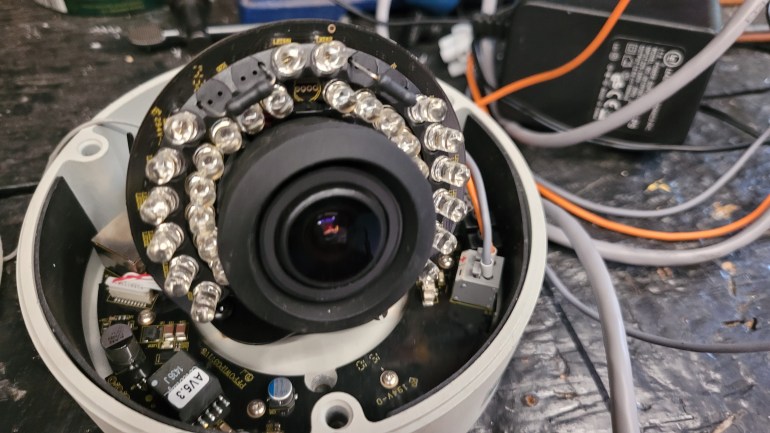


 after hours coding